Static websites may still work for many projects, but modern websites often need more than static content. Visitors now expect smooth transitions, interactive sections, and engaging visual effects that make browsing more enjoyable. However, building advanced animations in Elementor has traditionally meant dealing with custom code, which can limit what no-code users can create.
That changes today with the official launch of the HappyAddons GSAP Pack. It brings powerful GSAP-based animation capabilities directly into the Elementor workflow. You can create smooth scroll effects, pinned elements, animated text, image reveals, SVG effects, custom cursor interactions, horizontal scrolling, and much more without writing code.
The idea behind the pack is simple: give Elementor users greater creative freedom without making animation development complicated. In this post, we’ll take a quick look at the HappyAddons GSAP Pack and explore the different things you can create with it. Let’s get started!
Quick Summary of the Post
- 8 animation features and 7 widgets, all powered by GSAP.
- Widgets work as standalone elements; features extend their functionalities
- Create scroll, pinning, text, image, SVG, cursor, and horizontal scroll animations.
- Some features are free; advanced features and widgets require HappyAddons Pro.
- Elementor V4 widgets are not supported yet due to limited third-party access.
What Is the HappyAddons GSAP Pack?
GSAP stands for GreenSock Animation Platform. It is a widely used animation library that allows developers to create smooth and sophisticated web animations. The HappyAddons GSAP Pack is built around this technology and brings its capabilities into Elementor. As an Elementor addon, it allows you to create advanced, interactive, and smooth animations directly from the page builder.
Currently, the pack contains 8 GSAP-powered features and 7 widgets. Along with these, HappyAddons already offers 160+ widgets and 32+ features across its ecosystem. The team is also continuing to work on new GSAP-powered tools and improvements for upcoming releases.
What Can You Create with HappyAddons GSAP?
As mentioned above, the GSAP Pack covers several categories of animation that you can use across different parts of a website. You can apply individual effects or combine multiple effects to build more advanced interactions. Here are some of the main animation types you can create with the pack.
a. Scroll-Based Animations
Scroll-based animations tie movement to the way visitors scroll through a page. They can make otherwise static sections feel more interactive and engaging. The GSAP Pack provides several ways to create scroll-driven effects, including animations that begin when an element enters the viewport.
Scrub animations allow movement to follow the visitor’s scroll position. Pinning keeps selected content fixed while the surrounding page continues moving. Horizontal Scroll lets content move from left to right as the visitor scrolls vertically through the page.
b. Text Animations
Text Animation allows you to bring headings and other text elements to life with motion. Using GSAP SplitText, the text can be separated into individual characters, words, or lines and then animated independently.
You can create text reveals, character-based effects, line-by-line animations, and more. The Elementor editor also lets you control settings such as the trigger, direction, duration, and stagger of the animation.
Let’s explore if Elementor can build Webflow-level animations.
c. Image Animations
The GSAP Pack also provides several ways to animate images. Appearing Image creates smooth reveal effects when images enter the viewport, while Image Trail creates a sequence of images that follows the visitor’s cursor.
Image Cycle arranges multiple images in a rotating circular motion. You can configure these effects using Elementor’s visual controls instead of manually writing animation code.
d. Interactive Hover and Cursor Effects
Hover and cursor effects can make a website feel more responsive and interactive. Happy Mouse Cursor allows you to replace the standard browser cursor with a custom animated cursor that fits your website’s design.
Image Trail can also display a sequence of images that responds to mouse movement, creating an engaging visual trail. These effects allow you to build interactive experiences without having to write custom JavaScript.
e. Motion and Layout Effects
The pack also includes effects that change how elements move and behave within a page layout. Dropping Elements creates a falling entrance effect with movement and bounce, while Stacked Card creates layered card interactions as visitors scroll.
Marquee allows content to move continuously across a section. Sticky Pin Elements keeps selected content in place while other content moves around it. These effects give you more ways to create dynamic layouts without developing every animation from scratch.
f. SVG Animations
The GSAP Pack also makes SVG animation more accessible for Elementor users. You can animate SVG graphics, icons, illustrations, logos, and other vector elements. GSAP SVG Draw creates a drawing effect by animating SVG paths, while SVG Morphing smoothly changes one SVG shape into another.
Explore the GSAP Animation Features
The GSAP Pack includes features that work as extensions for existing Elementor widgets and containers. You can find their animation controls in the Advanced tab and apply them to the elements already on your page. There are eight features in the pack.
1. Global Animation
Global Animation gives you extensive control over GSAP animations for Elementor widgets and containers. You can animate properties including opacity, position, scale, rotation, blur, skew, color, background, border, box shadow, and perspective. You can also decide whether the animation moves From a particular state or To a particular state.
You can select different triggers for the animation, such as page load, element appearance, or scrolling. Scrub controls can connect the animation directly to the visitor’s scroll position. Multiple animation properties can also be combined to create more detailed effects.
2. Marquee
The Marquee feature turns content inside a container into continuously moving content. You can adjust the movement direction, speed, spacing, and whether the animation pauses when someone hovers over it.
It can be used for logos, text, images, announcements, and other repeating content. Because the effect works with container content, you can adapt it to many different design requirements.
3. Image Trail
Image Trail creates a sequence of images that follows the visitor’s cursor as it moves through a section. The images appear one after another, producing a smooth trail that responds to mouse movement.
You can add the images you want to use and adjust options such as image size, opacity, border radius, and animation speed from the Elementor panel. It provides an easy way to turn a simple section into a more interactive visual experience.
4. Sticky Pin Elements
Sticky Pin Elements allow you to keep a widget or container pinned while the visitor scrolls through a page. The surrounding content continues moving while the selected element stays visible until it reaches the end of its defined pin area.
This can be useful for feature sections, product presentations, storytelling layouts, and other designs where an important element needs to remain visible while other content changes around it.
5. Appearing Image
Appearing Image adds reveal animations to images that are triggered as visitors scroll. It offers different reveal styles that allow images to enter the page with smooth and controlled motion.
You can select the reveal direction and adjust options such as duration, tile count, and tile color depending on the animation style you choose. All of these settings can be handled inside Elementor without writing animation code.
6. Text Animation
Text Animation brings GSAP-powered movement to headings and other text elements. It can divide text into characters, words, or lines and animate those parts individually.
You can select the animation style and trigger it, and then adjust settings such as rotation, X and Y position, opacity, duration, and stagger. This gives you more control over how text appears while keeping the entire setup inside Elementor.
7. Horizontal Scroll
Horizontal Scroll transforms a section into a horizontal scrolling experience. Visitors continue scrolling vertically, but the content inside the selected section moves horizontally.
It can be useful for portfolios, product showcases, feature sections, image galleries, and other designs where multiple pieces of content need to be presented in a controlled sequence.
8. Happy Mouse Cursor
Happy Mouse Cursor replaces the browser’s regular cursor with a customized animated cursor. You can change its appearance and movement to create a more distinctive browsing experience.
Depending on the available settings, you can use custom images, blur effects, liquid-style movement, and other cursor options. The cursor size and animation speed can also be adjusted from the Elementor panel.
Explore the GSAP Animation Widgets
The GSAP widgets are standalone Elementor elements created around specific animation effects. You can drag them onto your page like any other Elementor widget and configure their options from the editor. There are seven widgets included in the pack.
1. Stacked Card
The Stacked Card widget creates a scroll-driven card stacking effect. As visitors move down the page, the cards transition into position and stack over one another to create a layered visual sequence.
You can add several cards and customize each one with its own content, image, and CTA. Options such as stacking offset and pin behavior allow you to adjust the effect to match your design.
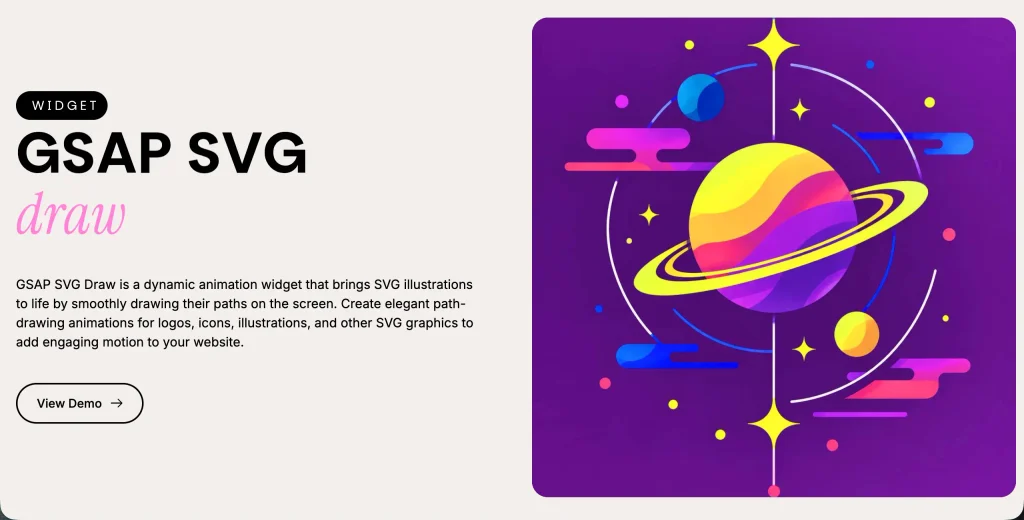
2. GSAP SVG Draw
GSAP SVG Draw animates SVG paths so they appear to be drawn gradually on the screen. It can bring logos, illustrations, icons, and other SVG graphics to life with a smooth drawing effect.
You can upload an SVG, configure the animation duration and easing, and choose how the animation should be triggered. Since it is powered by GSAP, the entire effect can be configured directly inside Elementor.
3. SVG Morphing
SVG Morphing allows one SVG shape to smoothly transform into another. It uses GSAP’s MorphSVG technology to create fluid transitions between different SVG shapes.
You can define the starting and ending shapes, adjust the duration and easing, and decide whether the animation should begin on page load or when the element enters the viewport. This can create striking effects for hero sections, illustrations, and interactive designs.
4. Dropping Elements
The Dropping Elements widget creates a falling animation for different visual elements, including images, icons, shapes, and text. The elements fall into position and can include bounce and stagger effects.
You can control settings such as element type, position, size, rotation, speed, stagger, and bounce. It can be particularly useful for hero sections, product displays, and other areas where you want an attention-grabbing entrance.
5. Text Scroll
The Text Scroll widget creates continuously moving text in a horizontal scrolling layout. Unlike the Marquee feature, which works with content inside a container, this is a dedicated standalone widget built specifically for animated text.
You can enter your own text and control options such as direction, speed, and styling. It can be used for brand messages, announcements, taglines, and decorative sections.
6. Image Cycle
The Image Cycle widget arranges several images around a central heading and subtitle in a rotating circular layout. The images move around the orbit to create a continuous animated effect.
You can add multiple images and customize options such as orbit size, rotation speed, stagger, entrance duration, and text content. It can be a good fit for hero sections, portfolios, feature showcases, and other visually focused areas.
7. SVG Line Draw
The SVG Line Draw widget creates an animated stroke effect for SVG paths. The lines gradually appear on the screen, giving the impression that the graphic is being drawn in real time.
You can upload an SVG and configure options such as drawing speed, stroke appearance, and scroll triggering. It can be useful for timelines, process illustrations, line-art graphics, and other designs where a drawing effect supports the content.
Why Use GSAP Animations in Elementor?
GSAP gives you precise control over web animations, from simple movements to advanced scroll-based interactions. HappyAddons GSAP makes it easier to add rich motion to your website without building each animation from scratch.
a. Create Advanced Animations Without Code
Building sophisticated GSAP animations normally requires some JavaScript knowledge. You need to define the animation logic, configure triggers, select properties, and adjust timing through code. With HappyAddons GSAP, you can configure many of these options through visual controls instead of writing JavaScript yourself.
b. Build Everything Inside the Elementor Editor
You don’t have to move between Elementor and a separate code editor to create animations. The GSAP controls are available inside the Elementor interface alongside the elements you are already designing. This makes it easier to build, modify, and preview animations as part of your normal design process.
c. Create Different Animation Effects with One Pack
The GSAP Pack brings a wide variety of animation capabilities into one Elementor-focused solution. You can create scroll effects, pinned elements, horizontal scrolling, text and image animations, SVG effects, cursor interactions, and other motion effects from within the same ecosystem.
d. Create More Interactive User Experiences
Well-planned animation can make important parts of a website more engaging and help guide visitors through a page. You can use scroll effects to introduce content, pin important sections, animate text and images, or add interactive cursor effects to create a more responsive experience.
e. Get More Control Over Timing and Motion
Duration, delay, easing, stagger, and trigger positions all influence how an animation looks and feels. The GSAP Pack gives you control over these details inside Elementor. You can fine-tune the movement and create animations that better match your website’s design and overall flow.
What Makes HappyAddons GSAP Different?
The difference is the workflow. GSAP animations have always been possible on WordPress websites. What changes with the HappyAddons GSAP Pack is where the animation work happens and how easily Elementor users can access it.
| Traditional Animation Workflow | HappyAddons GSAP Workflow |
|---|---|
| Write custom JavaScript | Use Elementor controls |
| Build GSAP animations manually | Configure animations visually |
| Manage separate animation code | Manage animations inside Elementor |
| Add multiple tools for different effects | Use one integrated GSAP Pack |
| Test code changes repeatedly | Adjust settings and preview as you design |
The GSAP library itself is not new. The difference is that the HappyAddons GSAP Pack brings its animation capabilities directly into the Elementor editor. Instead of writing and managing animation code, designers can configure motion using visual controls. This makes advanced GSAP-powered effects much more accessible to people who prefer a no-code workflow.
Who Is the HappyAddons GSAP Pack For?
The HappyAddons GSAP Pack is designed for different types of Elementor users who want to add more advanced motion to their websites without writing custom animation code. Here are some of the users who can benefit from it.
1. Elementor Web Designers
Designers who build websites with Elementor and want more animation control can use features like Global Animation, Text Animation, and Appearing Image. These tools make it easier to create scroll effects, text reveals, image animations, and other motion effects directly from the Elementor editor.
2. Freelancers
Freelancers can use the GSAP Pack to add more advanced animations to client projects without building every effect from scratch. They can create, adjust, and preview animations through Elementor’s visual controls, making it easier to handle animation as normal design workflow.
3. Agencies
Agencies working on multiple Elementor websites can use the GSAP Pack as part of their design workflow. Instead of maintaining separate animation code for different projects, teams can configure animations through the same Elementor-based controls across their websites.
4. Creative Portfolio Owners
Portfolio websites often rely on visual interactions to showcase creative work. Effects such as Image Trail, SVG Morphing, and Horizontal Scroll can help create more dynamic project showcases, case studies, and interactive portfolio sections.
5. Landing Page Designers
Landing pages can use animation to introduce products, features, and key sections as visitors scroll through the page. Stacked Cards, Dropping Elements, and Sticky Pin Elements can be useful for creating more dynamic product sections, feature showcases, and storytelling layouts.
6. WordPress Site Owners Who Don’t Code
If you manage your own WordPress website with Elementor and don’t write JavaScript, the GSAP Pack gives you a visual way to create advanced animation effects. You can configure motion directly inside the Elementor editor instead of relying on custom code for every animation.
Get the Complete GSAP Tutorial
Although GSAP has made animation building remarkably easier for no-code users, you must have some basic idea regarding the pack, its settings, how-to configure, etc. Otherwise, it still may look kinda difficult. So, we have created a complete video tutorial playlist over covering all our features and widgets. You’ll get it from the link attached below.
What You Need to Use the HappyAddons GSAP Pack
The requirements are minimal. You need WordPress, Elementor, and HappyAddons to use the GSAP Pack. The free version of Elementor is sufficient for most features. Some GSAP capabilities are available in HappyAddons Free, while others require HappyAddons Pro. The feature and widget sections above show which tier each capability belongs to.
You can also check the full plan details on the HappyAddons pricing page. For compatibility, HappyAddons requires WordPress 6.8 or later and PHP 8.1 or later. It is tested up to WordPress 7.0.2. We also recommend using a modern web browser for the best editing and preview experience in Elementor.
Note on Elementor V4 compatibility:
The GSAP features currently work with Elementor widgets that are available to third-party addons. Elementor V4 widgets are not yet supported where Elementor has not provided third-party addon access. Standard Elementor widgets and HappyAddons widgets that are accessible to third-party addons are supported.
Frequently Asked Questions About HappyAddons GSAP
Now, in this section, we’ll answer some of the most common questions that may hit your mind. Read them below.
What is the HappyAddons GSAP Pack?
The HappyAddons GSAP Pack is a set of many animation features and widgets that bring GSAP-powered motion effects into the Elementor page builder. It lets you add scroll animations, SVG effects, text animations, cursor effects, and more without writing code.
Can I use GSAP animations in Elementor without coding?
Yes. Every feature and widget in the GSAP Pack is configured through Elementor’s control panel using sliders, dropdowns, and visual settings. No JavaScript, no CSS files, and no code editor access is required at any point.
Does HappyAddons GSAP require JavaScript knowledge?
No. The GSAP library runs in the background and handles the animation engine. You interact only with Elementor’s visual controls. The pack is built specifically so that designers and site owners without JavaScript experience can produce GSAP-quality animations.
What GSAP plugins are included?
The pack uses GSAP core, ScrollTrigger for scroll-based animations and scrubbing, MorphSVG for SVG shape morphing, and SplitText for character and word-level text animations. All of these run internally through HappyAddons. You do not need a separate GSAP license to use them.
Can I animate Elementor widgets and containers?
Yes. Features like Global Animation, Text Animation, Appearing Image, Sticky Pin Elements, Horizontal Scroll, Marquee, Image Trail, and Happy Mouse Cursor all work as extensions on top of any existing Elementor widget or container. You apply them through the Advanced tab of the element you want to animate.
Can I create scroll-triggered animations in Elementor?
Yes. Global Animation supports both scroll-triggered mode, where the animation plays once when the element enters the viewport, and scrub mode, where the animation is tied directly to scroll position and moves forward and backward with the user’s scroll. You control the trigger start and end positions visually.
Can I pin elements while scrolling in Elementor?
Yes. The Sticky Pin Elements feature locks any Elementor container to the screen for a defined scroll distance while content above and below continues scrolling. The pin start position, duration, and end behavior are all set inside the Elementor editor.
Can I create SVG animations in Elementor?
Yes. The pack includes three SVG animation options. GSAP SVG Draw and SVG Line Draw both animate SVG paths to draw themselves on screen. SVG Morphing transitions one SVG shape into another using GSAP’s MorphSVG plugin. All three work with standard SVG files uploaded through the Elementor media library.
Does HappyAddons GSAP work with Elementor V4?
The GSAP Pack works with Elementor widgets available to third-party addons, which covers standard Elementor widgets and all HappyAddons widgets. Elementor V4 introduced a new widget architecture that currently limits third-party addon access. Where Elementor has not yet opened that access, V4-exclusive widgets are not yet supported. This does not affect the large majority of Elementor and HappyAddons widgets.
Do I need HappyAddons Pro to use the GSAP Pack?
Some GSAP features are available in HappyAddons Free, including Text Animation, Appearing Image, and Image Cycle. Advanced features and all Pro widgets require HappyAddons Pro. The full breakdown of which features belong to which tier is on the HappyAddons pricing page.
Final Takeaways
The HappyAddons GSAP Pack is the most significant animation upgrade the plugin has shipped. Hopefully the release will take your Elementor experience to a whole new level. If you’ve been frustrated with adding animations to your landing pages, I hope that frustration ends today.
Fifteen GSAP-powered additions, eight features, and seven widgets now bring scroll animations, text effects, SVG draw and morph, cursor interactions, and cinematic layout motion into Elementor without a line of code.
The effects that used to require a JavaScript developer are now available to anyone building in Elementor. Try the GSAP Pack today and tell us what you build.