
Translate the WP ERP Core Plugin
You can translate the free WP ERP plugin in two ways:
- Online, on translate.wordpress.org. Your translation then goes to all WP ERP users in your language.
- On your own computer, with Poedit. Use this way when you need the translation now, or when you want your own words.
The examples on this page use German (de_DE). Use the code of your language. You can find the codes on https://translate.wordpress.org/.
Translate online
- Go to https://translate.wordpress.org/projects/wp-plugins/erp/.
- Log in with your WordPress.org account.
- Select your language, then select Stable (latest release).
- Translate the texts.
A translation editor of your language must approve your translations. The WP ERP team cannot approve them. To find the editors of your language, go to https://make.wordpress.org/polyglots/teams/.
When the translation of your language is complete enough, WordPress.org makes a language pack. Your site downloads it with the other updates. The language pack has the .json files for the HR screens too.
Translate with Poedit
Before you start
- Install Poedit (free) from https://poedit.net/.
- Get the WP ERP plugin files. Download the zip from WordPress.org and unzip it, or copy the
erpfolder fromwp-content/plugins/. - To make the
.jsonfiles for the HR screens, you need WP-CLI on your computer or server. Ask your host if you are not sure.
Step 1: Make a translation from the template
- Open Poedit.
- Click File → New From POT/PO File.
- Open
erp/i18n/languages/erp.pot. - Select your language, for example German (Germany).
Step 2: Translate the texts
Select each text in the list and type the translation. You can save and continue later.
Step 3: Save the files with the correct name
Save the file as erp-de_DE.po. Poedit also saves erp-de_DE.mo next to it.
The name must be erp- followed by your language code. If the name is different, WordPress does not use the file.
Step 4: Make the files for the HR screens
The HR screens in WP ERP 2.0 need .json files. Make them from your .po file with WP-CLI:
wp i18n make-json erp-de_DE.po --no-purgeThis makes several files with names such as erp-de_DE-1a2b3c….json. Keep all of them. Do not rename them.
Step 5: Upload the files
Upload erp-de_DE.po, erp-de_DE.mo, and all the erp-de_DE-….json files to this folder on your site:
wp-content/languages/plugins/
A plugin update does not delete files in this folder.
Step 6: Set the site language
- Go to Settings → General.
- In Site Language, select your language.
- Click Save Changes.
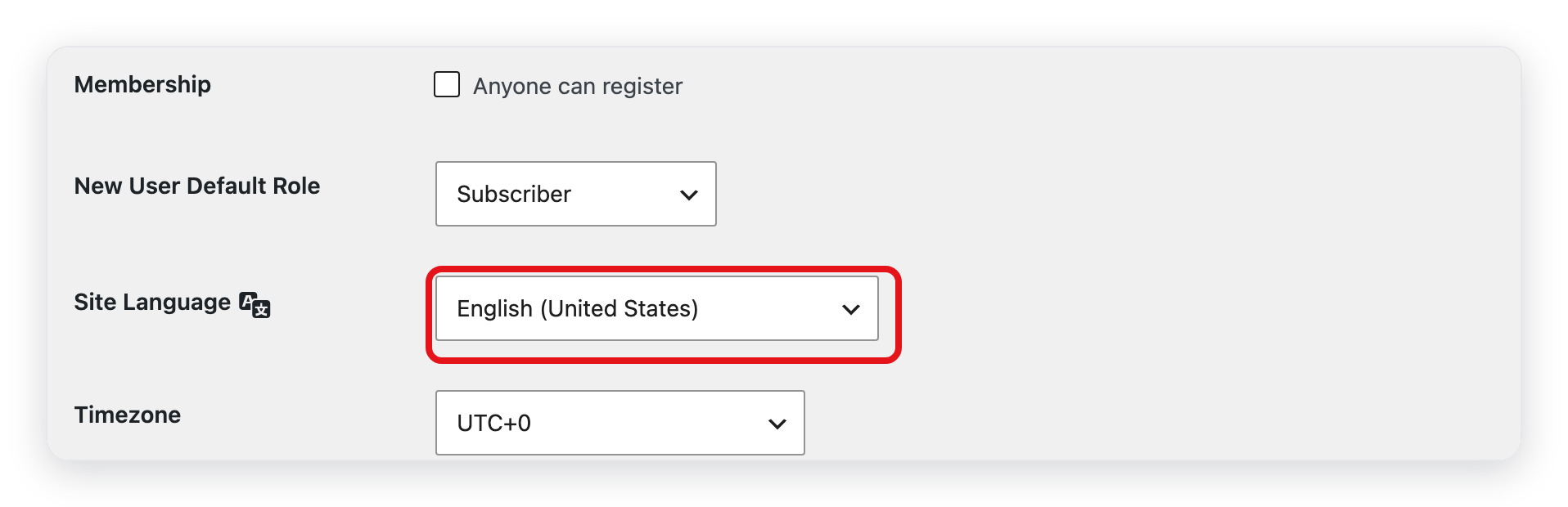
Result
Open WP ERP → HR. The menus, the pages, and the HR screens show your translation. If a text is still in English, that text is not translated in your .po file yet.
Problems
| Problem | Cause and fix |
|---|---|
| The HR screens stay in English, but the Tools and Settings pages are translated. | The .json files are missing. Do Step 4, then upload the files. |
| Nothing is translated. | Make sure that the file name starts with erp- and has the correct language code, for example erp-de_DE.mo. Make sure that the site language is set. |
| The translation went away after an update. | The files were in the plugin folder. Move them to wp-content/languages/plugins/. |
| New texts after an update are in English. | Open your .po file in Poedit and click Translation → Update from POT File. Select the new erp.pot. Translate the new texts, then do Steps 3 to 5 again. |
Share your translation
To share your translation with all users, translate online on translate.wordpress.org. You can also send your .po file to [email protected].
What changed in 2.0
- The HR screens need
.jsonfiles. With a.mofile only, the HR screens stay in English. - Keep your files in
wp-content/languages/plugins/, not inwp-content/plugins/erp/i18n/languages/. The plugin folder is replaced on each update. - The old page used the code
fr_fras an example. Language codes use a capital second part, for examplefr_FR.