

AI CV Screening & Analysis
WP ERP can automatically read, score, and rank resumes for each job application. This guide covers how the scoring works and how to use the AI Talent Pool to review candidates.
Note: The AI only analyzes PDF resumes. If a candidate uploads another file type, it’s skipped — mention PDF-only on your job posting to avoid this.
How CV Screening Works
When a candidate applies, their resume goes through these steps:
- Submission: The candidate applies with a PDF resume through your careers page.
- AI Evaluation: The resume text, job requirements, and scoring weights are sent to your AI provider for scoring.
- Talent Pool Update: The candidate’s entry is updated with scores, strengths, weaknesses, and a full breakdown.
This usually finishes shortly after the candidate applies.
How Scoring Works
Each candidate is scored in five areas. You set the weight of each on the job’s AI settings page:
- Skills: Match between the candidate’s skills and the job’s core and secondary skill requirements.
- Experience: How relevant and how much of their work history fits this role.
- Education: Match between their academic background and the job’s education requirement.
- Certifications: Whether they hold certifications relevant to the role.
- Soft Skills: Communication, leadership, and other transferable qualities found in the resume.
The AI separates Total Experience (every job the candidate has held) from Relevant Experience (only the part matching this job’s core skills). Which one counts depends on the job’s AI Scoring Mode:
- Required (Hard Match): Unrelated experience earns 0 points, even if the candidate has years of unrelated work history.
- Preferred (Loose Match): Unrelated experience can still earn partial credit for transferable skills.
Set the scoring mode on each job’s settings page based on how strict you want the experience match to be.
AI Talent Pool Dashboard
To review scored candidates, go to WP Admin Dashboard → WP ERP → HR → Recruitment → AI Talent Pool.
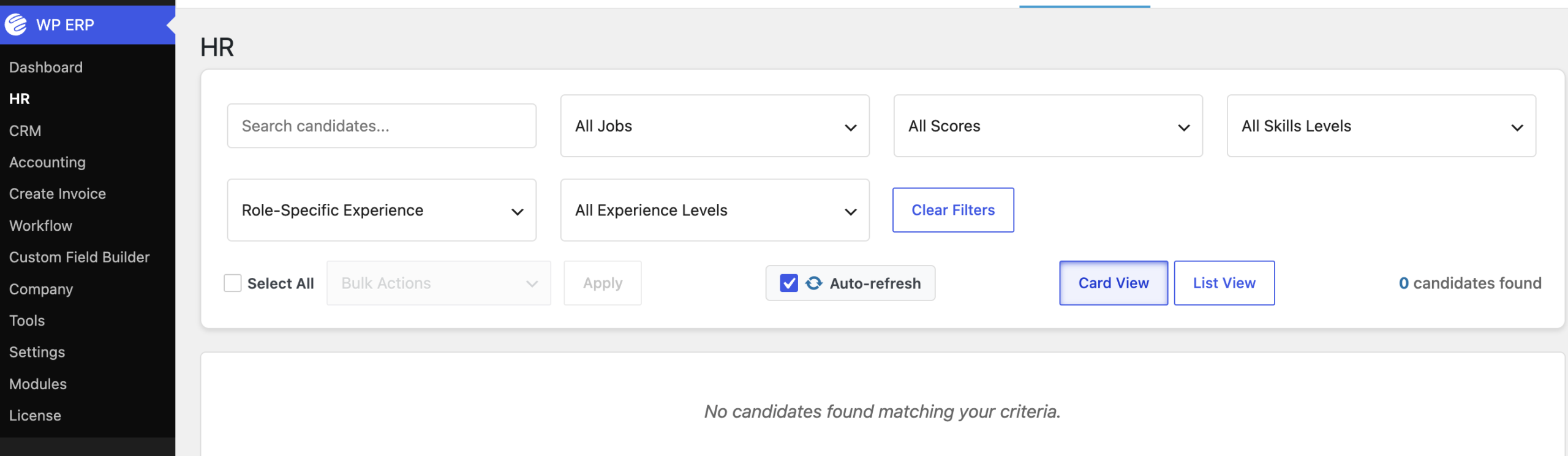
Filters:
- Search: Find candidates by name or email.
- Filter by Job: Show candidates for one job.
- Filter by Score: Filter by score range (90–100, 80–89, and so on), or select ❌ Failed to Score to find candidates whose analysis didn’t complete.
- Filter by Experience: Filter by experience level (Fresh, Junior, Mid-level, Senior, Expert). Use the Experience Type dropdown to base this on Role-Specific or Total experience.
Each candidate appears as a card with their name, Overall Score badge, applied job, Relevant vs. Total experience, Match Score percentage, and top three matched skills.
Auto-Refresh: Check this box to have the dashboard refresh on its own as new candidates finish processing. Uncheck it to keep the grid static until you refresh the page yourself.
Export CSV / Export JSON: Download the currently filtered candidate list as a spreadsheet (CSV) or raw data (JSON). Both exports only include candidates matching your active filters.
Reviewing a Candidate
Click a candidate card to open their full analysis:
- Overall Score: Color-coded — Excellent (green, 80+), Good (blue, 60–79), Average (orange, 40–59), Poor (red, below 40).
- Detailed Evaluation Table: Match Score and a short note for each of the five scoring areas.
- AI Summary: A short written assessment of the candidate.
- Strengths and Areas for Improvement lists.
- Recommendations, Key Skills Found vs. Missing Skills, Work History (with a green Relevant badge on matching roles), Educational Background, and badges for Certifications, Portfolio, Open Source, and Remote Work, plus any social links.
If you update the job’s requirements or scoring weights after a candidate applied, click Reprocess to re-score them. This overwrites their previous scores.
The Match Score and AI status columns only appear on your regular candidate pipeline when Enable AI CV Analysis is switched on in AI Settings.
Troubleshooting
| Issue | Cause / Fix |
|---|---|
| No analysis shown for a candidate | Their resume isn’t a PDF. Only PDFs are analyzed. |
| Red status bar with an error | Processing failed. Common causes: no readable text (scanned image PDF), missing API key, response couldn’t be parsed, content too long, or provider busy. Click Reprocess. |
| Scores look outdated after changing job requirements | Existing candidates keep old scores until you click Reprocess. |
| New candidates missing from Talent Pool | Check that Auto-Refresh is turned on. |
| AI columns missing from pipeline view | Turn on Enable AI CV Analysis in AI Settings. |
| Export has fewer candidates than expected | Exports only include candidates matching your current filters. Clear or widen them first. |
Still stuck? How can we help?