
HR Reports
HR reports show facts about your employees in charts and tables. For example, you can see the age groups in each department, the gender ratio, or how many employees you had each month.
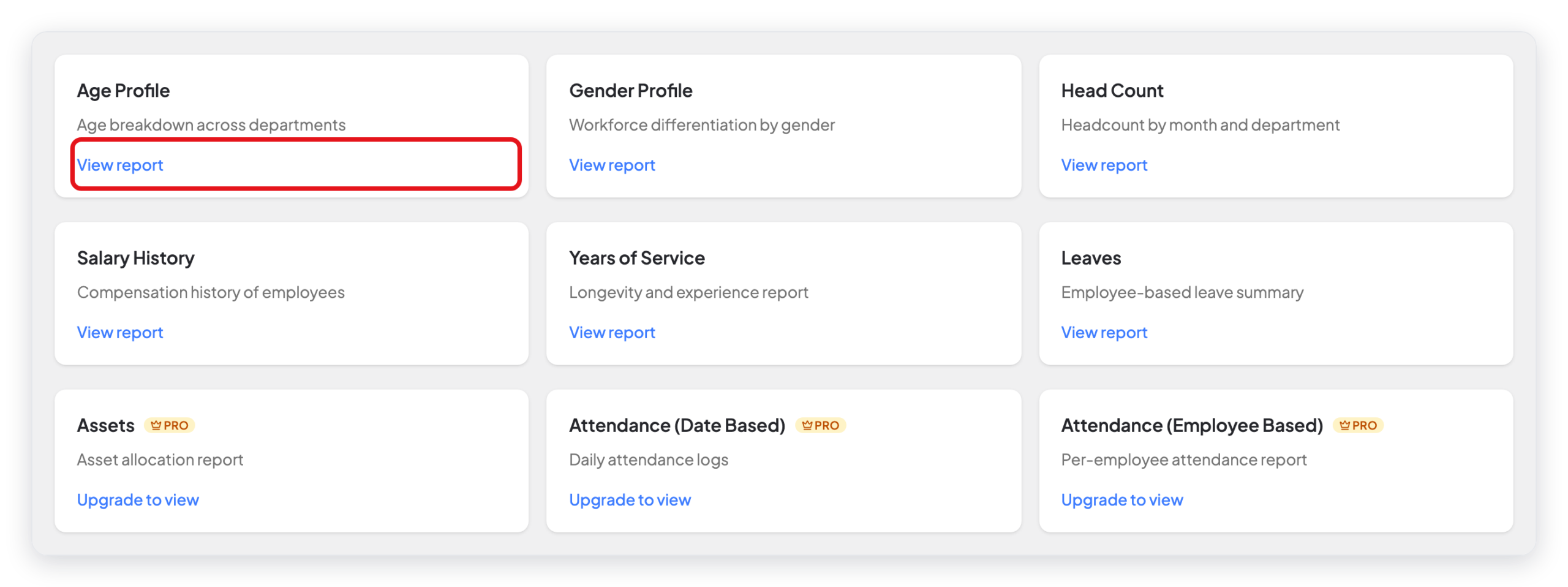
The free version of WP ERP has six HR reports:
| Report | What it shows |
|---|---|
| Age Profile | How many employees are in each age group, for each department. |
| Gender Profile | The number of men and women, for the company and for each department. |
| Head Count | The number of employees for each month of a year. |
| Salary History | The pay of each employee and each change to it. |
| Years of Service | The work anniversary of each employee and the years they have worked. |
| Leaves | The leave days that each employee used, out of the days they get. |
ERP Pro adds three more reports: Assets, Attendance (Date Based), and Attendance (Employee Based). In the free version, these show a PRO label.
Before you start
You must be a WordPress administrator or an HR manager to see the reports.
Open the reports
- In your WordPress admin, go to WP ERP → HR.
- In the top menu, open Reports.
- Click the name of a report.
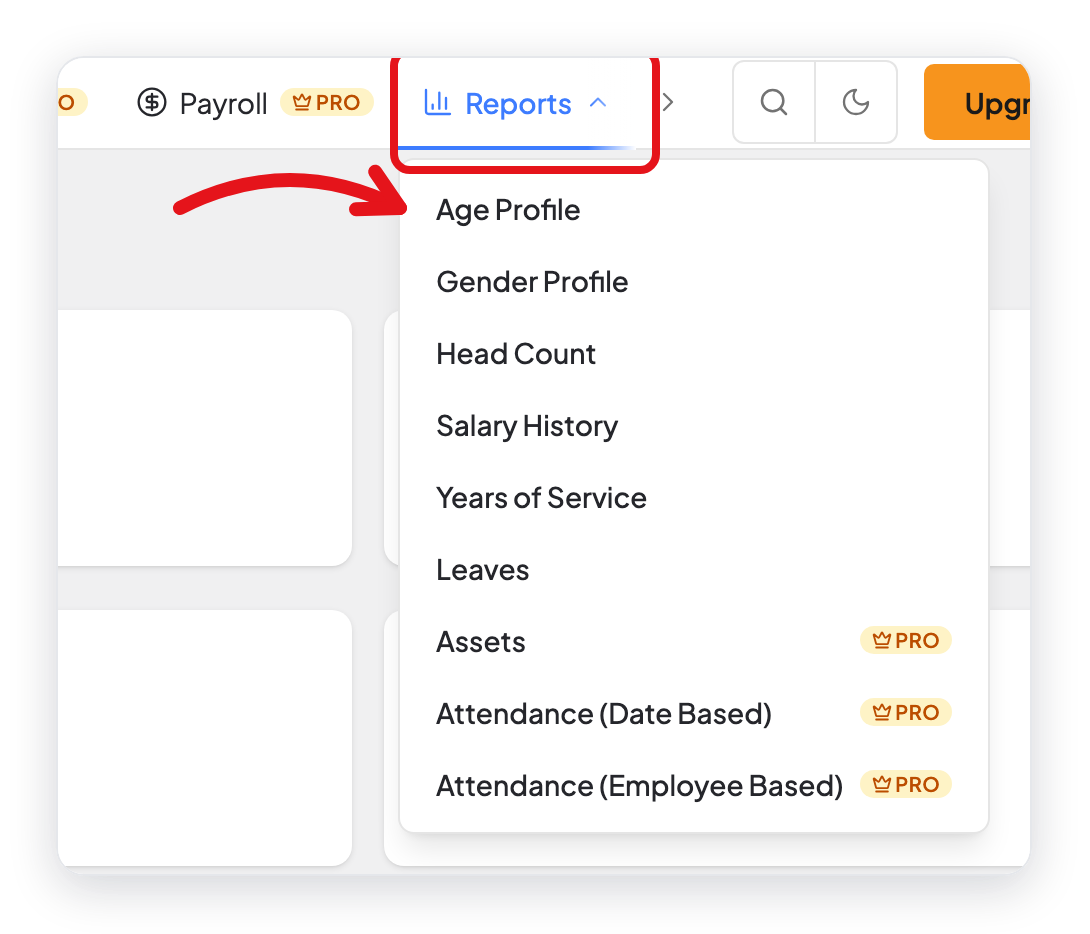
You can also click Reports itself. The Reports page shows one card for each report. Click View report on a card to open that report.
When a report is open, a row of tabs shows at the top. Click a tab to go to a different report.
Who the reports count
Most reports count only active employees. The Leaves report also shows employees who left during the year that you select.