

Advanced Leave Management
Advanced Leave adds more leave rules to the free leave system. You can allow half-day leave, give leave every month, carry unused leave to the next year, pay for unused leave, and more.
Before you start
- You must have WP ERP Pro with an active license, and the Advanced Leave module must be on.
- You must have leave types and leave policies. See Create a Leave Policy.
Step 1: Turn on the features
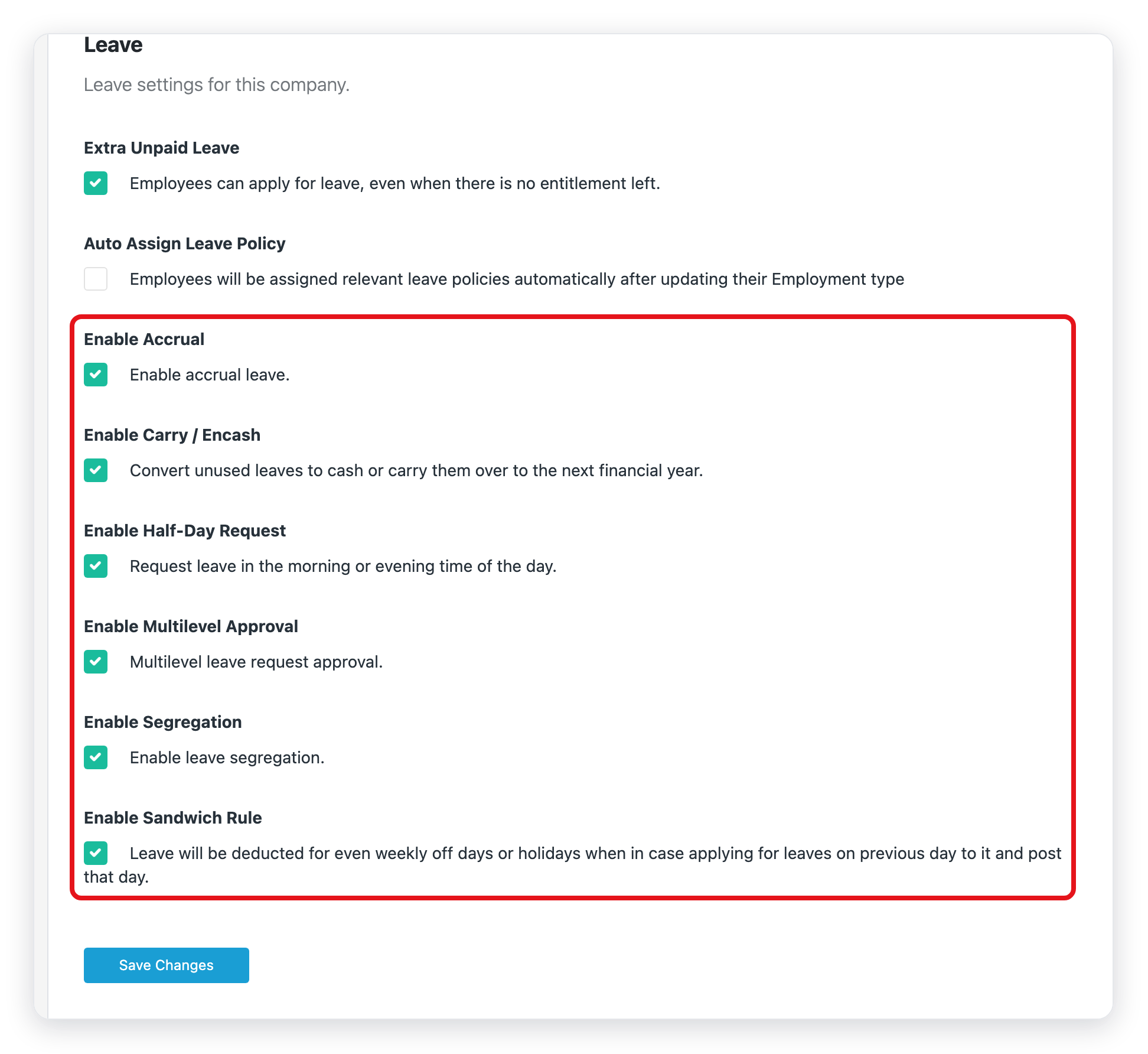
- Go to WP ERP → Settings → HR.
- Click the Leave tab.
- Select each feature that you want to use.
- Click Save Changes.
| Setting | What it does |
|---|---|
| Extra Unpaid Leave | Employees can ask for leave when they have no days left. The extra days are unpaid. This setting is part of free WP ERP. |
| Enable Accrual | Employees earn leave days each month. |
| Enable Carry / Encash | Unused days move to the next year, or the company pays for them. |
| Enable Half-Day Request | Employees can ask for a morning or an afternoon off. |
| Enable Multilevel Approval | The department head sees each request first. |
| Enable Segregation | New employees get fewer days, based on the month when they join. |
| Enable Sandwich Rule | Weekends and holidays between two leave days count as leave days. |
Step 2: Set the rules on a leave policy
When a feature is on, its fields show in the leave policy form.
- Go to WP ERP → HR → Leave → Leave Policies.
- Click Add Policy, or edit a policy.
- Fill in the sections below, then save the policy.
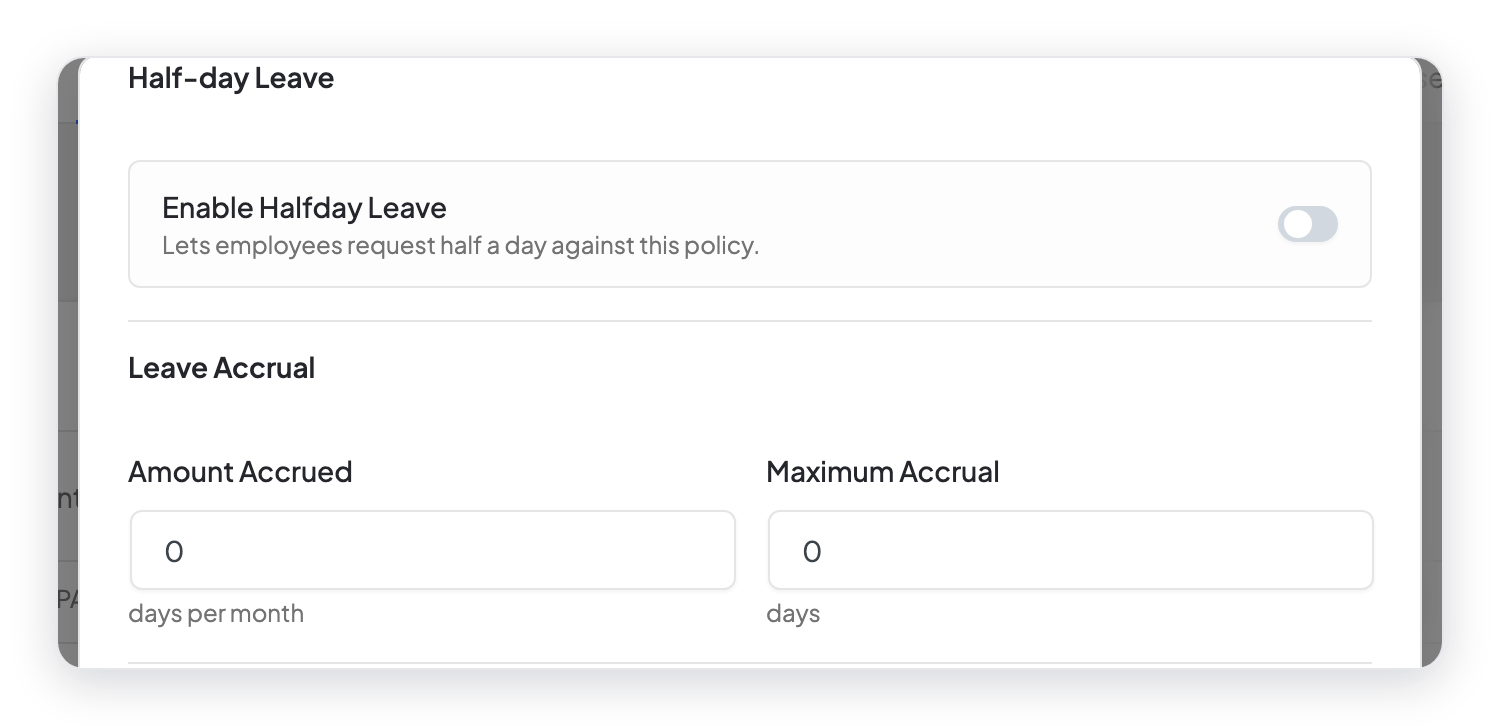
Half-day leave
Turn on Enable Halfday Leave to let employees take half a day with this policy.
Leave accrual
- Amount Accrued: the days that an employee earns each month.
- Maximum Accrual: the most days that an employee can earn.
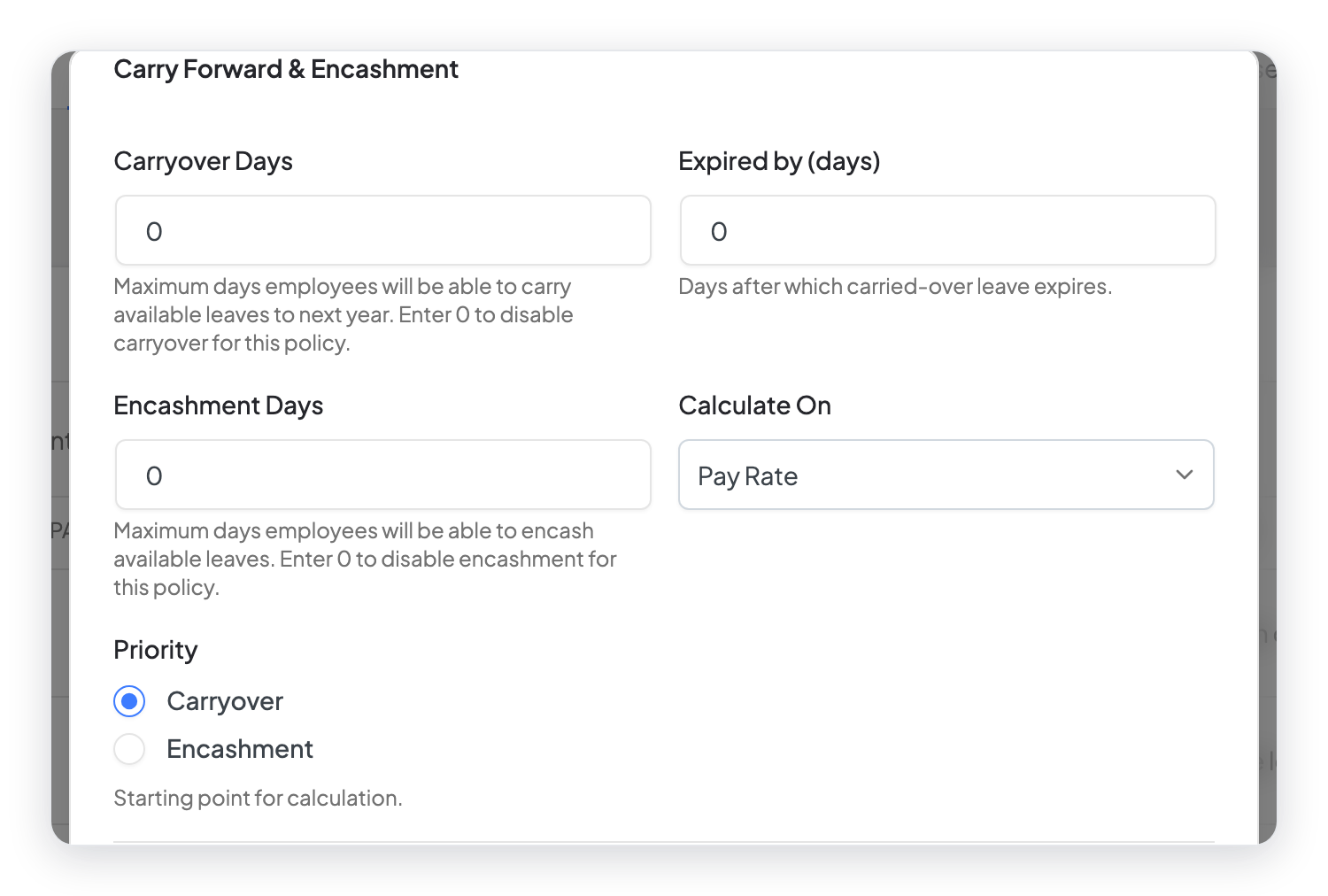
Carry forward and encashment
- Carryover Days: the most unused days that can move to the next year. Type 0 to turn off carryover.
- Expired by (days): the number of days after which carried-over leave expires.
- Encashment Days: the most unused days that the company pays for. Type 0 to turn off encashment.
- Calculate On: the amount that WP ERP uses to calculate the payment. The default is Pay Rate.
- Priority: choose if WP ERP uses the days for carryover first or for encashment first.
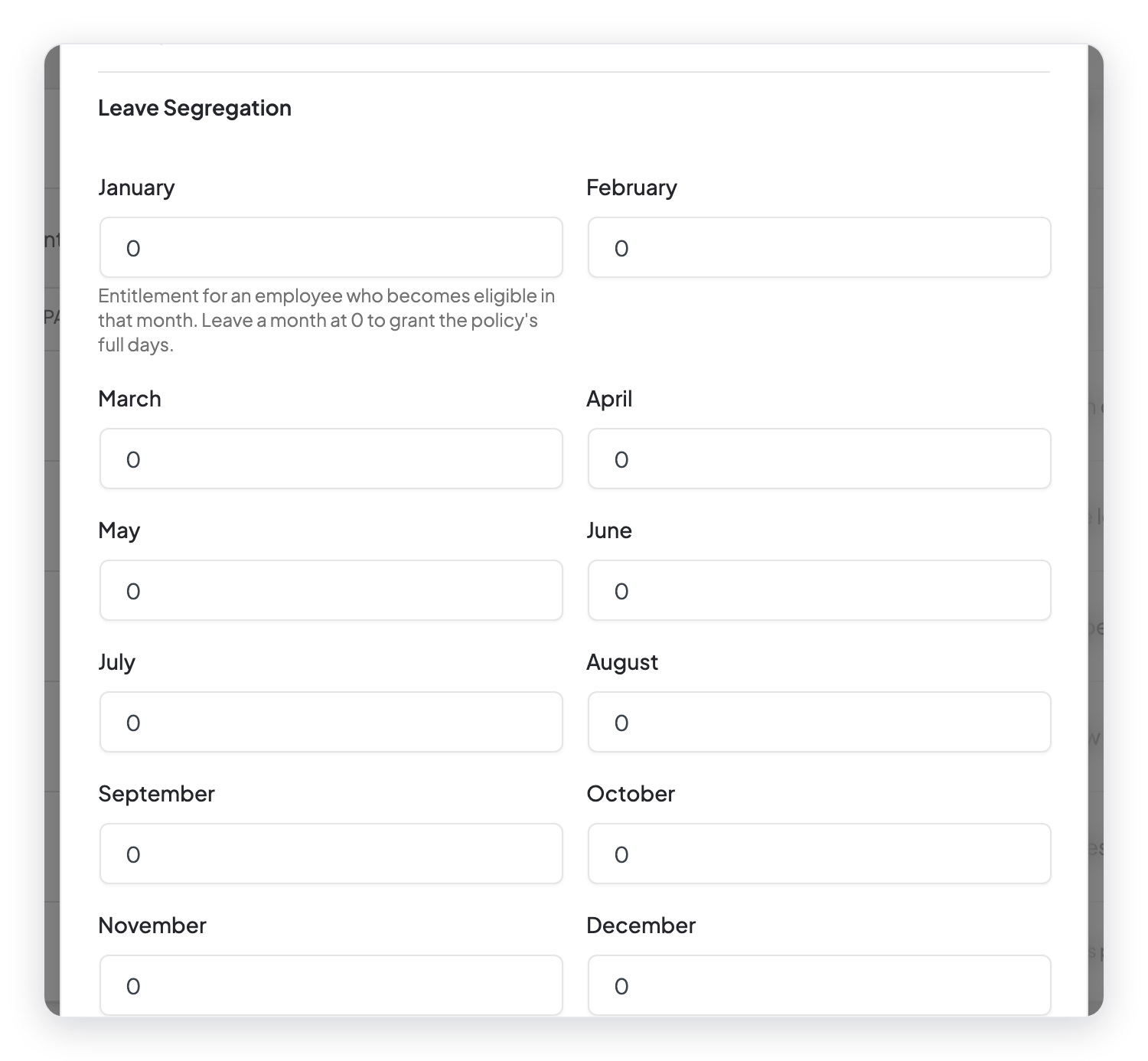
Leave segregation
Type the days that an employee gets if they become eligible in each month. Keep a month at 0 to give the full days of the policy.
Step 3: Take a half-day leave (employee)
- On the HR dashboard, click Take a Leave.
- Select a Leave Policy that allows half-day leave.
- Turn on Half-day Leave.
- Select the Leave Period: Morning or Afternoon.
- Select the From date, type the Reason, and click Submit Request.
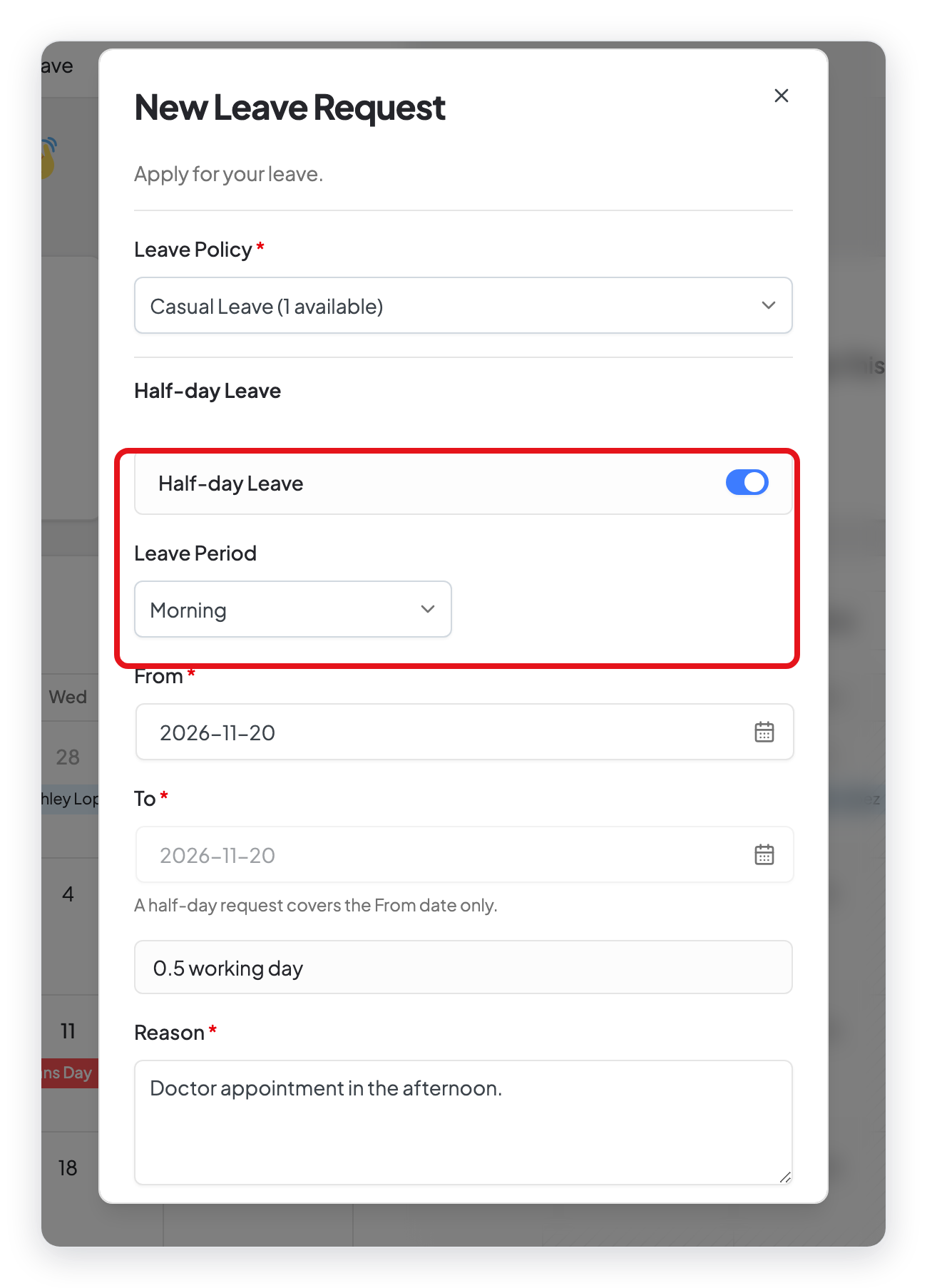
A half-day request covers the From date only. It counts as 0.5 working day.
Step 4: Manage unpaid and forwarded leave
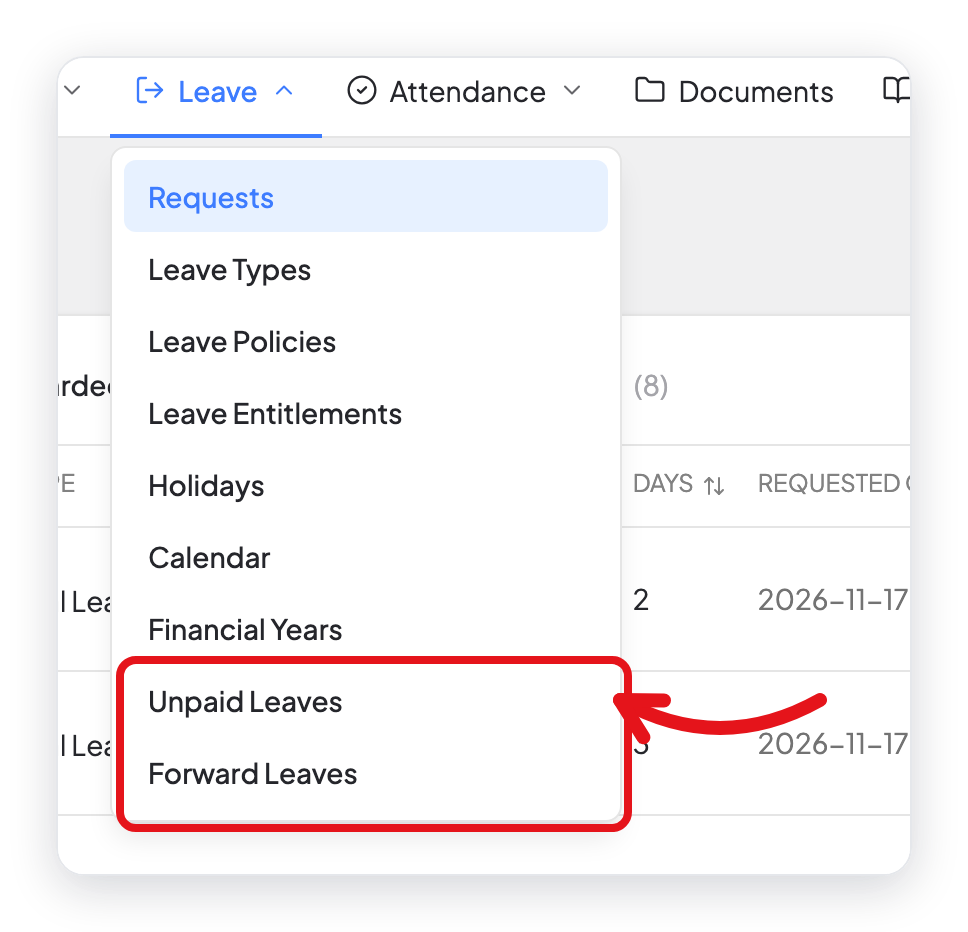
Two new pages show in the Leave menu:
- Unpaid Leaves shows when Extra Unpaid Leave is on.
- Forward Leaves shows when Enable Carry / Encash is on.
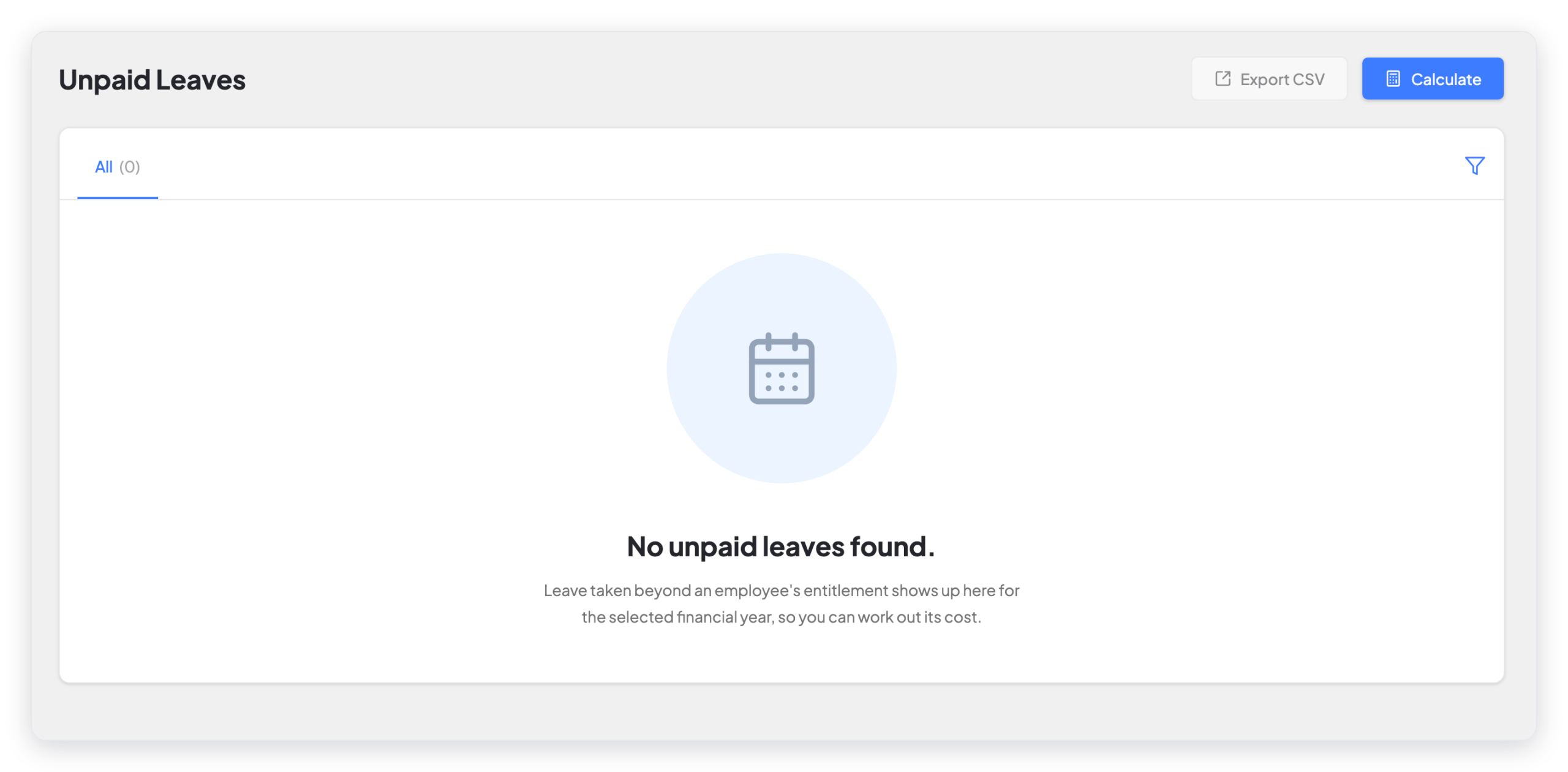
Unpaid Leaves
This page lists the leave that employees took after they had no days left. Select the financial year, then click Calculate to work out the cost. Click Export CSV to download the list.
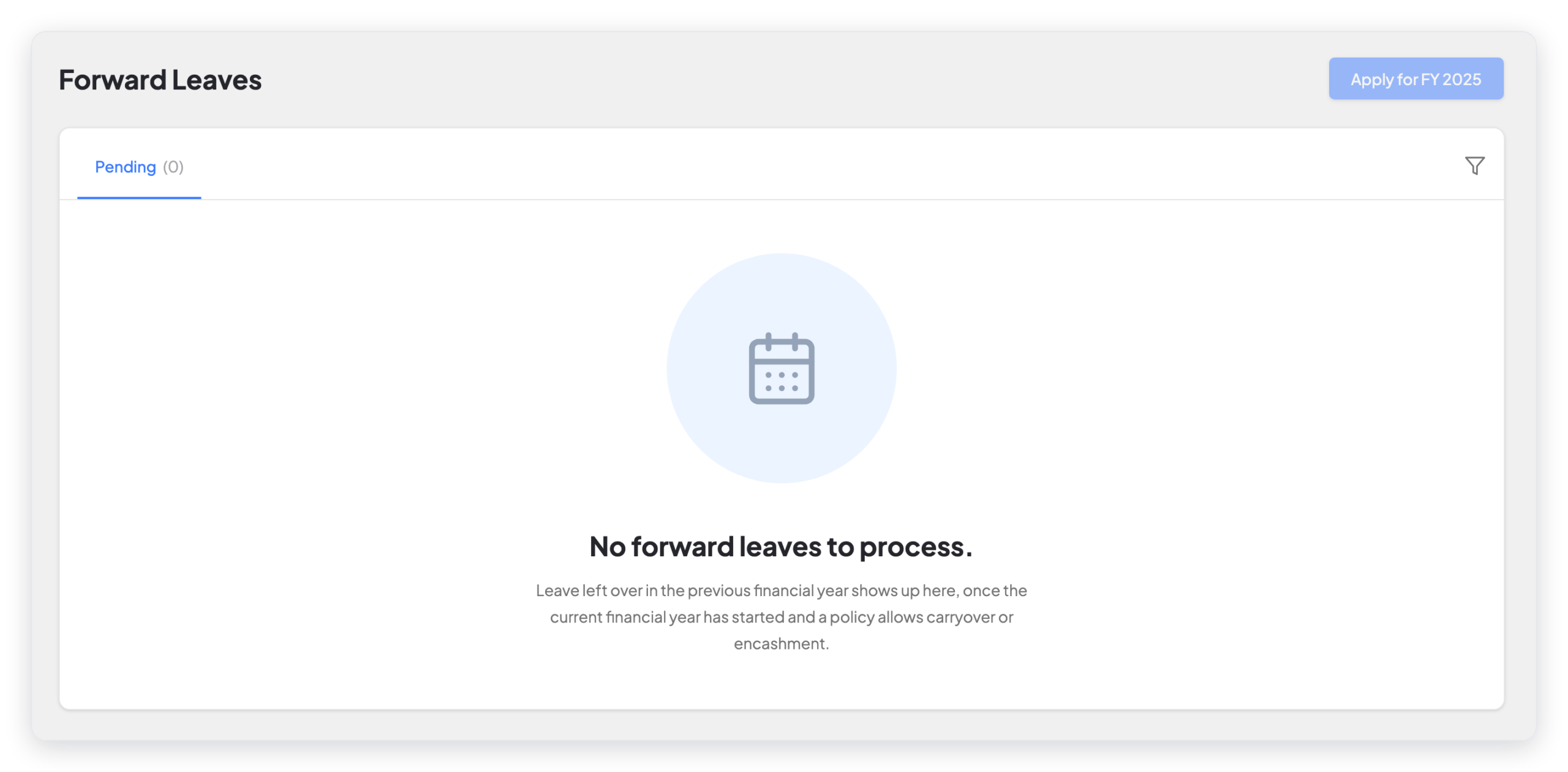
Forward Leaves
After a new financial year starts, this page lists the unused leave of the last year. Click Apply for FY to carry the days forward or to encash them, as each policy allows.
Multilevel approval
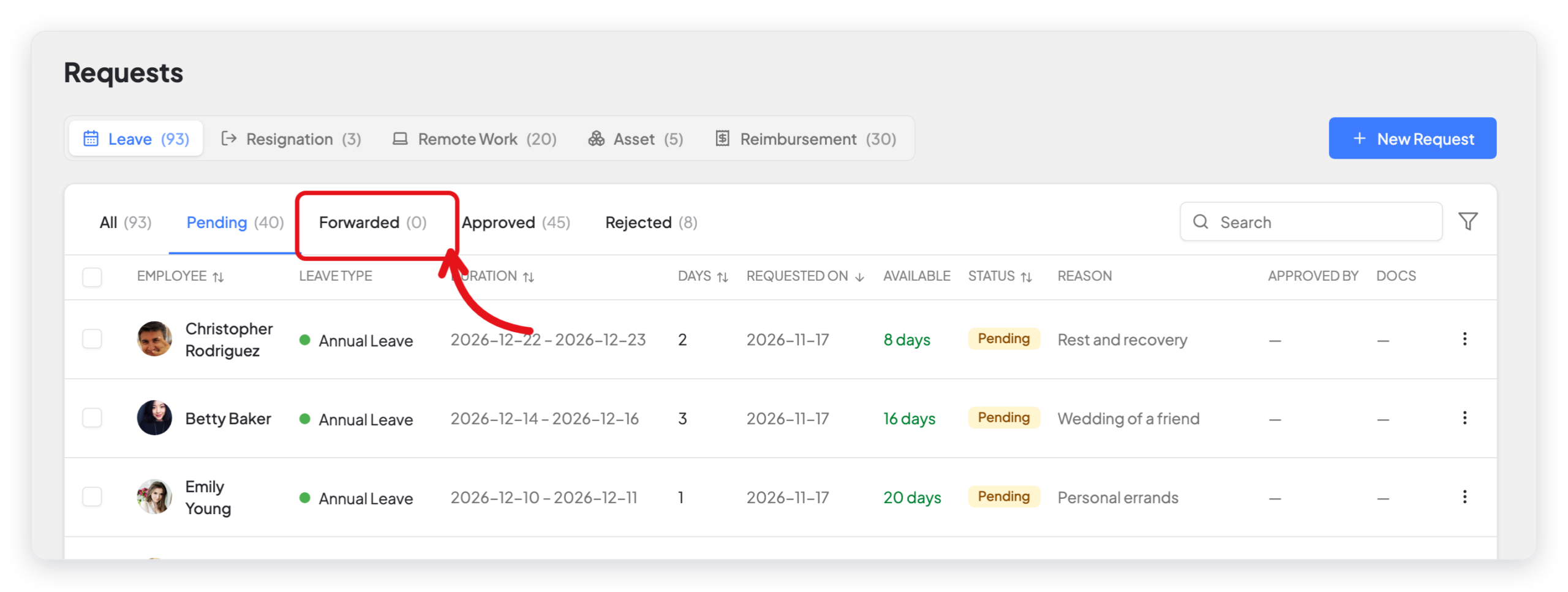
When Enable Multilevel Approval is on, WP ERP also sends each new leave request to the department head of the employee. The department head can approve or reject the request, or forward it to another person with a reason. Forwarded requests show on the Forwarded tab of Leave → Requests. An HR manager makes the last decision.
Sandwich rule
When the sandwich rule is on, days off between two leave days also count as leave. For example, an employee takes Friday and Monday off. Saturday and Sunday are weekly days off. With the sandwich rule, WP ERP counts four days, not two.
What changed in 2.0
- All the settings are on one tab: Settings → HR → Leave.
- The policy fields are now in sections of the Add Leave Policy window: Half-day Leave, Leave Accrual, Carry Forward & Encashment, and Leave Segregation.
- The half-day option is a switch in the leave request window, with Morning or Afternoon.
- Unpaid Leaves and Forward Leaves are pages in the Leave menu. Each page shows only when its setting is on.
- Forwarded requests have their own Forwarded tab on the leave requests page.



