

Set the Pay Details of an Employee
Before you run payroll, give each employee a basic pay and their fixed pay items. A pay run uses these values every time.
Before you start
- The Payroll module must be on. See Payroll.
- The pay items that you want to add must exist on the Pay Components tab. See Pay components.
Step 1: Open the Payroll tab of the employee
- Go to WP ERP → HR → People → All Employees.
- Click the name of the employee.
- In the menu on the left side of the profile, click Payroll.
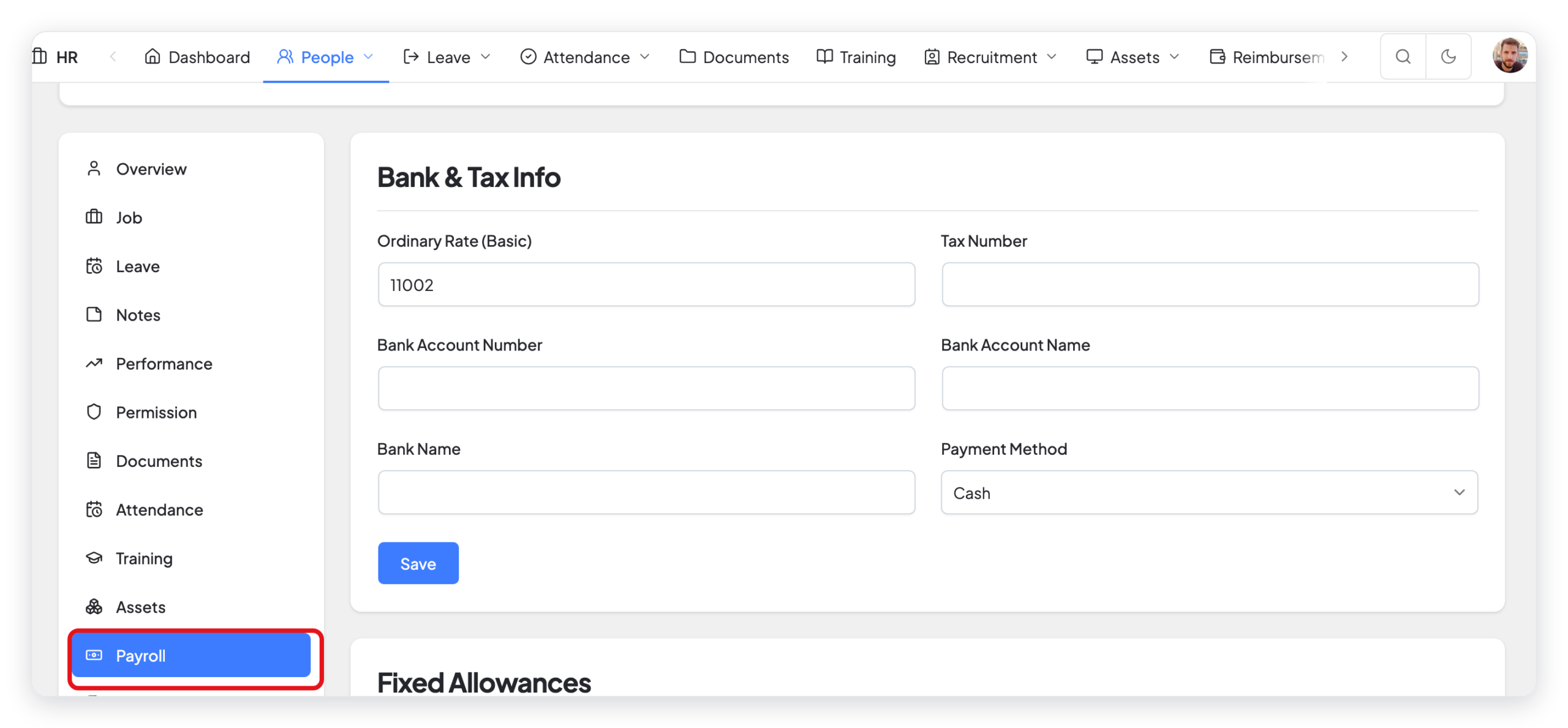
Step 2: Fill in the bank and tax information
- In Ordinary Rate (Basic), type the basic pay for one pay period.
- Type the Tax Number of the employee, if you have it.
- Type the Bank Account Number, the Bank Account Name, and the Bank Name.
- Select the Payment Method for this employee: Cash, Cheque, or Bank.
- Click Save.
The bank account number shows on the payslip of the employee.
Step 3: Add fixed allowances, deductions, and taxes
Fixed pay items are added to every pay run of this employee. For example, a monthly transport allowance or a provident fund deduction.
- Find the section that you need: Fixed Allowances, Fixed Deductions, or Fixed Taxes.
- In Pay Item, select the pay item.
- In Type, select Amount for a fixed amount, or % of basic for a percent of the basic pay.
- Type the Amount.
- Click + Add.
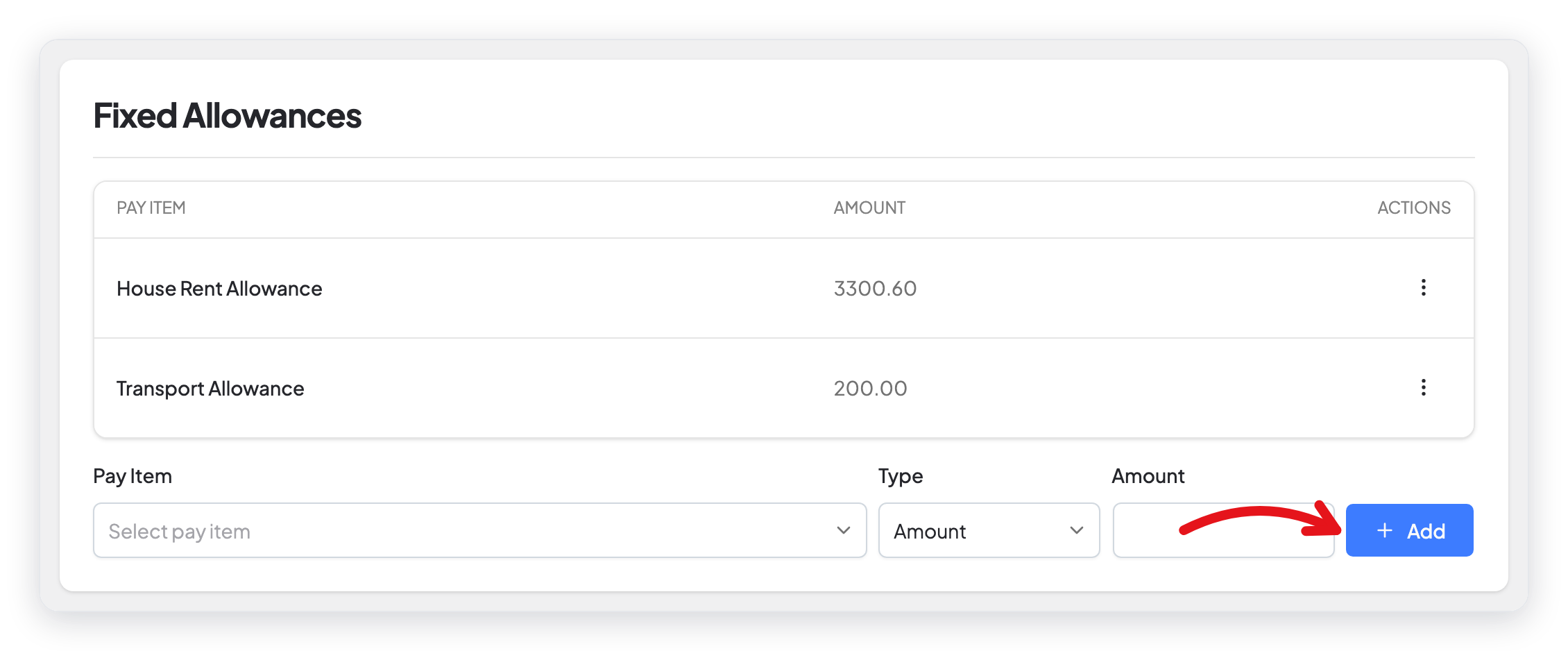
To remove a fixed pay item, click the ⋮ menu in its row, then click Delete.
Result
The next pay run for this employee uses the new basic pay and the fixed pay items. Pay runs that are already approved do not change.
What changed in 2.0
- The Payroll tab is now in the menu on the left side of the employee profile, not in a row of tabs at the top.
- The old Submit button is now Save.
- Fixed allowances, deductions, and taxes are now three sections on the same tab. Each section has its own + Add row.



