

Payslips and Payroll Reports
WP ERP makes a payslip for each employee when you approve a pay run. HR managers can see all payslips. Each employee can see their own payslips. Payroll reports show the paid amounts for a date range, and you can download them as CSV files.
Before you start
- You must have at least one approved pay run. See Run payroll.
- Add your company name and address in WP ERP → Company. The payslip shows them at the top.
See the payslips of an employee
- Go to WP ERP → HR → People → All Employees.
- Click the name of the employee.
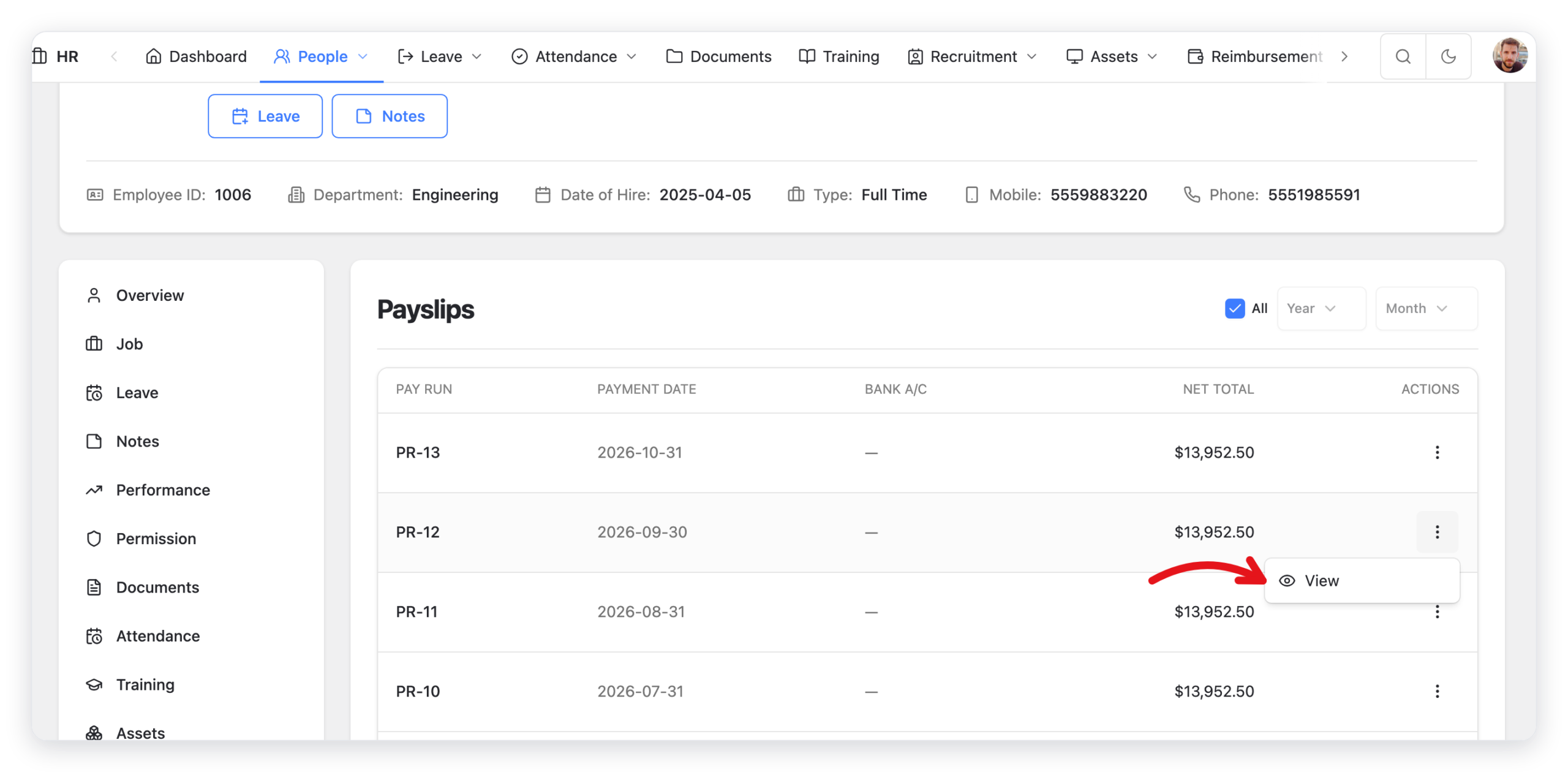
- In the menu on the left side of the profile, click Payslip.
- To show fewer payslips, select a Year and a Month.
- Click the ⋮ menu of a payslip, then click View.
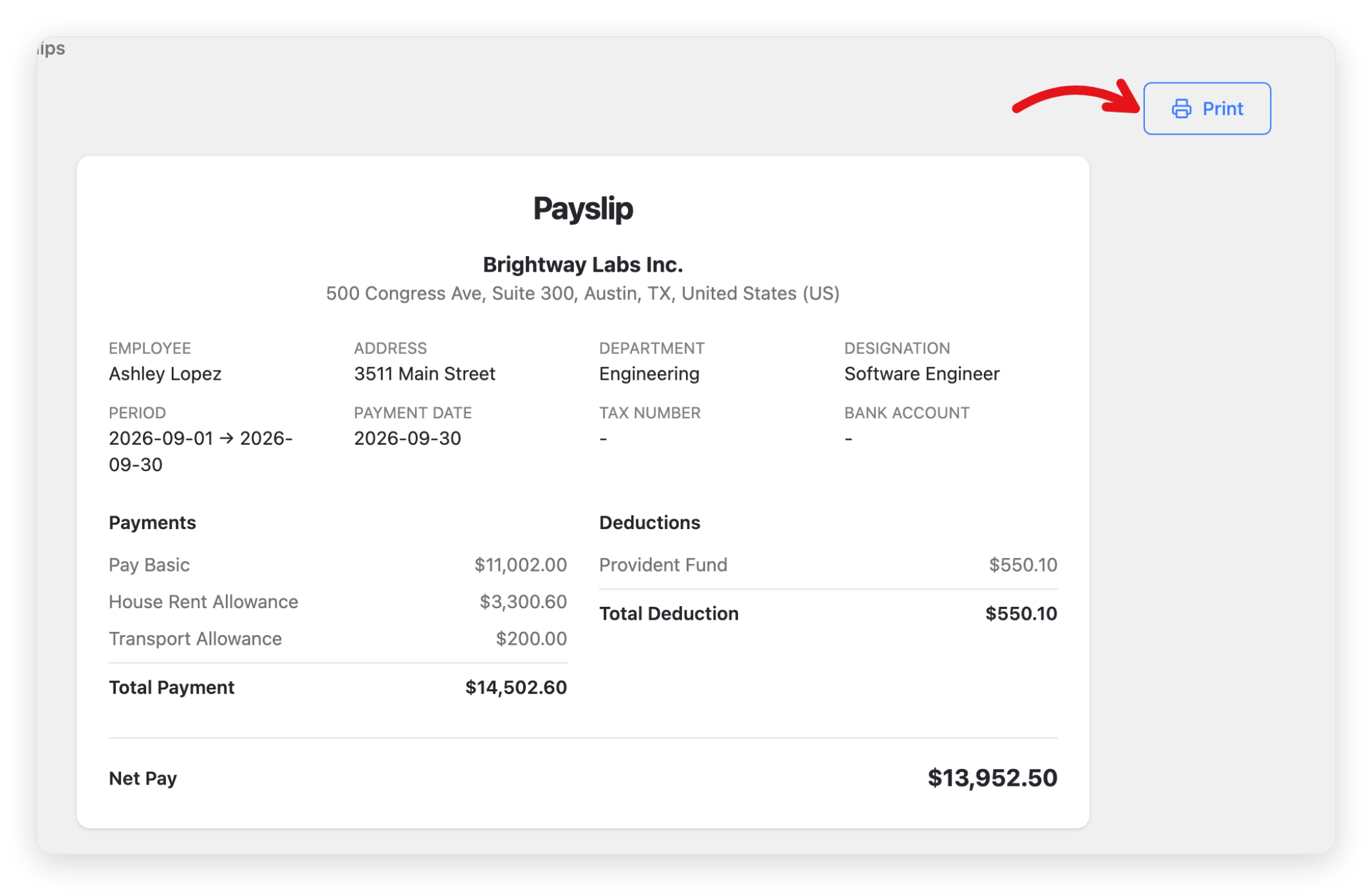
The payslip shows the company, the employee, the pay period, the payment date, the tax number, and the bank account. It lists the payments and the deductions, and the net pay at the bottom.
- To print the payslip or save it as a PDF, click Print.
If nothing happens when you click Print, let your browser open pop-ups for your site.
How employees see their payslips
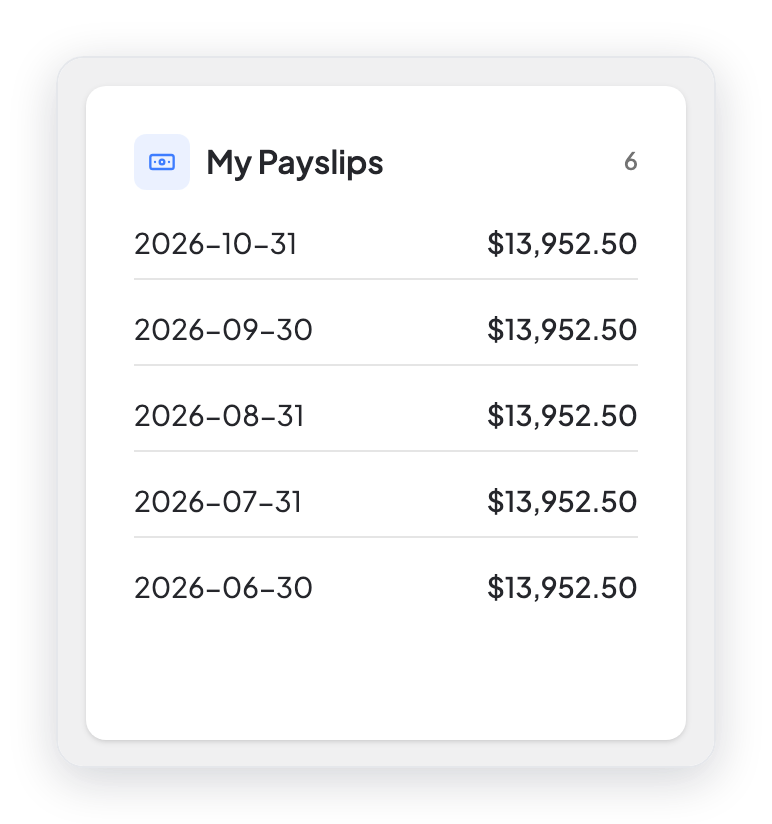
Employees see a My Payslips box on their HR dashboard. It shows the number of payslips and the latest ones, with the payment date and the net pay.
Send payslips by email
You send payslips from a pay run:
- To send one payslip, click the ⋮ menu of the employee in the pay run, then click Send Payslip.
- To send the payslips of all employees in the pay run, click Send All Payslips.
To change the text of the payslip email, go to WP ERP → Settings → Emails → Notifications & Templates. Find Employee Payslip, then click Configure.
Make a payroll report
- Go to WP ERP → HR → Payroll.
- Click the Reports tab.
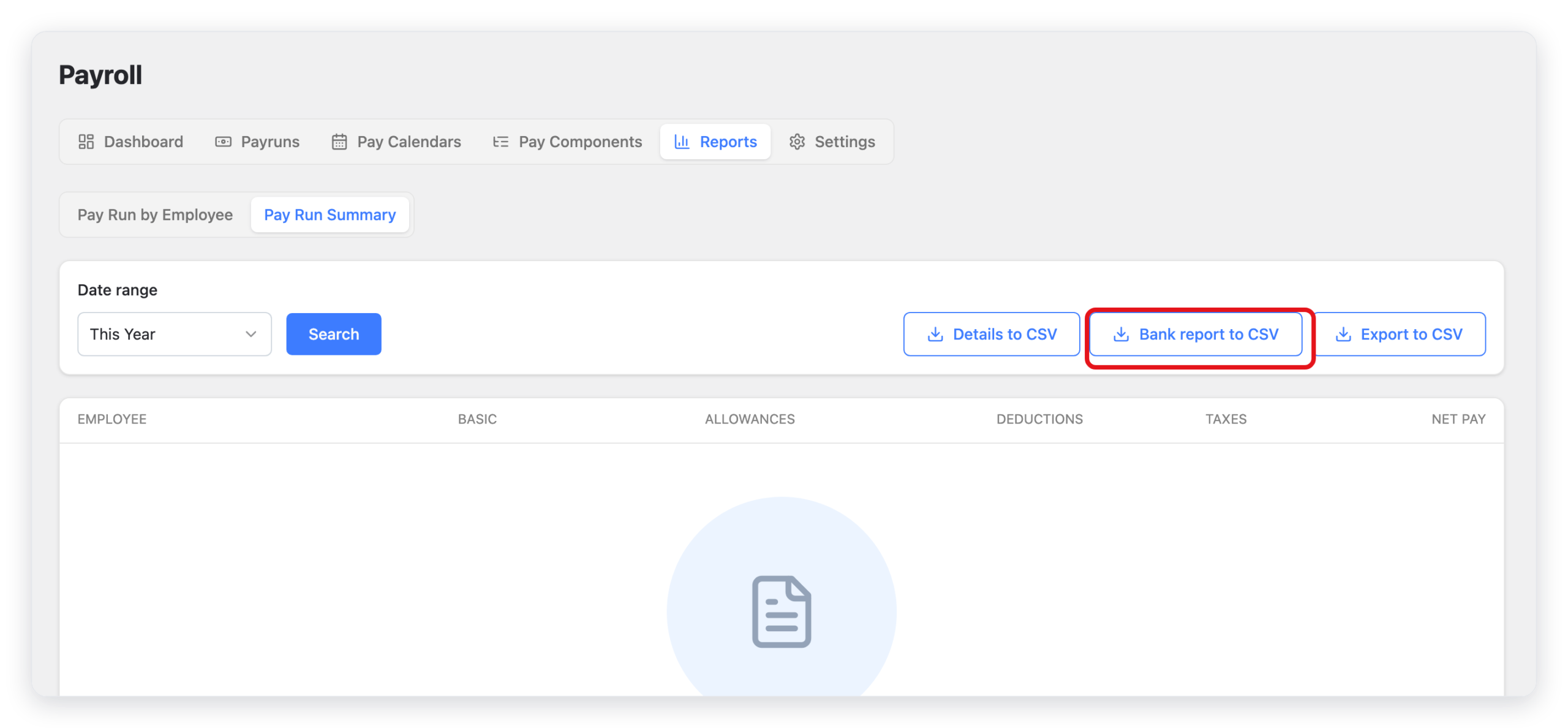
- Click the report that you need: Pay Run by Employee or Pay Run Summary.
- Select the Date range.
- Click Search.
| Report | What it shows |
|---|---|
| Pay Run by Employee | One row for each employee and pay date: gross wages, each allowance, each deduction, each tax, and the net pay. |
| Pay Run Summary | One row for each employee: basic pay, allowances, deductions, taxes, and net pay for the date range. |
Download a report
| Button | What you get |
|---|---|
| Export to CSV | The report as it shows on the screen. |
| Details to CSV | Pay Run Summary only. All the lines of each pay run in the date range. |
| Bank report to CSV | Pay Run Summary only. The bank details and the net pay of each employee, for your bank. |
What changed in 2.0
- Payslips are now on the Payslip tab in the menu on the left side of the employee profile. You open a payslip with View in the row menu, not with an eye icon.
- The employee dashboard now has a My Payslips box.
- You send payslips from the pay run with Send Payslip and Send All Payslips.
- Payroll reports are now on the Reports tab of Payroll. Pay Run Summary has the Details to CSV and Bank report to CSV buttons.



