

Pay Components
Pay components are the pay items that you use in payroll. For example, Transport Allowance, Provident Fund, or Income Tax. WP ERP adds a set of pay items when you turn on Payroll. You can add your own pay items, edit them, and set the amount of one pay item for many employees at the same time.
Before you start
- The Payroll module must be on. See Payroll.
Open Pay Components
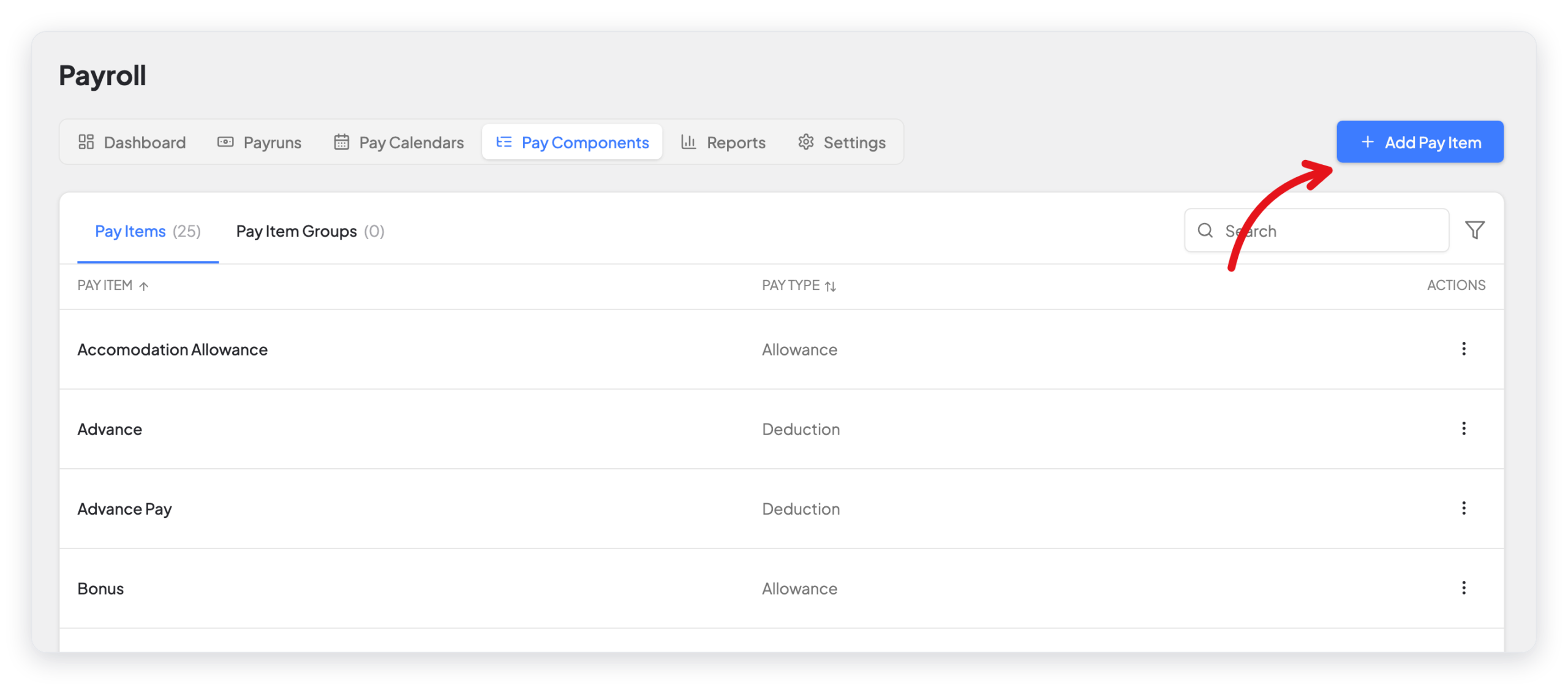
- Go to WP ERP → HR → Payroll.
- Click the Pay Components tab.
The tab has two lists: Pay Items and Pay Item Groups.
Add a pay item
- Click Add Pay Item.
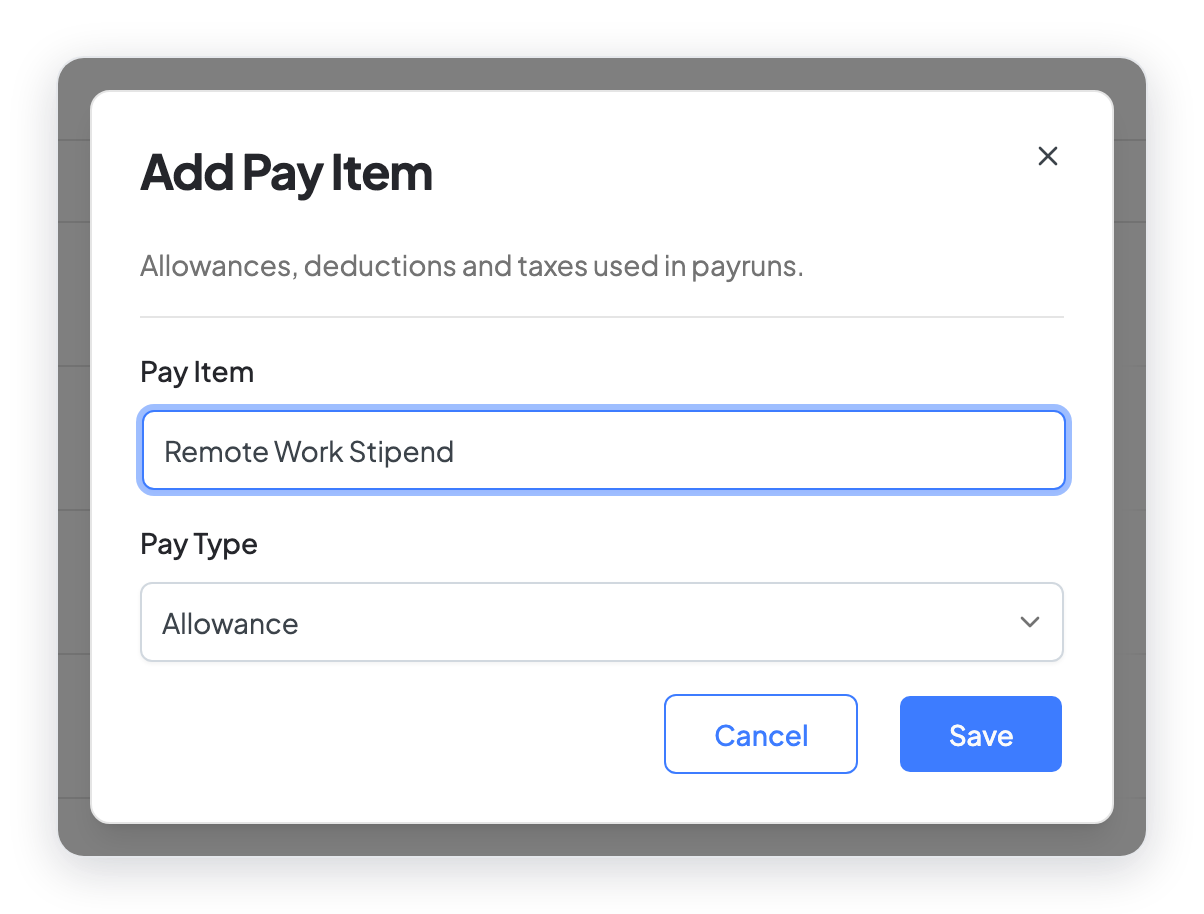
- Type the name of the pay item in Pay Item.
- Select the Pay Type.
- Click Save.
| Pay Type | What it does to the pay |
|---|---|
| Allowance | Adds money to the pay. |
| Deduction | Takes money from the pay. |
| Tax | Takes money from the pay. Payroll shows it in the Tax column. |
| Non-Taxable Payments | Adds money that is not taxed, for example expenses. |
To change or remove a pay item, click the ⋮ menu in its row, then click Edit or Delete.
Set the amount of a pay item for many employees
Use Bulk edit values when many employees get the same pay item. For example, a food allowance for all employees in one department.
- In the Pay Items list, click the ⋮ menu of the pay item.
- Click Bulk edit values.

- To show fewer employees, search for a name, or select a department or a designation.
- Type the Amount for each employee.
- Click Save Changes.

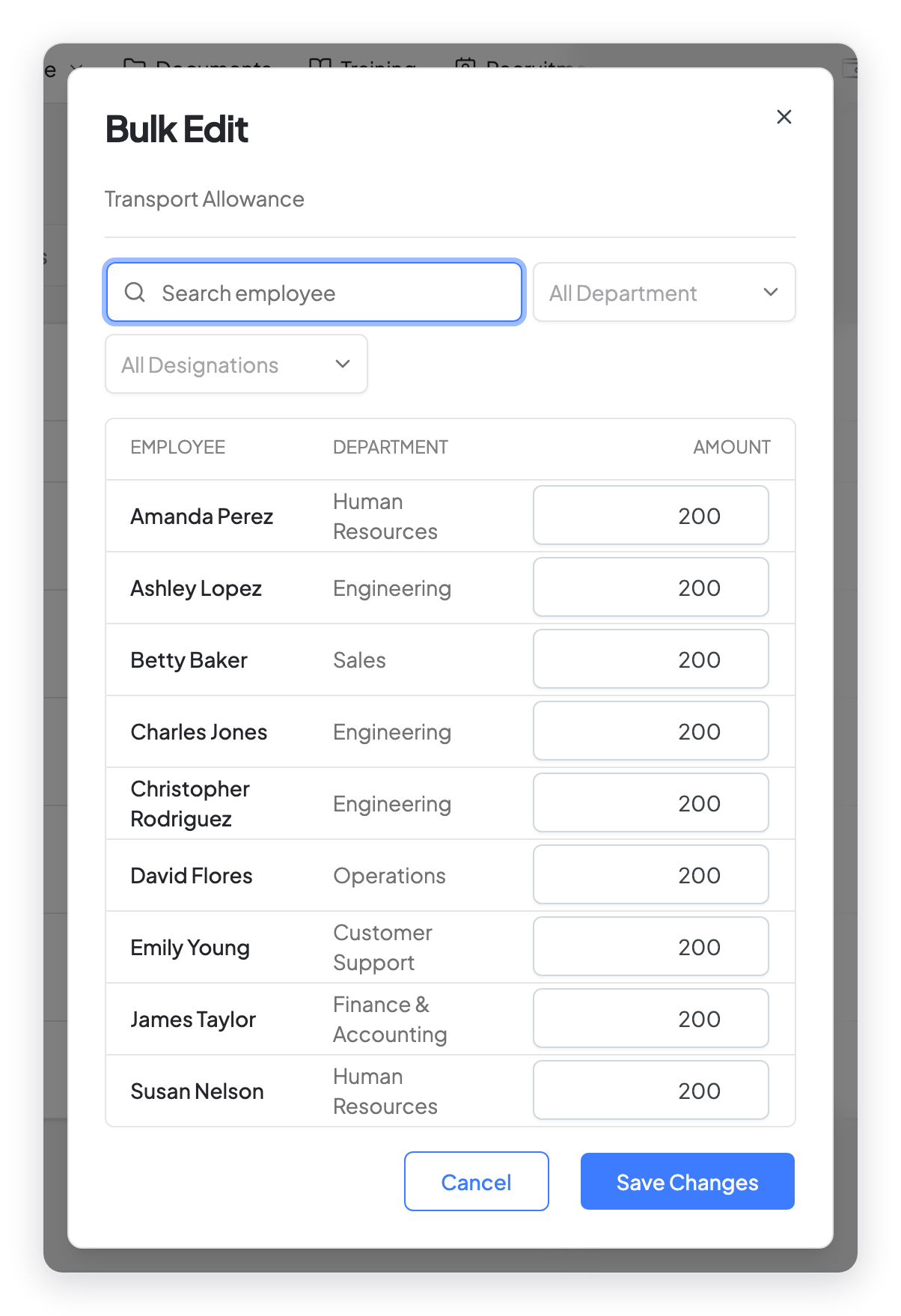
The amount becomes a fixed pay item of each employee. You can see it on the Payroll tab of the employee profile. To remove the pay item from an employee, clear the amount or type 0.
Group pay items
Groups sort pay items for reports. Each group is an addition to pay or a deduction from pay.
- Click Pay Item Groups.
- Click Add Group.
- Type the Group Name and select the type.
- Save the group.
What changed in 2.0
- Pay items moved from WP ERP → Settings → HR → Payroll → Pay Item Settings to the Pay Components tab of Payroll.
- Pay Item Groups is new.
- The old Bulk Pay Item Edit page is now Bulk edit values in the row menu of each pay item.
- The old attendance-based bulk payment (a date range and a pay amount for each day present) is not in the new interface. It is still on the classic Bulk Pay Item Edit page. To use the classic pages, change HR Admin Interface in WP ERP → Settings → HR → Miscellaneous.



