

Attendance Records
HR managers can see the attendance of all employees, record the attendance of a day, correct check-in and check-out times, and import attendance from a CSV file.
Before you start
- The employees must be on a shift for the dates. See Shifts.
See the attendance records
- Go to WP ERP → HR → Attendance → Logs.
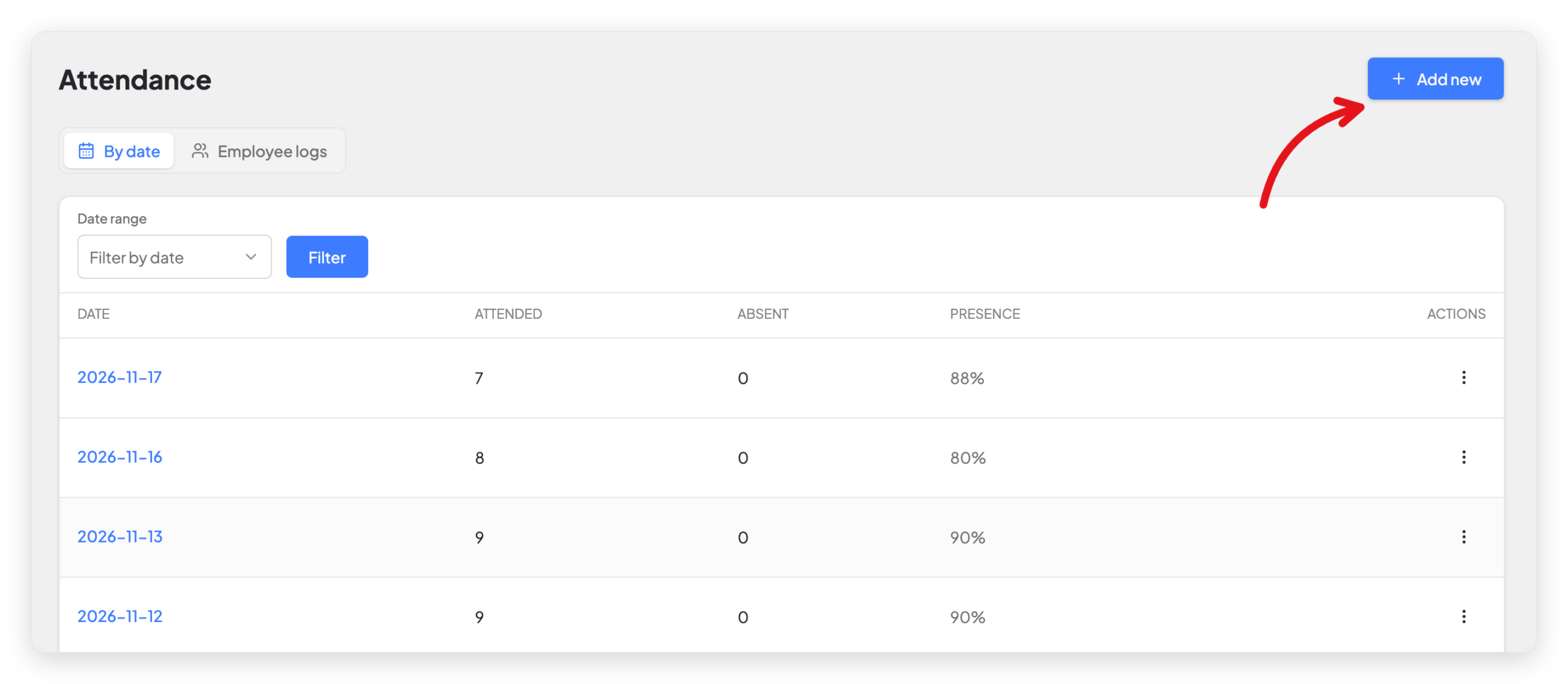
The By date tab shows one row for each day: the number of employees who attended, the number who were absent, and the presence in percent.
- To see one row for each employee and day, click Employee logs.
- To show fewer rows, use Date range, Status, Department, or Search.
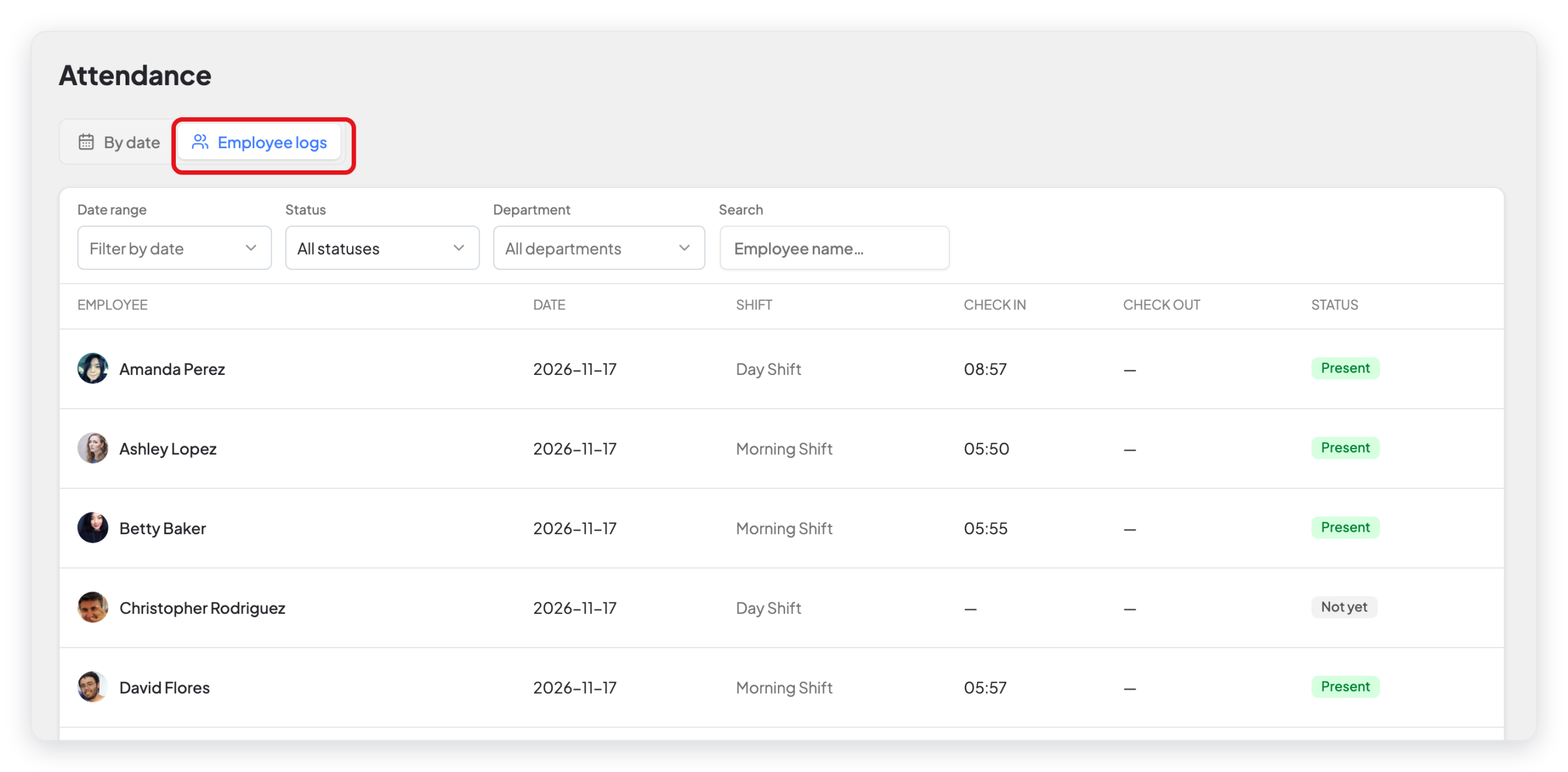
The Status column shows Present, Late, Absent, or Not yet (the employee has not checked in yet today).
Record or correct the attendance of a day
- On the By date tab, click Add new. Or click the ⋮ menu of a day, then click Edit.
- Select the date at the top. Use the arrows to go to the previous or the next day.
- Click Edit.
- For each employee, set Present or absent, and type the Check in and Check out times.
- To set all selected employees at the same time, use Set all Present or Set all Absent.
- Click Done.
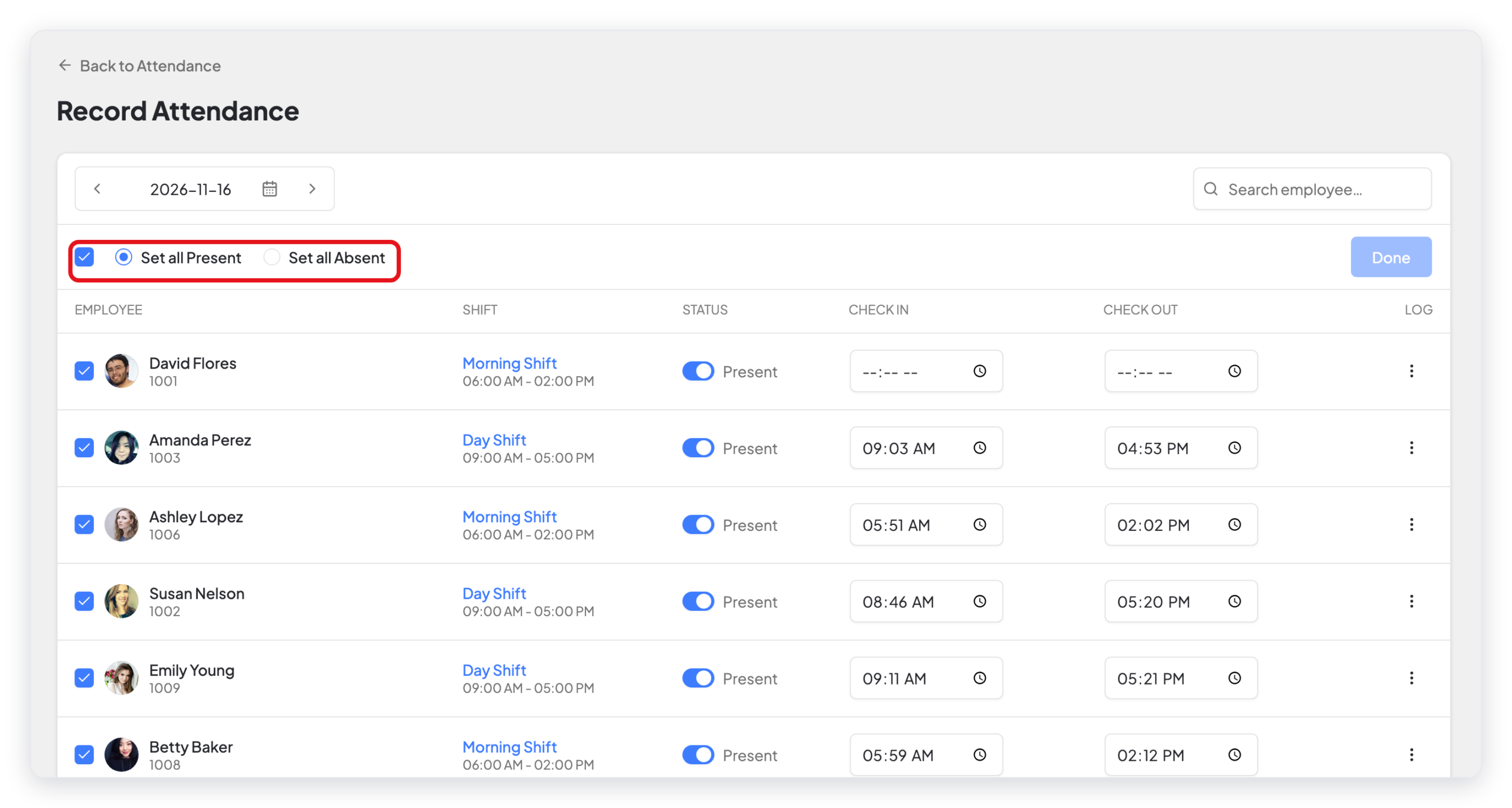
To see each check-in and check-out of an employee on that day, click the ⋮ menu in the Log column, then click Log.
Note: An employee can check in and check out more than one time in a day. The check-out time must be after the check-in time.
To remove the records of a day, click the ⋮ menu of the day on the By date tab, then click Delete.
Import attendance from a CSV file
Use this when your employees check in on a separate device that can export a CSV file.
- Go to Attendance → Settings.
- In Import Attendance, click Download sample file to see the correct format.
- Select the Shift for the rows.
- In CSV file, select your file.
- Click Import.
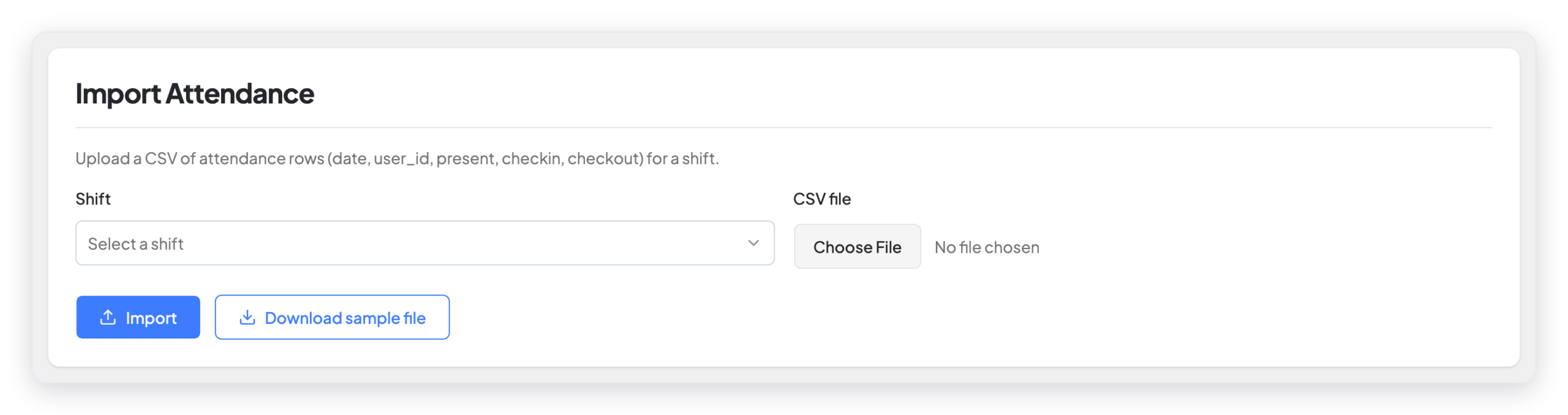
The CSV file has these columns: date, user_id, present, checkin, checkout.
CAUTION: Do not import the same file two times. WP ERP does not find duplicate rows, so the second import adds the records again.
What changed in 2.0
- The attendance list is now Attendance → Logs, with two tabs: By date and Employee logs.
- Add new opens the Record Attendance page for a day. You click Edit to change the values, then Done to save. The old Save button and the More Details link are gone. You see the log of an employee with Log in the row menu.
- The import moved from the old Tools page to Attendance → Settings. The export button of the old Tools page is now Export CSV on the reports. See Attendance reports.



