

To-Do Calendar and Reports
The To-Do Calendar shows the to-dos of all candidates by due date. The Reports page shows the numbers of your recruitment.
Before you start
You must be a WordPress administrator or an HR manager.
The To-Do Calendar
Go to WP ERP → HR → Recruitment → Calendar.
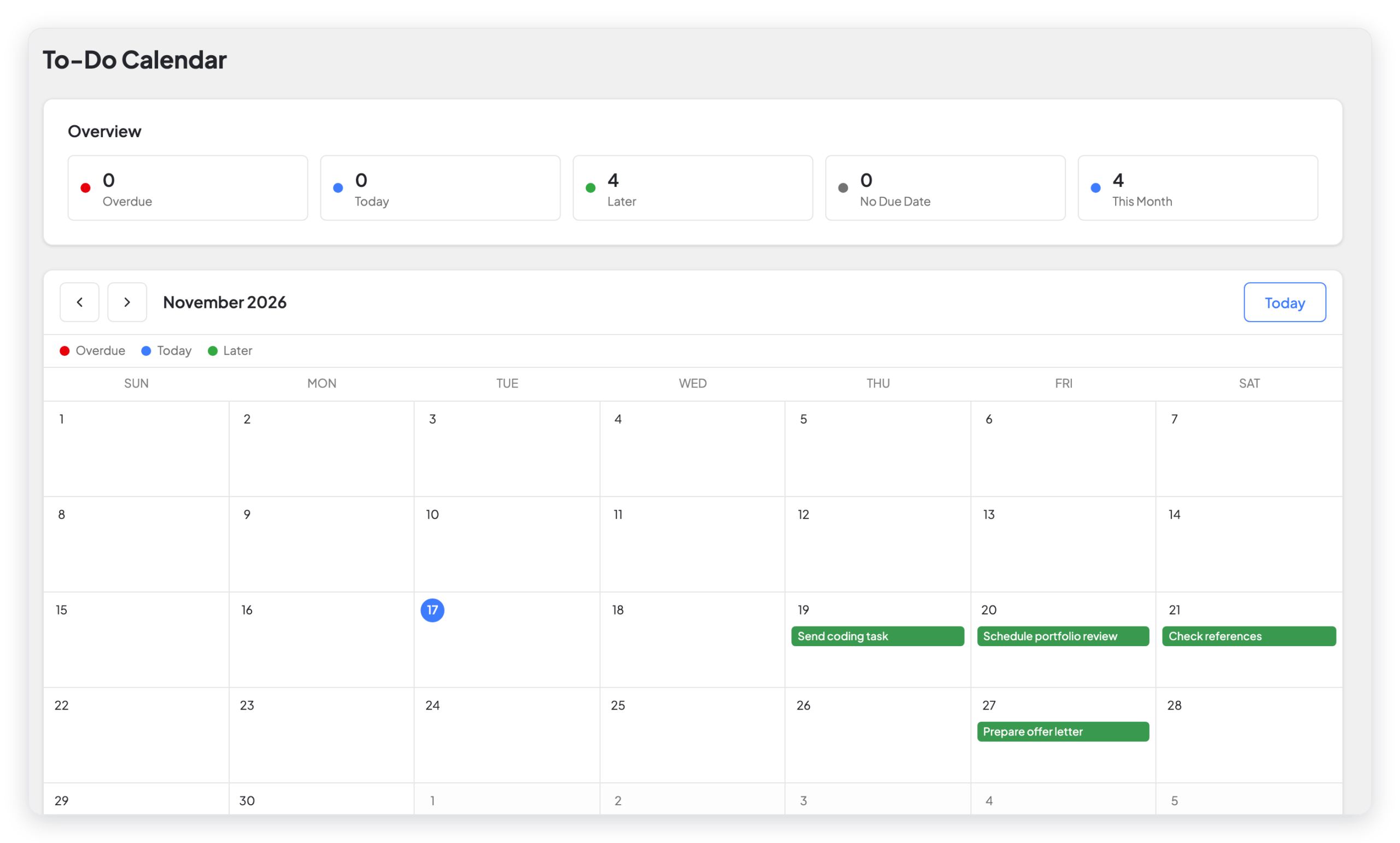
- The Overview shows how many to-dos are Overdue, due Today, due Later, have No Due Date, and are due This Month.
- The calendar shows each to-do on its due date. Red is overdue, blue is today, and green is later.
- Use the arrows to see other months. Click Today to go back to the current month.
You add to-dos on the candidate page. For more information, read Candidates.
Reports
Go to WP ERP → HR → Recruitment → Reports.
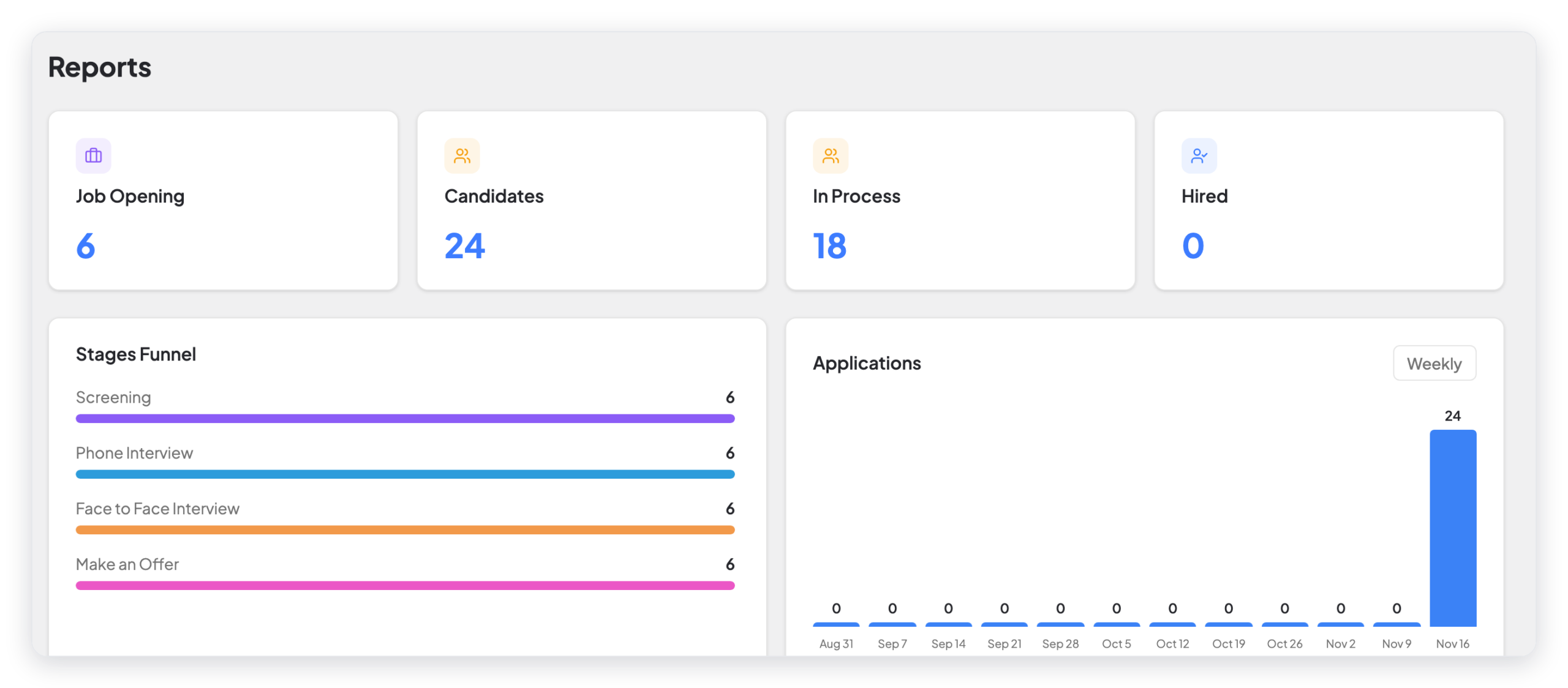
The top of the page shows:
- The number of Job Opening, Candidates, candidates In Process, and Hired candidates.
- The Stages Funnel, with the number of candidates in each stage.
- The Applications chart, with the number of applications each week.
Opening Report and Candidate Report
- Below the charts, click Opening Report or Candidate Report.
- Select a job opening, or keep All openings.
- Click Generate.
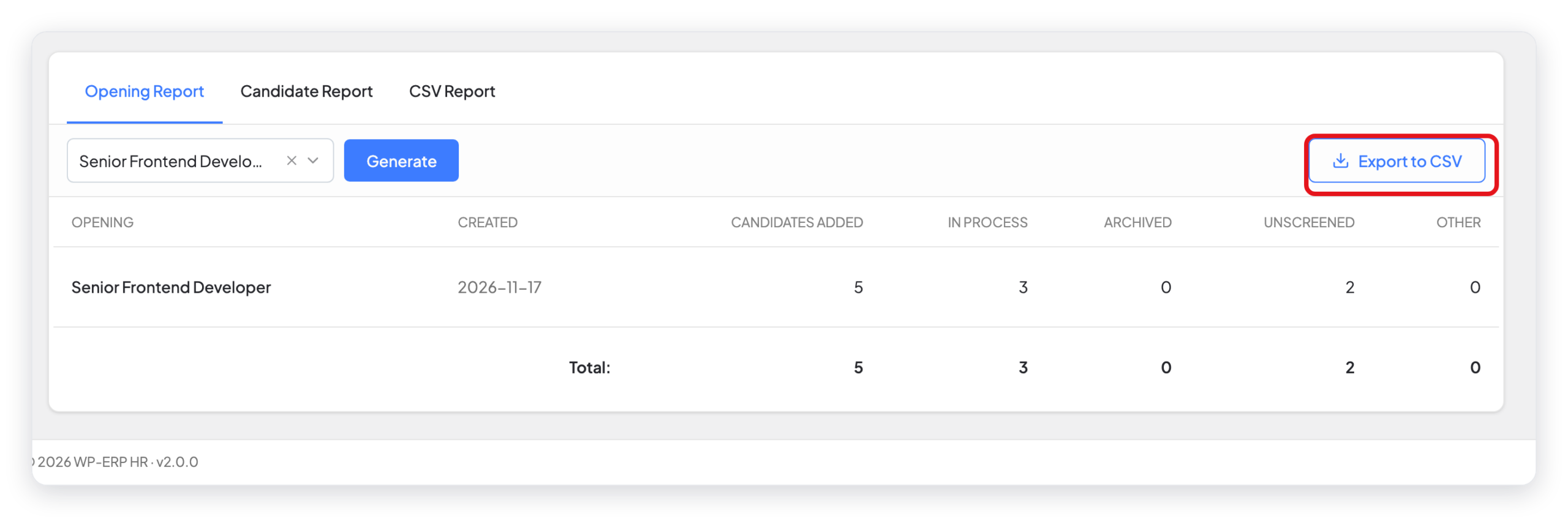
The Opening Report shows, for each job, the number of candidates that were added, are in process, are archived, are unscreened, and have another status.
The Candidate Report shows each candidate with the email, the phone number, the apply date, and the current status.
To download the report as a spreadsheet, click Export to CSV.
CSV Report by email
- Click CSV Report.
- Select the Report type: Opening report or Candidate report.
- Select the Date range.
- Click Email CSV.
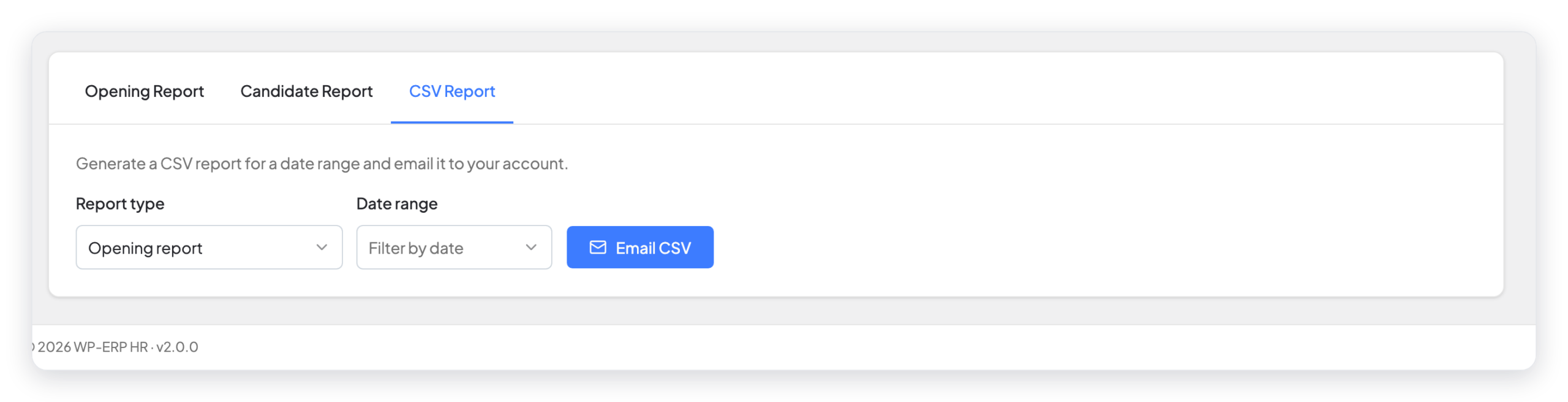
WP ERP sends the CSV file to the email address of your user account.
What changed in 2.0
- New: the To-Do Calendar overview with counts for overdue, today, later, and no-due-date to-dos.
- New: the summary numbers, the Stages Funnel, and the weekly Applications chart at the top of the Reports page.
- The opening, candidate, and CSV reports are now three tabs on one page.
- The opening and candidate reports have an Export to CSV button.



