

Payroll
Payroll calculates the pay of your employees, makes payslips, and sends the salary cost to WP ERP Accounting. Payroll is a WP ERP Pro module.
How payroll works
You set up payroll one time. Then you repeat a short pay run for each pay period.
- Employee pay details. Each employee has a pay rate and fixed pay items (allowances, deductions, and taxes). See Set the pay details of an employee.
- Pay components. These are the pay items that you can use, for example House Rent Allowance or Provident Fund. See Pay components.
- Pay calendars. A pay calendar tells WP ERP how often a group of employees gets paid. See Pay calendars.
- Pay runs. A pay run pays the employees of one pay calendar for one period. See Run payroll.
- Payslips and reports. WP ERP makes a payslip for each employee when you approve a pay run. See Payslips and payroll reports.
Before you start
- You must have WP ERP Pro with an active license that includes Payroll.
- The HR module and the Accounting module of WP ERP must be on. Payroll does not turn on without Accounting, because each approved pay run goes to Accounting.
- Turn on the Payroll module in WP ERP → Modules.
Step 1: Open Payroll
- In your WordPress admin, go to WP ERP → HR.
- Click Payroll in the top menu.
The Payroll page has six tabs: Dashboard, Payruns, Pay Calendars, Pay Components, Reports, and Settings.
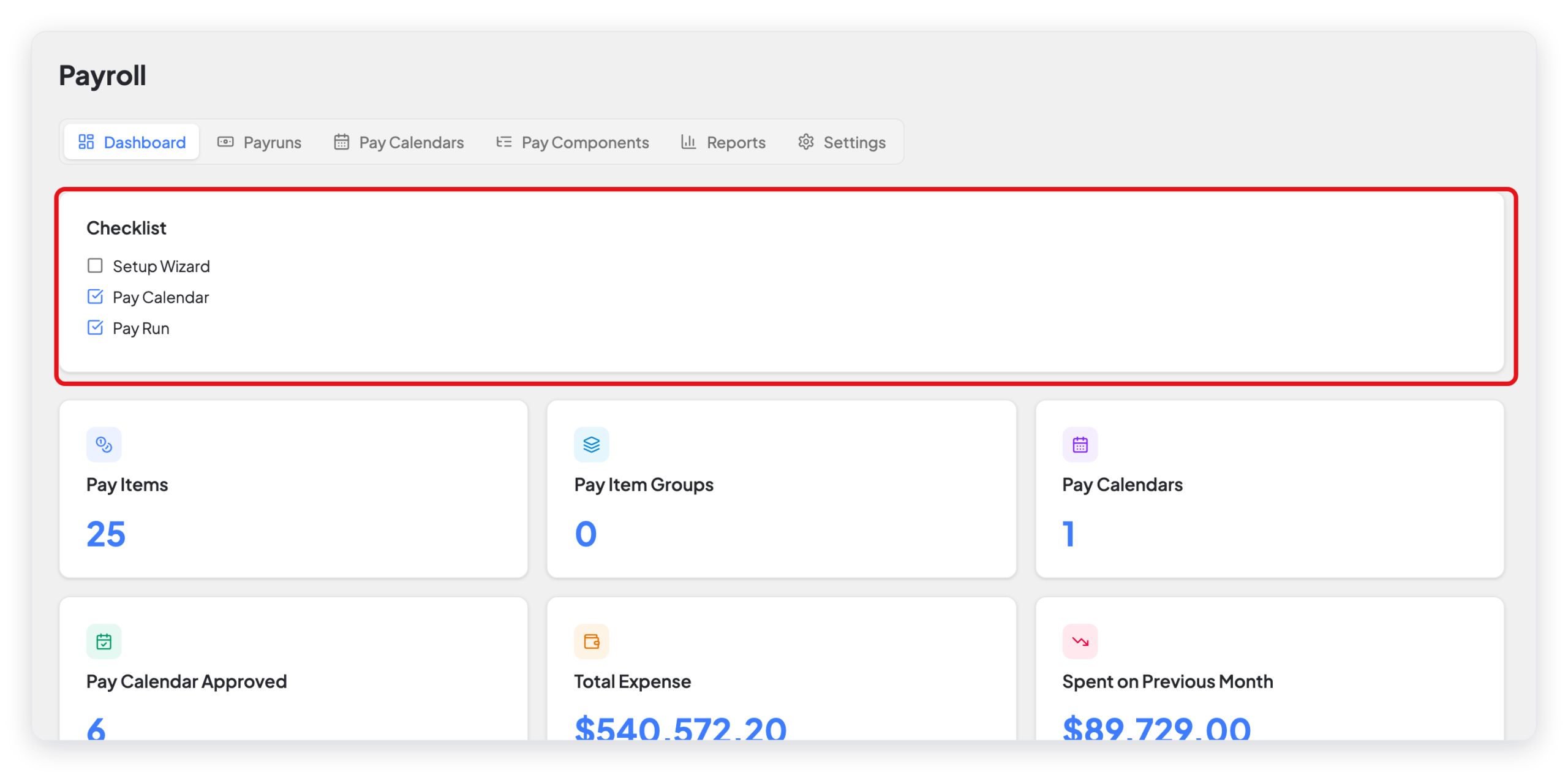
The Checklist on the dashboard shows the setup steps that are not done yet. Each item gets a check mark when you complete it:
| Checklist item | When it gets a check mark |
|---|---|
| Setup Wizard | You save the payment method in Payroll → Settings. |
| Pay Calendar | You make at least one pay calendar. |
| Pay Run | You make at least one pay run. |
Below the Checklist, the dashboard shows the number of pay items, pay item groups, and pay calendars, the number of approved pay runs, the total expense, and the amount spent in the previous month. It also shows the latest five pay runs.
Step 2: Set the payment method
- Click the Settings tab.
- Select the Payment Method.
- Turn on Prorate partial-period salary if you want to pay new employees and leavers only for the days that they worked.
- Click Save Settings.
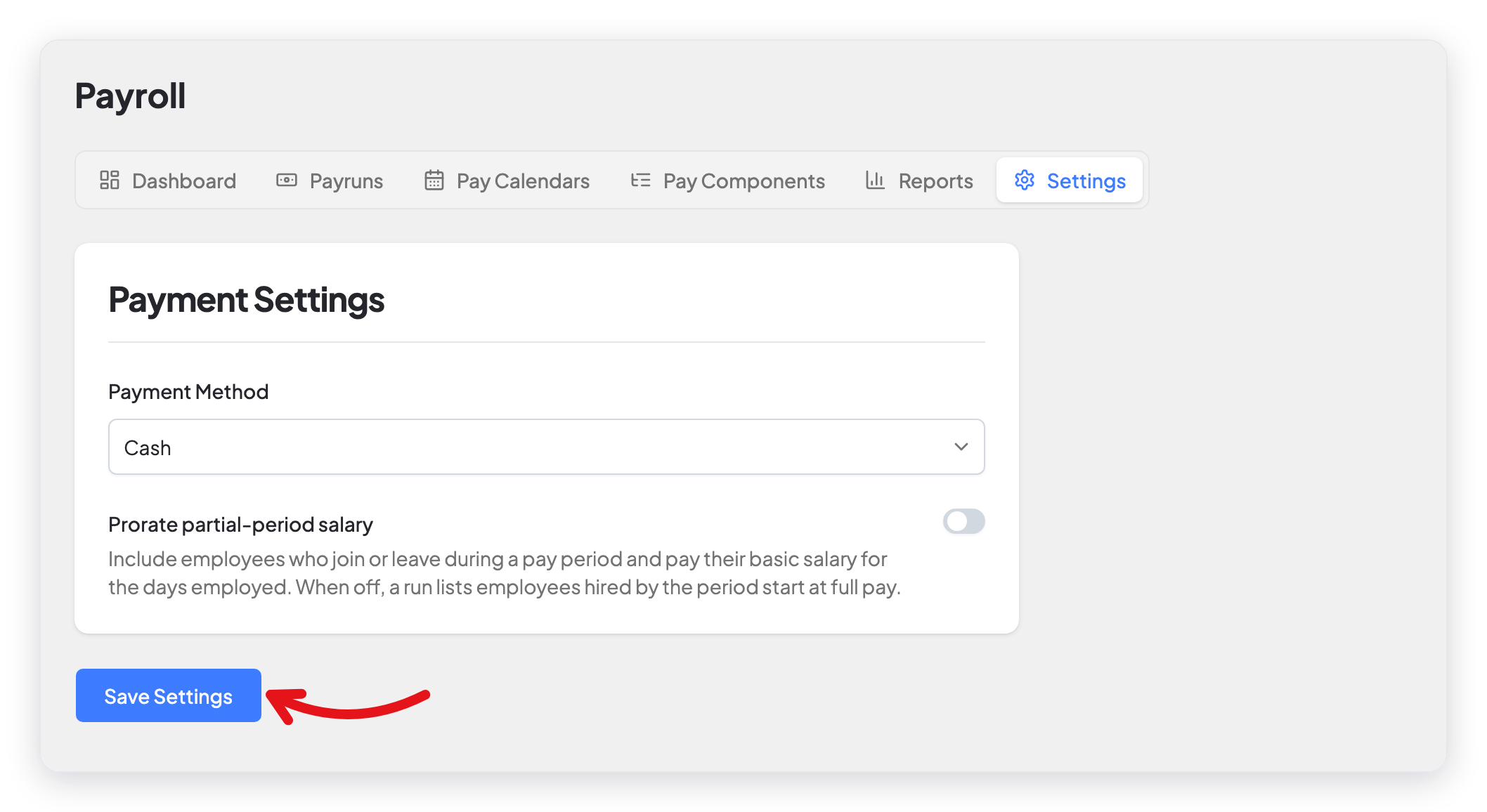
The payment method tells WP ERP how you pay the salary: Cash, Cheque, or Bank. Cheque and bank payments need a bank account in WP ERP Accounting. If you have no bank account in Accounting, only Cash shows in the list.
When Prorate partial-period salary is off, a pay run includes the employees who were hired by the first day of the period, at full pay.
Settings
| Setting | What it does |
|---|---|
| Payment Method | How you pay the salary: Cash, Cheque, or Bank. For Cheque and Bank, you also select the bank account. |
| Prorate partial-period salary | When on, a pay run includes employees who join or leave during the period. They get the basic salary for the days that they worked. |
What changed in 2.0
- Payroll is now a tab set on one page in WP ERP → HR → Payroll: Dashboard, Payruns, Pay Calendars, Pay Components, Reports, and Settings.
- The payroll settings are now on the Settings tab of Payroll. The old page (WP ERP → Settings → HR → More → Payroll) is still there and saves the same payment method.
- You now manage pay items on the Pay Components tab.
- The old setup wizard asked for three account heads, then the payment method. With WP ERP 1.5 and later, only the payment method is necessary. You set it on the Settings tab.
- Prorate partial-period salary is new.
- Payroll now needs the Accounting module. WP ERP does not let you turn on Payroll when Accounting is off.



