

Recruitment
Use Recruitment to post job openings on your website, collect applications, and move each candidate through your hiring steps.
Candidates apply on a public job page. Their applications come into WP ERP with their CV. Your team then rates the candidates, schedules interviews, adds to-dos, and hires the right person as a new employee.
Before you start
- WP ERP Pro must be active, and your license must include Recruitment.
- The HR module must be on.
- You must be a WordPress administrator or an HR manager.
Step 1: Open Recruitment
- In your WordPress admin, go to WP ERP → HR.
- In the top menu, open Recruitment.
- Click Job Openings.
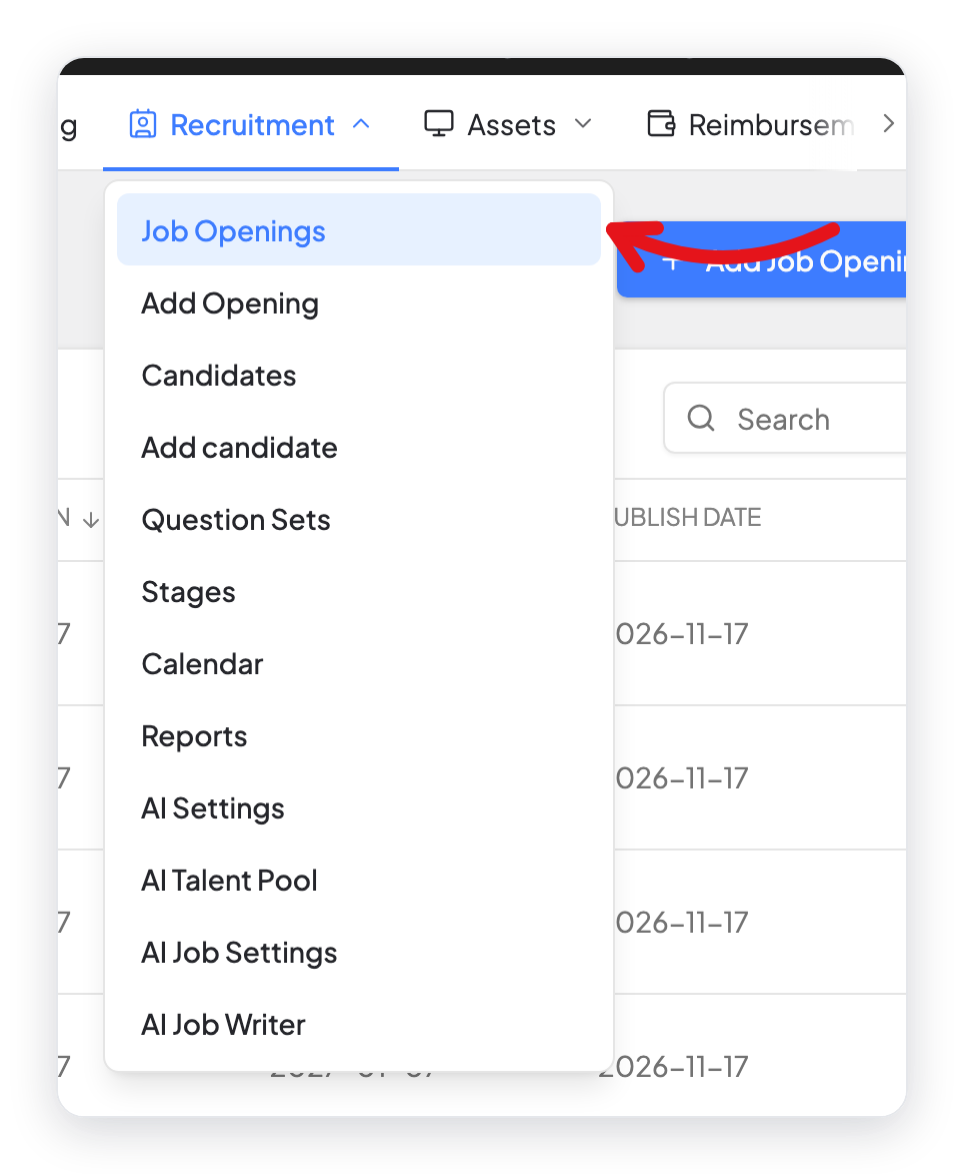
The Recruitment menu has these pages:
| Page | What you do there |
|---|---|
| Job Openings | See, edit, and publish your job openings. |
| Add Opening | Make a new job opening. |
| Candidates | See all applications and work with each candidate. |
| Add candidate | Add an application yourself, for example from an email. |
| Question Sets | Make screening questions for the application form. |
| Stages | Name the steps of your hiring process. |
| Calendar | See the to-dos of all candidates by due date. |
| Reports | See numbers for your openings and candidates. |
| AI Settings, AI Talent Pool, AI Job Settings, AI Job Writer | Use AI to score CVs and write job descriptions. AI needs your own API key. |
Step 2: Show your jobs on your website
When you turn on Recruitment, WP ERP makes a page named Job List Page. This page shows all open jobs, with a search box and filters.
You can show the same list on any page. Add this shortcode to the page:
[erp-job-list]Each job also has its own page. Candidates click Apply Now on that page to apply.
If a job page shows a "Page not found" error, go to Settings → Permalinks and click Save Changes. This updates the web addresses of your site.
Step 3: Share your jobs with other websites (optional)
Your open jobs are also available as data at this address:
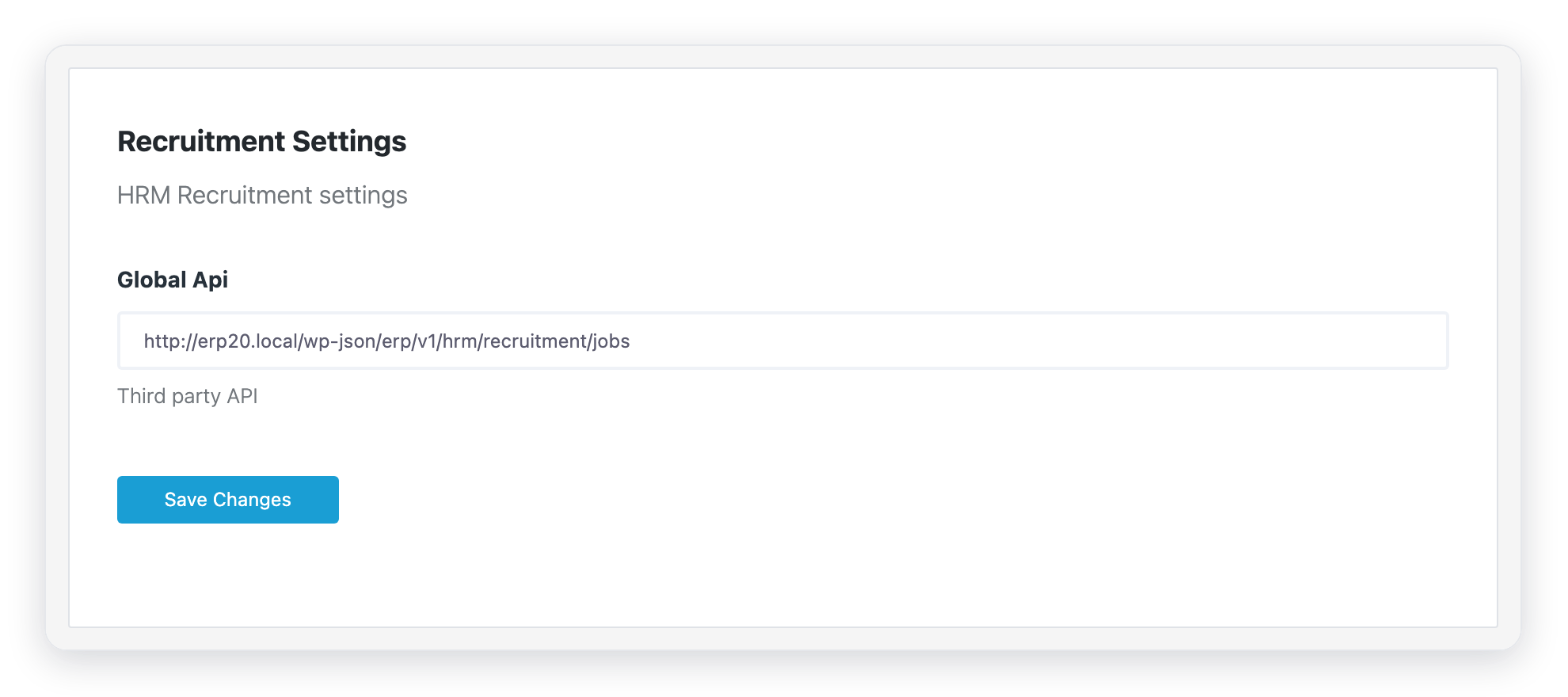
https://your-site.com/wp-json/erp/v1/hrm/recruitment/jobsAnother website, for example a job board, can read this address to show your jobs. You can see the address at WP ERP → Settings → HR → More → Recruitment, in the Global Api field.
For more information, read Recruitment REST API.
The recruitment process
- Make question sets and stages for your hiring process.
- Make a job opening and publish it.
- Candidates apply on your website. You can also add a candidate yourself.
- Work with each candidate: move them through the stages, schedule interviews, and add to-dos and comments.
- Hire the right candidate. WP ERP makes an employee from the candidate.
- Check your reports.
What changed in 2.0
- All Recruitment pages are new. They open inside the HR app, with one Recruitment menu at the top.
- The old "Job Opening" list is now Job Openings, with tabs for Open, Draft, Pending, and Expired jobs.
- The old "HR Questionnaire" is now Question Sets.
- A new Stages page lets you add, rename, and delete hiring stages in one place.
- Copy Job Openings is now the Duplicate action.
- The old fields "Select Hiring Lead" and "Internal Job Code" are not in the 2.0 job form.
- The Global Api setting is now at Settings → HR → More → Recruitment.



