

Resignation Requests
Employees can tell HR that they plan to leave the company. HR managers approve or reject the request. On the resignation date, WP ERP changes the status of the employee to Resigned.
Before you start
- You must have WP ERP Pro with an active license.
- The employee must be active.
Step 1: Send a resignation request (employee)
- Log in as the employee.
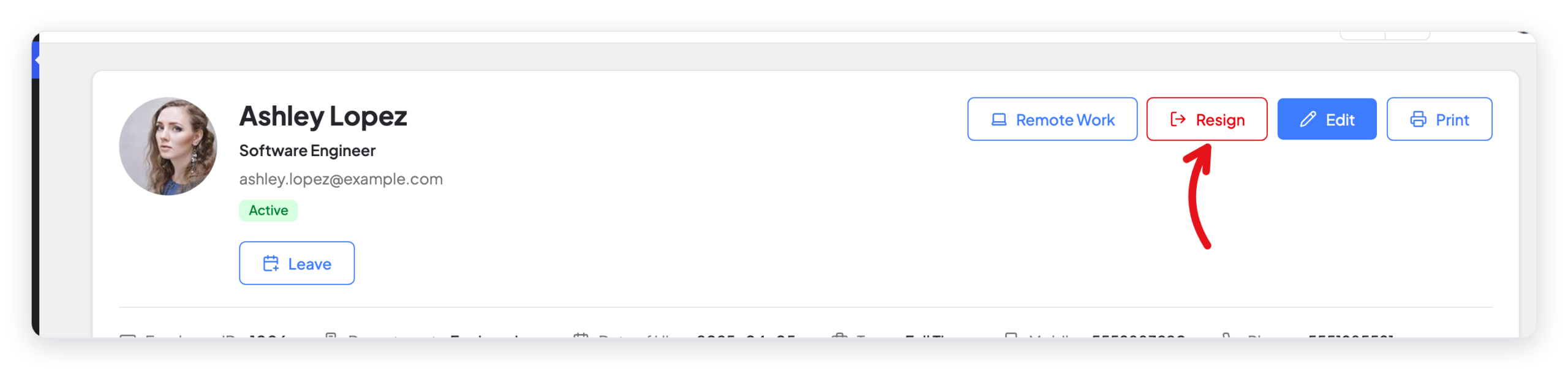
- Click your photo at the top right, then click My profile.
- Click Resign.
- Select the Reason.
- Select the Resignation Date. This is the last working day.
- Click Submit.
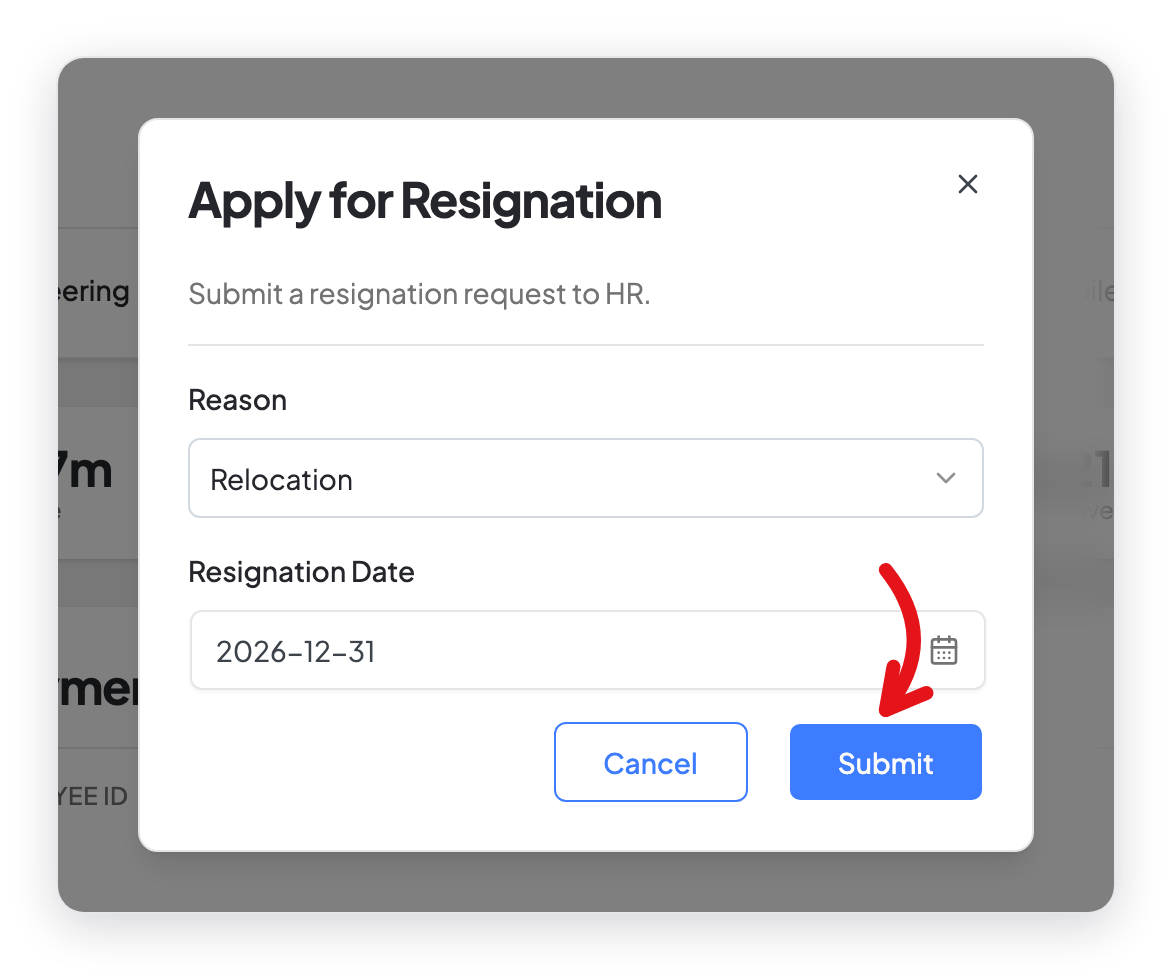
An employee can only select today or a future date. WP ERP sends an email to all HR managers about the new request.
Step 2: Find the request (HR manager)
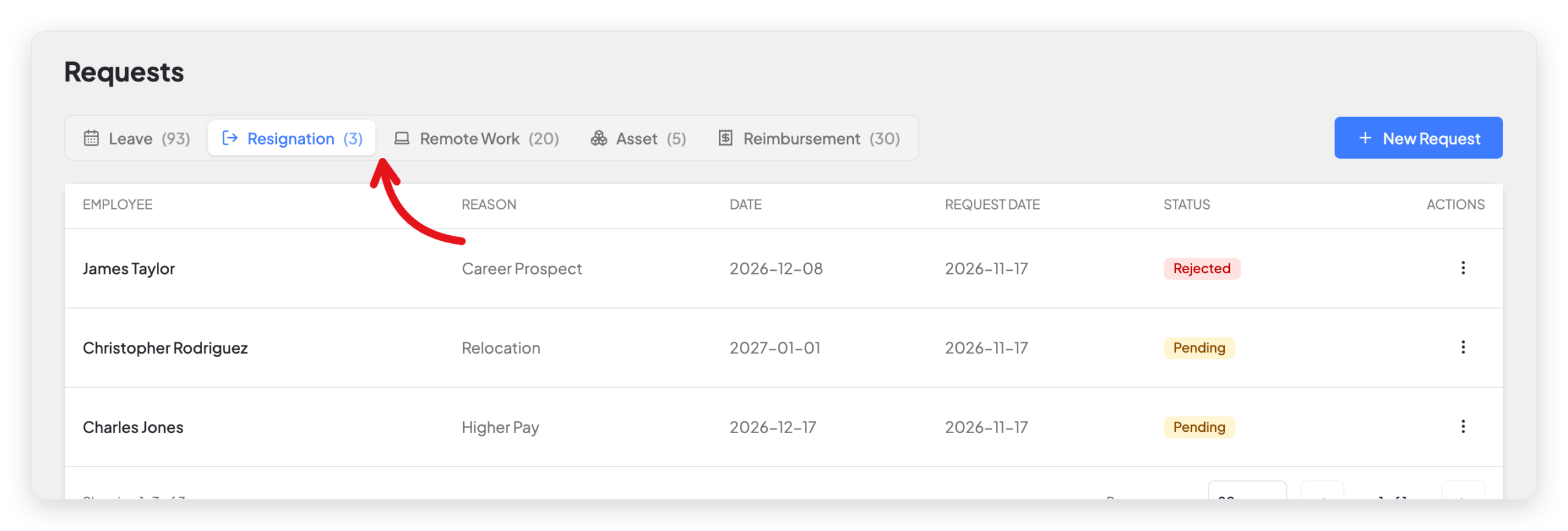
- Go to WP ERP → HR → People → Requests.
- Click the Resignation tab.
Step 3: Approve or reject the request
- Click the ⋮ button at the end of the row.
- Click Approve or Reject.
- For Approve, read the message, then click Approve again.
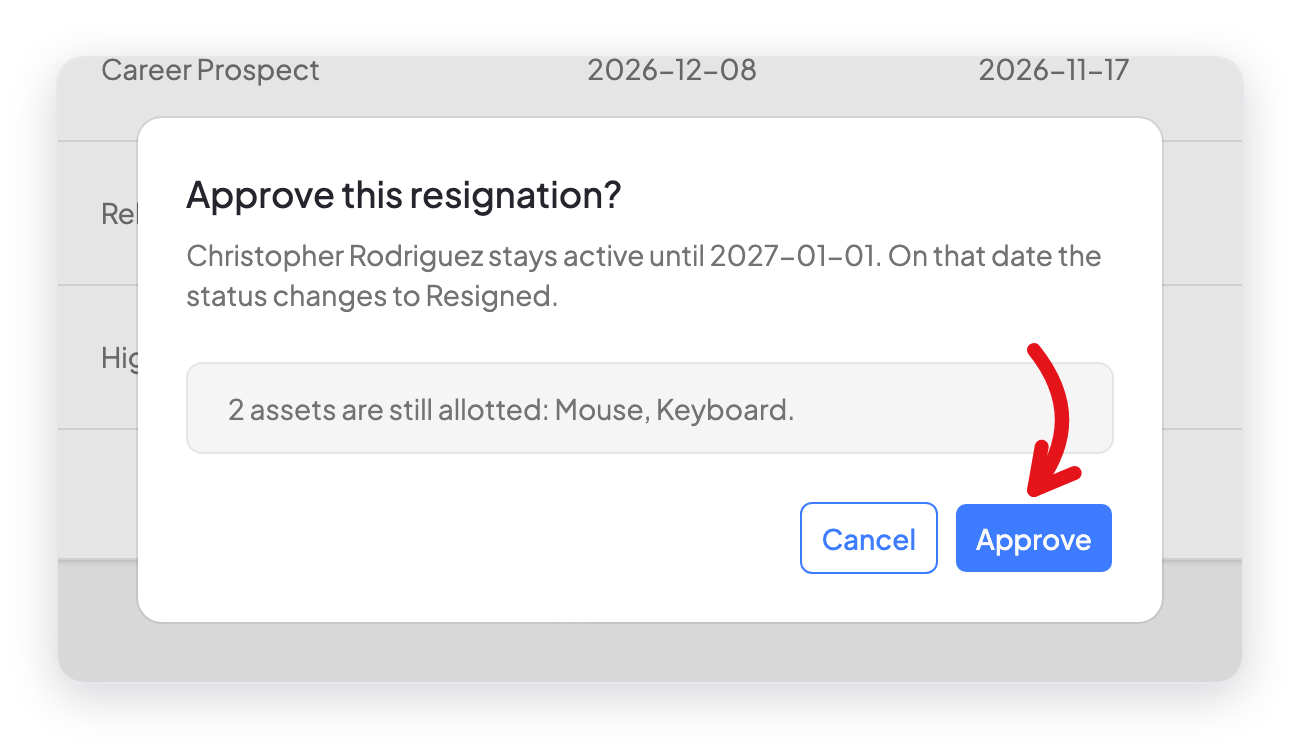
The message tells you the date when the status changes. It also lists the company assets that the employee still has, for example a laptop. Get these assets back before the last day.
Add a request for an employee (HR manager)
- On the Resignation tab, click New Request.
- Select the Employee, the Reason, and the Resignation Date.
- Type more information in Reason Details if necessary.
- Click Submit.
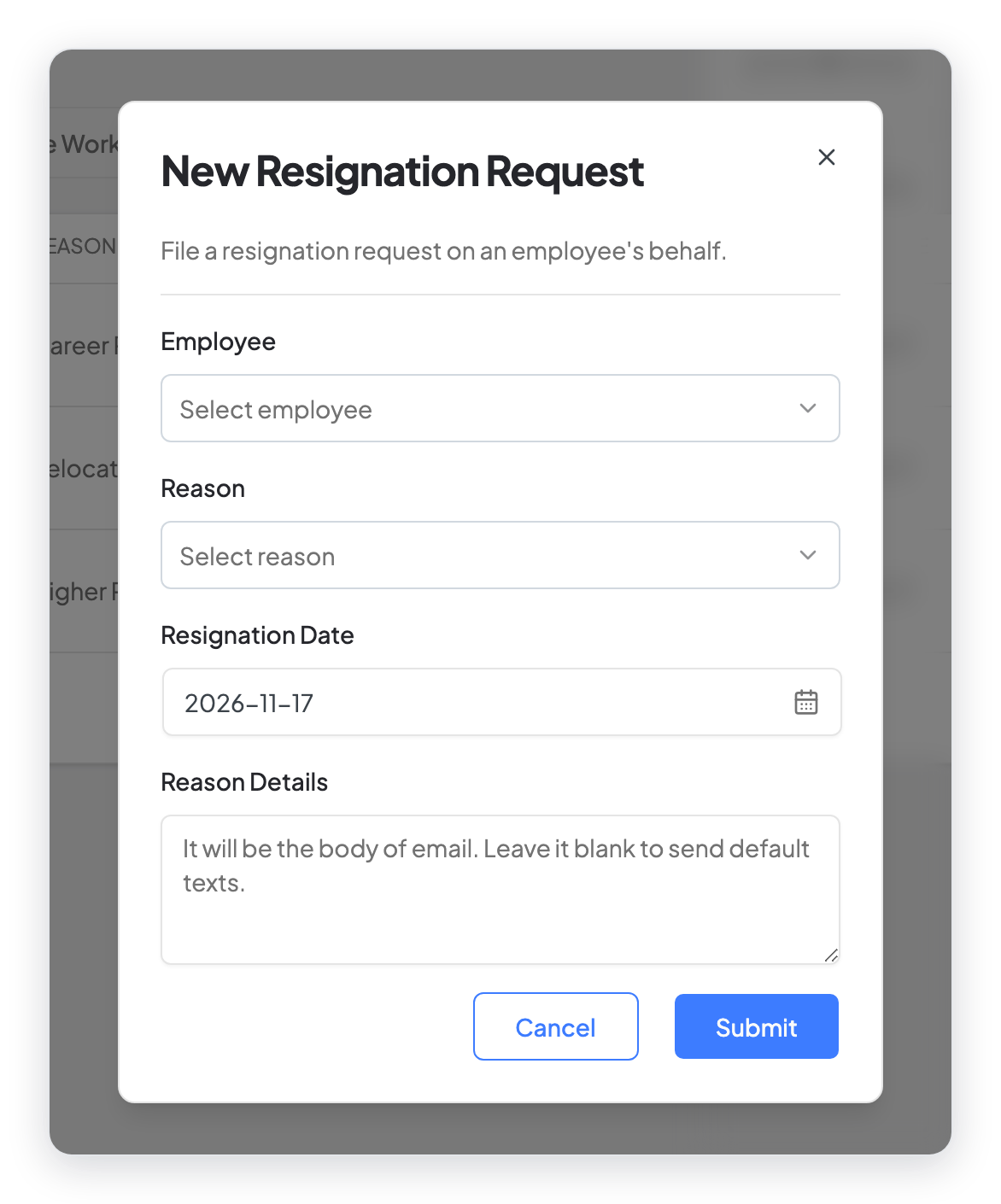
An HR manager can record a resignation with a past date.
Result
An approved request stays on the Resignation tab with the status Approved. The employee stays active until the resignation date. On that date, a daily task in WP ERP changes the employee status to Resigned.
What changed in 2.0
- Employees open the form from My profile → Resign.
- The approval message now shows the date when the status changes, and the assets that the employee still has.
- The employee form has Reason and Resignation Date only. The Reason Details box is only in the form for HR managers.
- HR managers can add a request for an employee with New Request. The row menu also has Delete.
- The old doc said that the employee gets an email after approval. WP ERP sends an email only to HR managers, when the employee sends the request.



