
Create a Leave Request
Employees can request leave themselves. An HR manager can also make a leave request for an employee. Each new request has the status Pending until someone approves or rejects it.
Before you start
- The employee must have an entitlement for the leave policy. See Leave Entitlements.
- Employees must log in to WordPress with their own account.
For employees: request leave
- Log in to WordPress, and go to WP ERP → HR.
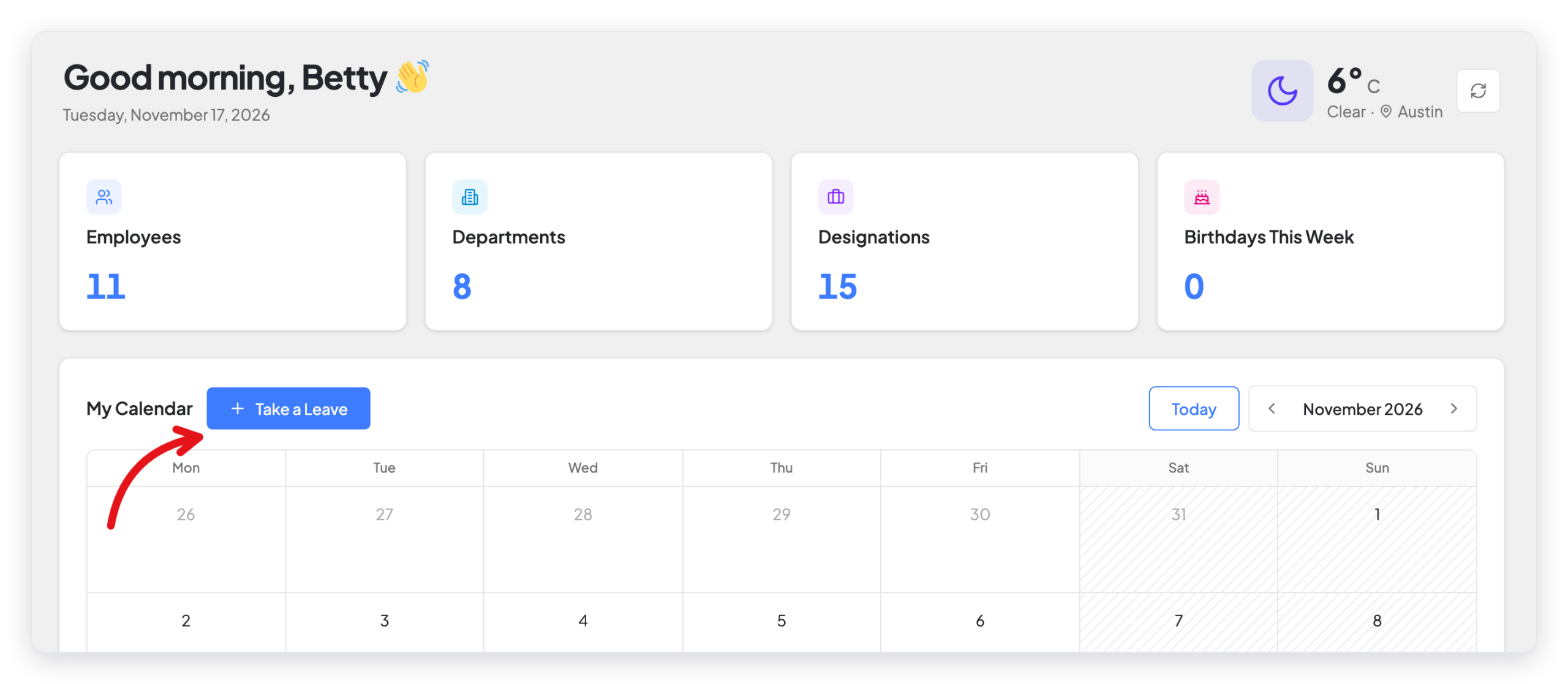
- On the dashboard, find My Calendar, and click Take a Leave.
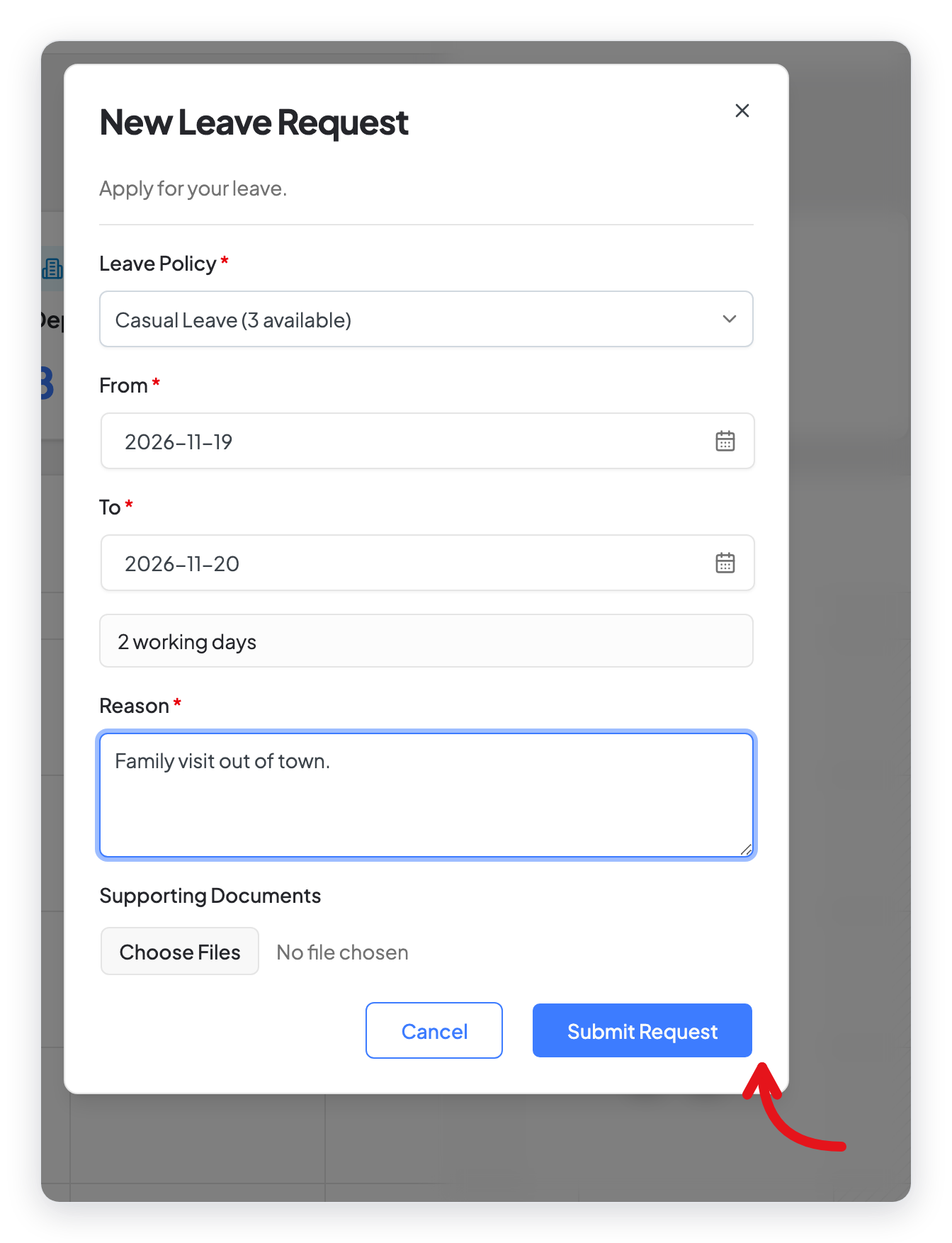
- Select the Leave Policy. Each policy shows the days that you have left.
- Select the first day in From and the last day in To. WP ERP shows the number of working days.
- Type the Reason.
- If you have a document, such as a note from a doctor, click Choose Files in Supporting Documents. This is optional.
- Click Submit Request.
WP ERP shows the message "Leave request submitted." The request has the status Pending.
To see your requests and your leave balance, open My Leave in the top menu.
For HR managers: request leave for an employee
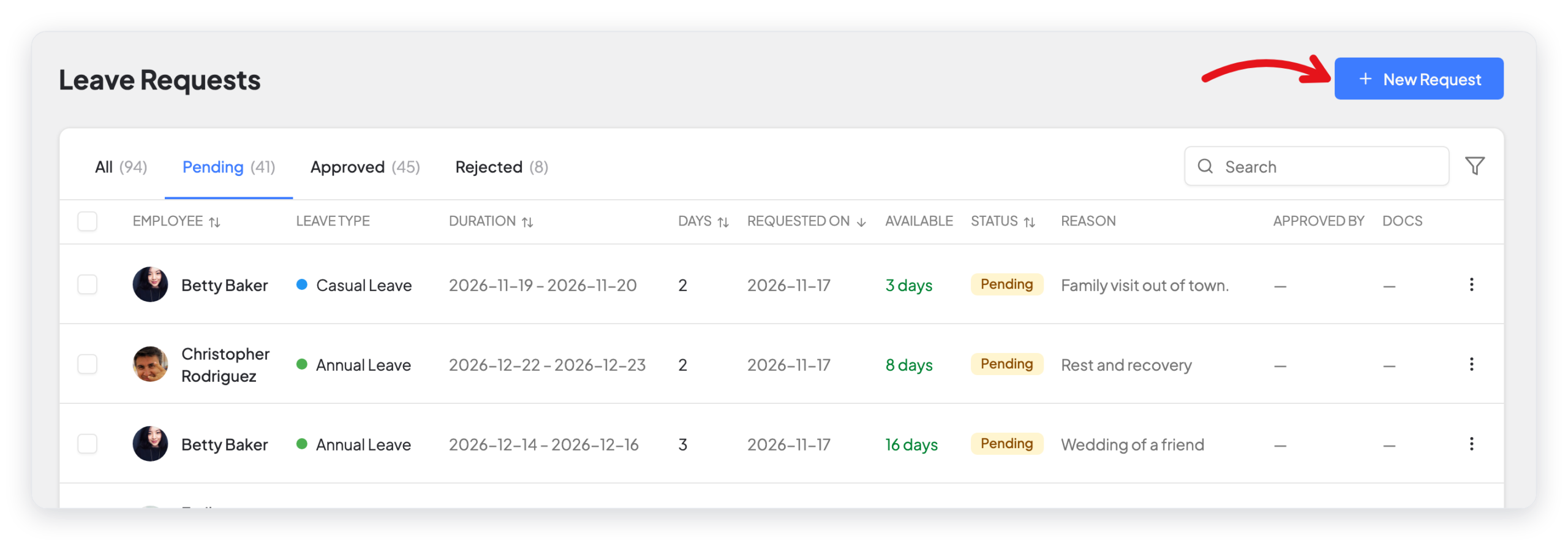
- Go to WP ERP → HR, open Leave, and click Requests.
- Click New Request at the top right.
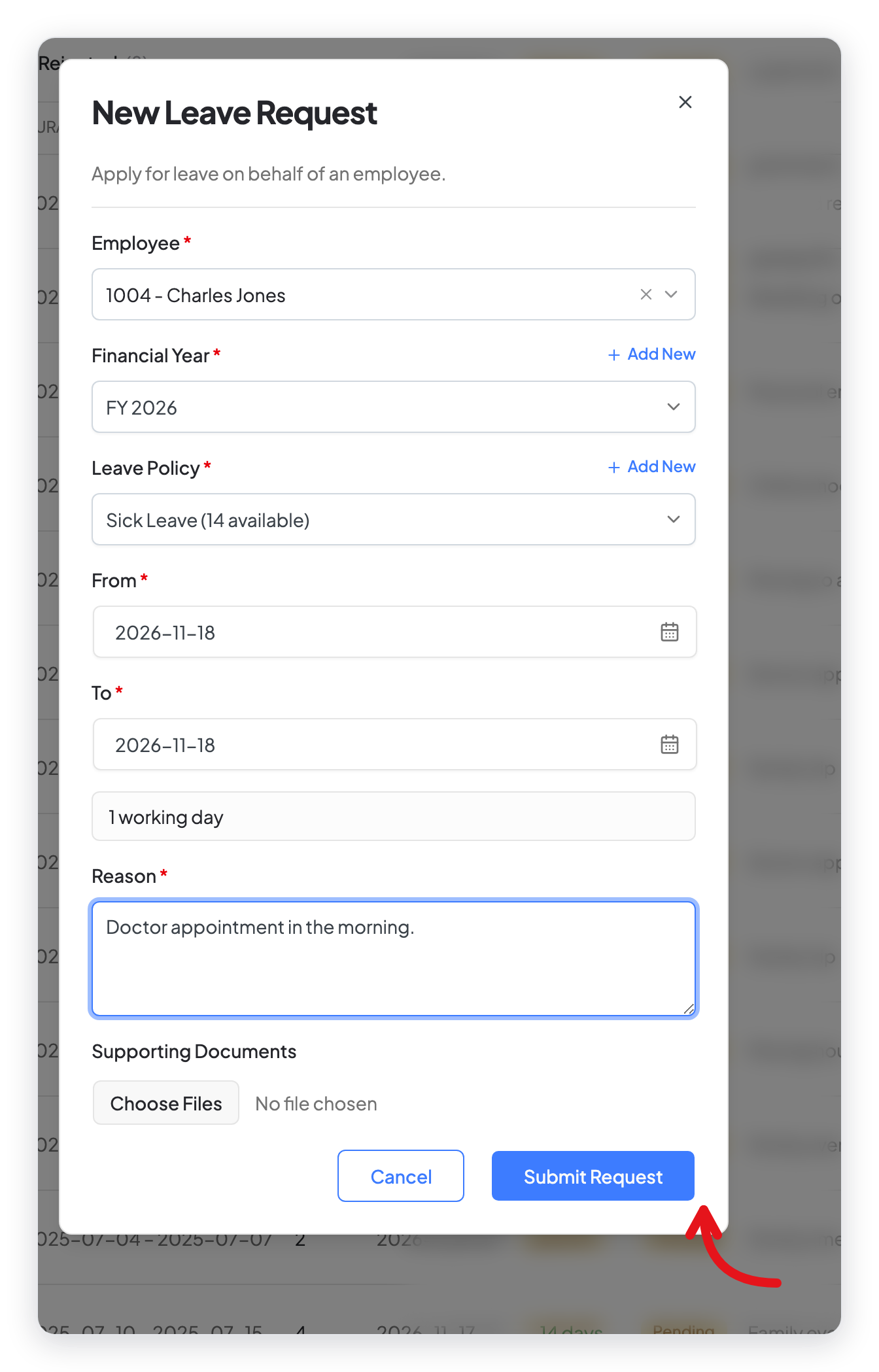
- Select the Employee.
- Select the Financial Year.
- Select the Leave Policy. The list shows only the policies of this employee, with the days left.
- Select the dates in From and To.
- Type the Reason. You can also add Supporting Documents.
- Click Submit Request.
WP ERP shows the message "Leave request submitted."
A request that you make for an employee shows as Pending (awaiting HR), with your name under Approved By. The request is still pending. To finish it, approve it. See Manage Leave Requests.
If WP ERP does not accept the request
- If the employee already has a request on the same days, WP ERP shows "There is already a leave request on these dates." Select other dates.
- If the employee has no days left, the request is not possible. To let employees take leave without pay, turn on Extra Unpaid Leave. See Create a Leave Policy.
The fields in the form
| Field | Necessary | What it means |
|---|---|---|
| Employee | Yes (HR form only) | The employee who takes the leave. |
| Financial Year | Yes (HR form only) | The period that the leave days come from. |
| Leave Policy | Yes | The kind of leave and the days left. |
| From, To | Yes | The first and the last day of the leave. |
| Reason | Yes | Why the employee needs the leave. |
| Supporting Documents | No | Files that support the request, for example a doctor's note. |