
Create and Import Holidays
Holidays are the days that your company is closed. They show on the leave calendar. WP ERP does not count them as leave days when an employee requests leave.
You can add holidays one at a time, or import many holidays from a file.
Before you start
- You must be a WordPress administrator or an HR manager.
Step 1: Open the Holidays page
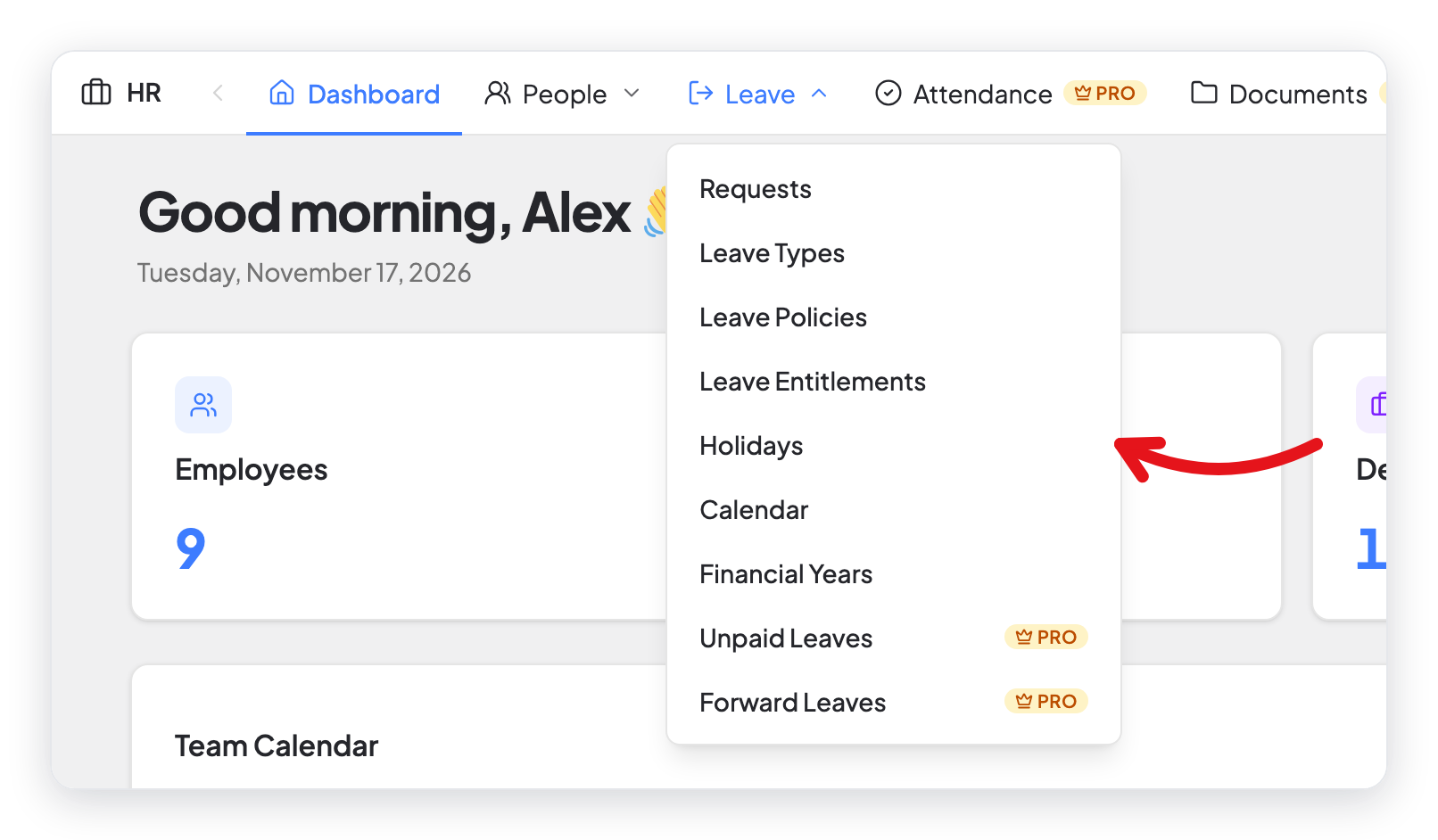
- In your WordPress admin, go to WP ERP → HR.
- In the top menu, open Leave.
- Click Holidays.
The list shows the holidays of the current year. To see other dates, change the Date range filter.
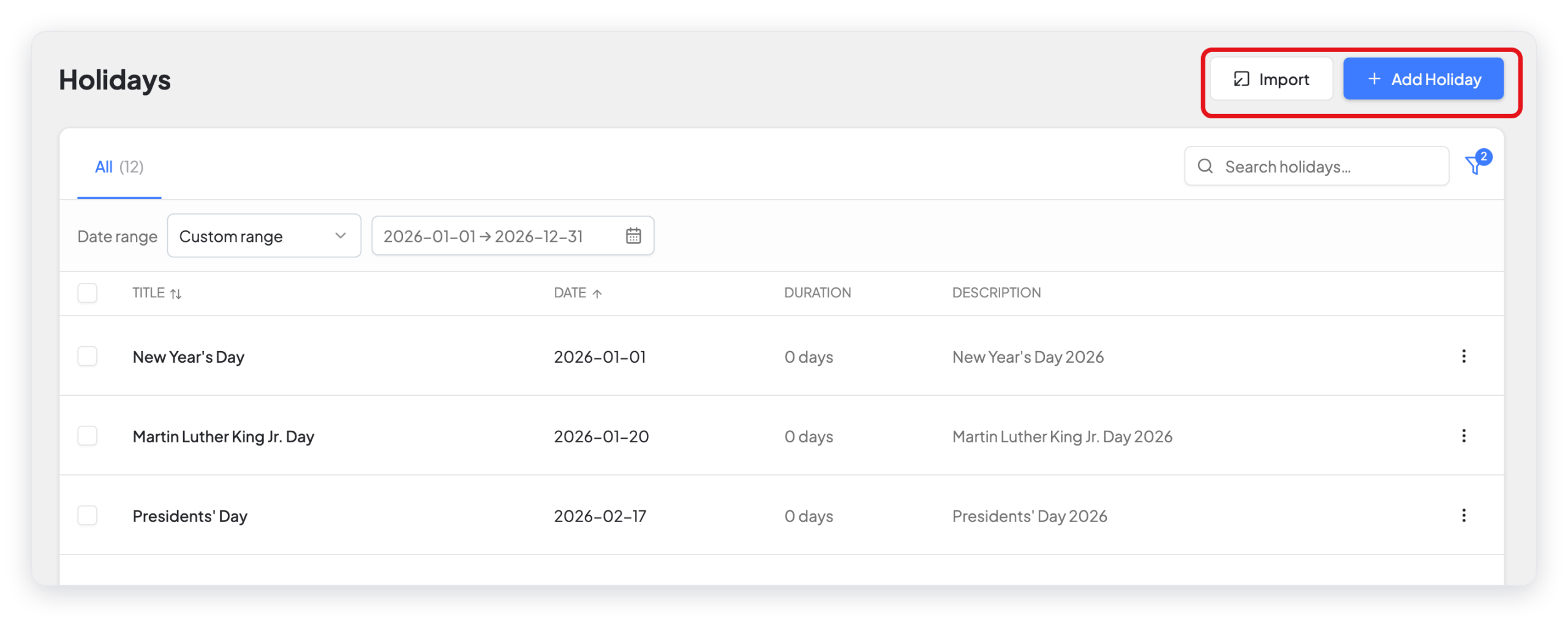
Add a holiday
- Click Add Holiday.
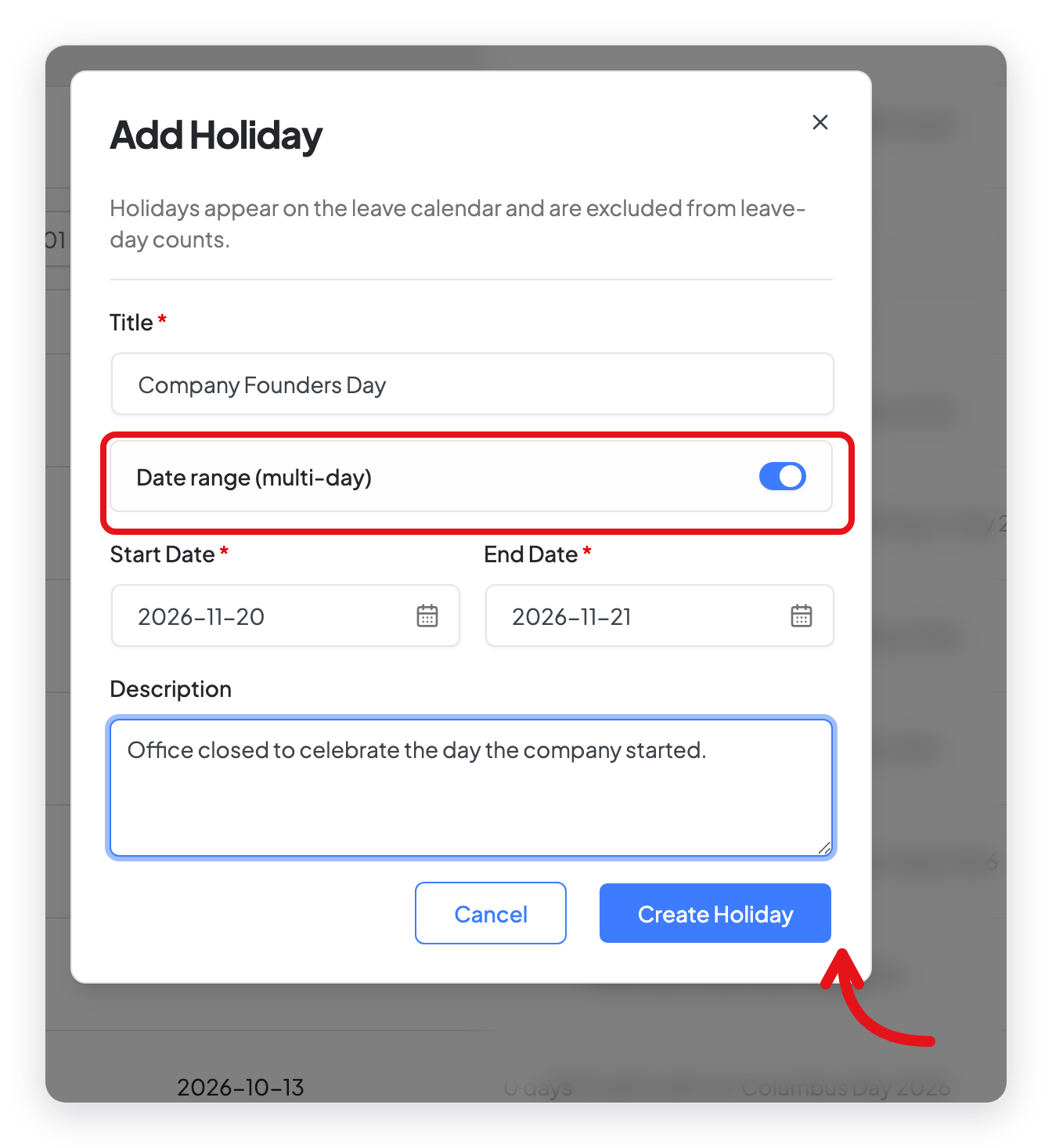
- Type the Title, for example Company Founders Day.
- Select the day of the holiday:
- For one day, select the Date.
- For more than one day, turn on Date range (multi-day). Then select the Start Date and the End Date.
- Type a Description. This field is optional.
- Click Create Holiday.
WP ERP shows the message "Holiday created." The holiday is in the list and on the leave calendar.
Import holidays from a file
You can import an iCal file (.ics) or a CSV file (.csv).
- Click Import.
- If you use a CSV file, click Download a sample CSV to get a file with the correct columns.
- Click Choose a .ics or .csv file, and select your file.
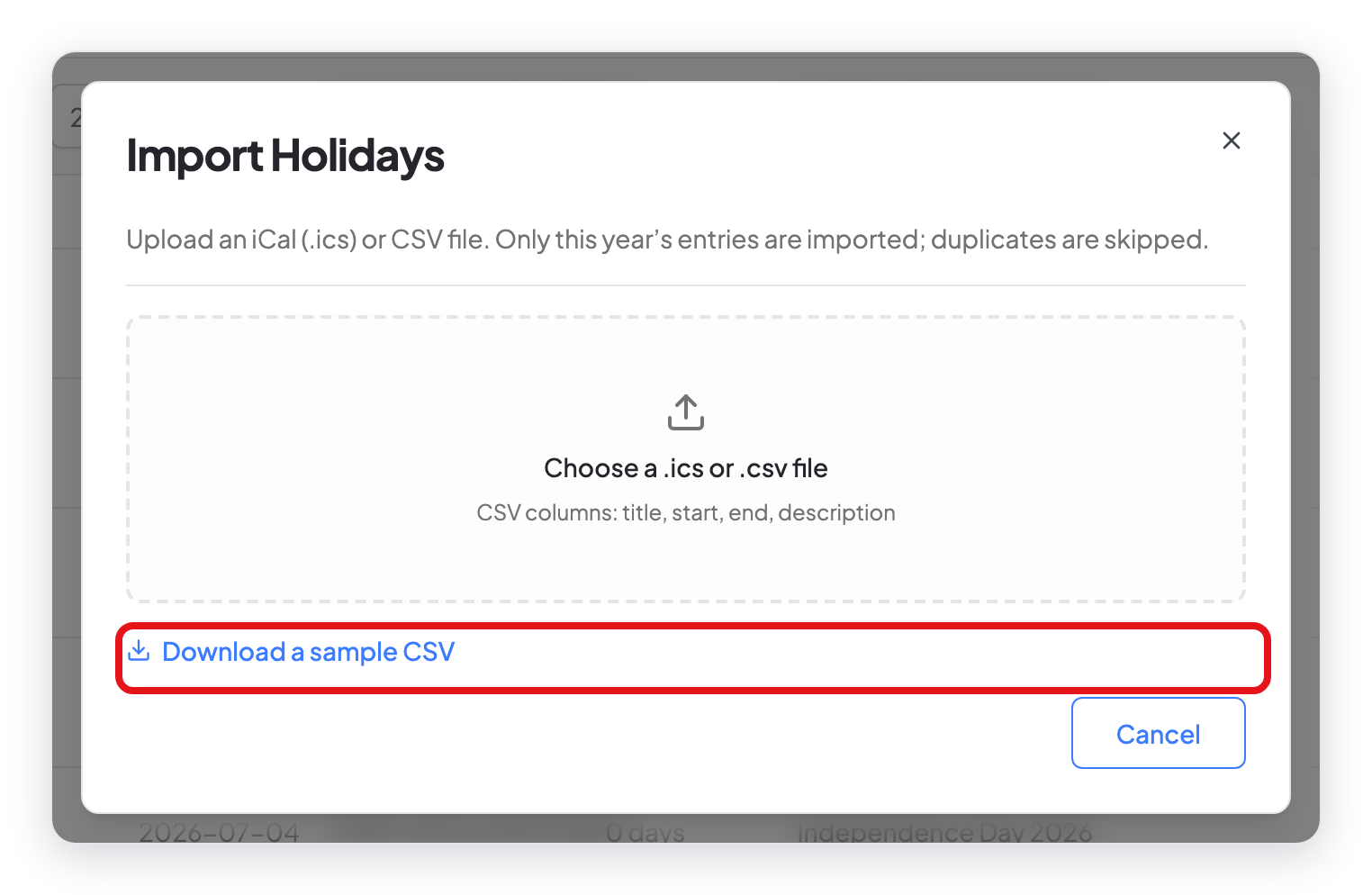
A CSV file must have these columns: title, start, end, description.
WP ERP imports only the holidays of the current year. If a holiday is already in the list, WP ERP skips it.
Edit or delete a holiday
- Click the three dots (⋮) at the end of the row.
- Click Edit or Delete.
What changed in WP ERP 2.0
- The Range check box is now the Date range (multi-day) switch.
- The import accepts only the entries of the current year, and it skips duplicates.
- The old article had a list of holiday files for many countries. That list is not part of this article.