

Salary History Report
The Salary History report lists the pay of each active employee. When the pay of an employee changes, the report shows each change on its own row.
Why use this report
- See what each employee earns, and since when.
- See every raise and pay change of each employee by date.
- Compare pay before a salary review or a promotion.
Before you start
- You must be a WordPress administrator or an HR manager.
- The report uses the pay details on the Job tab of each employee profile. Each time that you change the pay of an employee, WP ERP adds a row to this report.
Open the report
- Go to WP ERP → HR.
- Open Reports, then click Salary History.
Read the report
Each row is one pay record. The columns are:
| Column | What it means |
|---|---|
| Employee | The name of the employee. It shows only on the newest row of each employee. |
| Date | The date from which this pay is correct. |
| Pay Rate | The amount for each pay period. |
| Pay Type | The pay period, for example monthly or hourly. |
| Employee ID | The ID of the employee, if you added one. |
In the example below, Charles Jones has two rows. The top row is his pay after a raise in March 2026. The row under it is his pay from his date of hire.
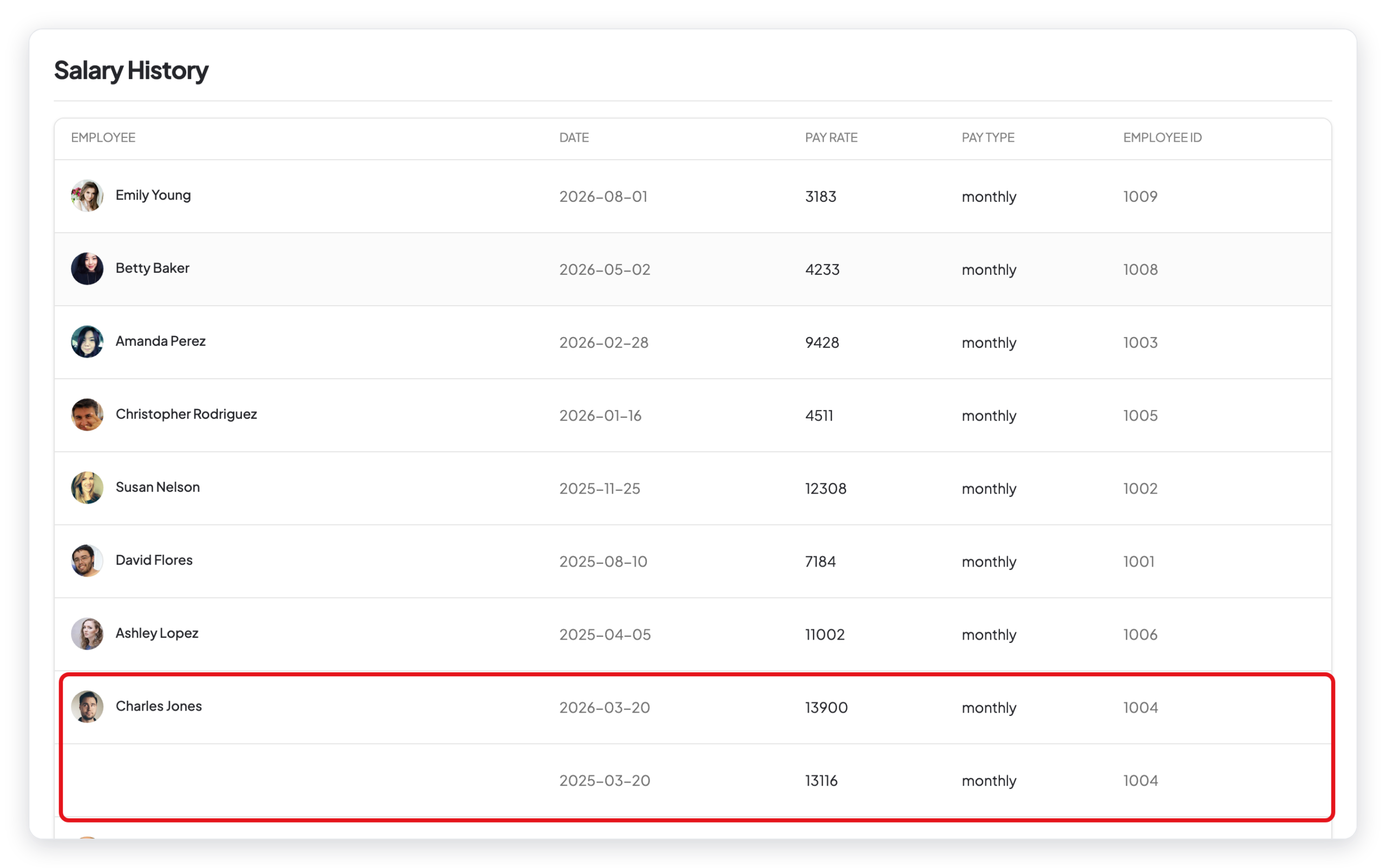
The newest pay of each employee is on the top row for that employee. The report shows up to 30 pay records for each employee.
What changed in WP ERP 2.0
- The employee names do not open the employee profile. To see more pay details, open the employee from People → All Employees and go to the Job tab.



