

Leave Report
The Leave report shows how many leave days each employee used, and how many days they get. It shows one column for each leave type.
Use this report to see who has leave days left and who used all of them.
Before you start
- You must be a WordPress administrator or an HR manager.
- The report uses the leave policies and the approved leave requests in WP ERP. For more information, read Leave Entitlements.
Open the report
- Go to WP ERP → HR.
- Open Reports, then click Leaves.
Filter the report
- Select the year in Financial Year. To use your own dates, select Custom, then select the dates in Date range.
- To see more filters, click the filter icon on the right.
- Select a Designation, a Department, or an Employment Type.
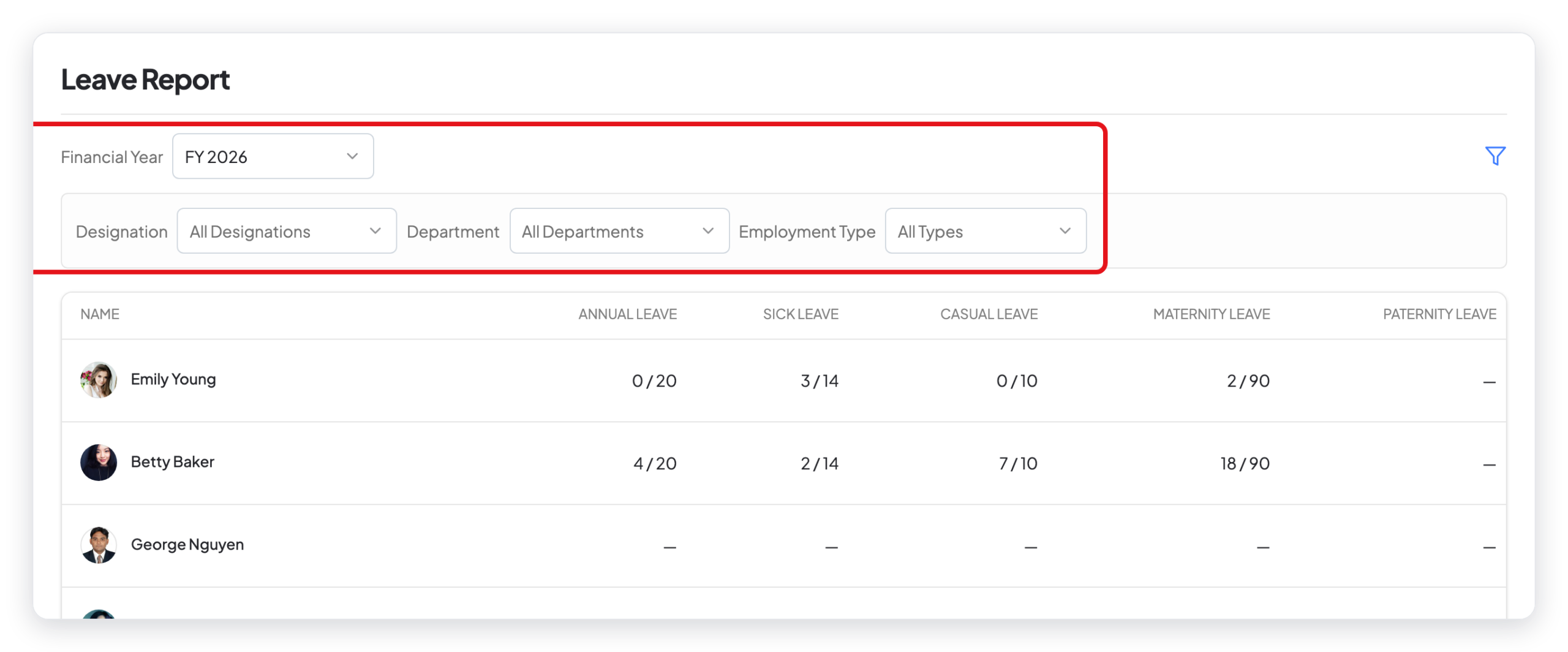
You can use one filter or more filters together. To remove the filters, click Clear.
Read the report
Each row is one employee. Each column is one leave type. Each cell shows two numbers:
- The first number is the days that the employee used.
- The second number is the days that the employee gets for the year.
For example, 12 / 14 in the Sick Leave column means that the employee used 12 of 14 sick days.
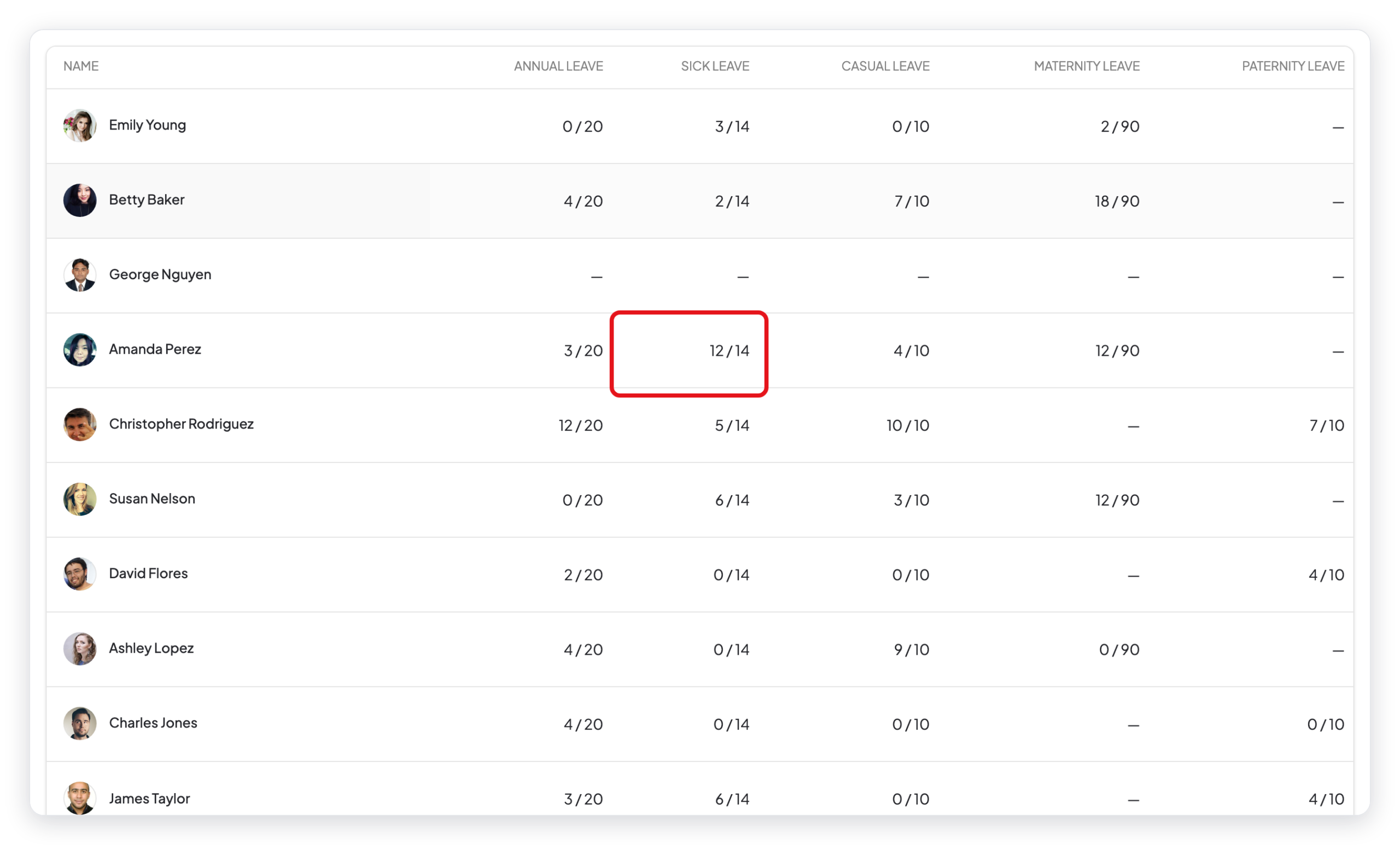
A dash (—) means that the employee has no leave policy for that leave type.
What changed in WP ERP 2.0
- The Year filter is now Financial Year. It uses the leave years that you set in WP ERP.
- You can now select Custom to use your own dates.
- The Designation, Department, and Employment Type filters are behind the filter icon.



