

Shifts
A shift is the working time of a group of employees, for example Day Shift, 09:00 – 17:00. Attendance works only for employees who are on a shift for that date. You make a shift first. Then you assign employees to it for a date range.
Before you start
- The Attendance module must be on. See Attendance.
Step 1: Make a shift
- Go to WP ERP → HR → Attendance → Shifts.
- Click New shift.

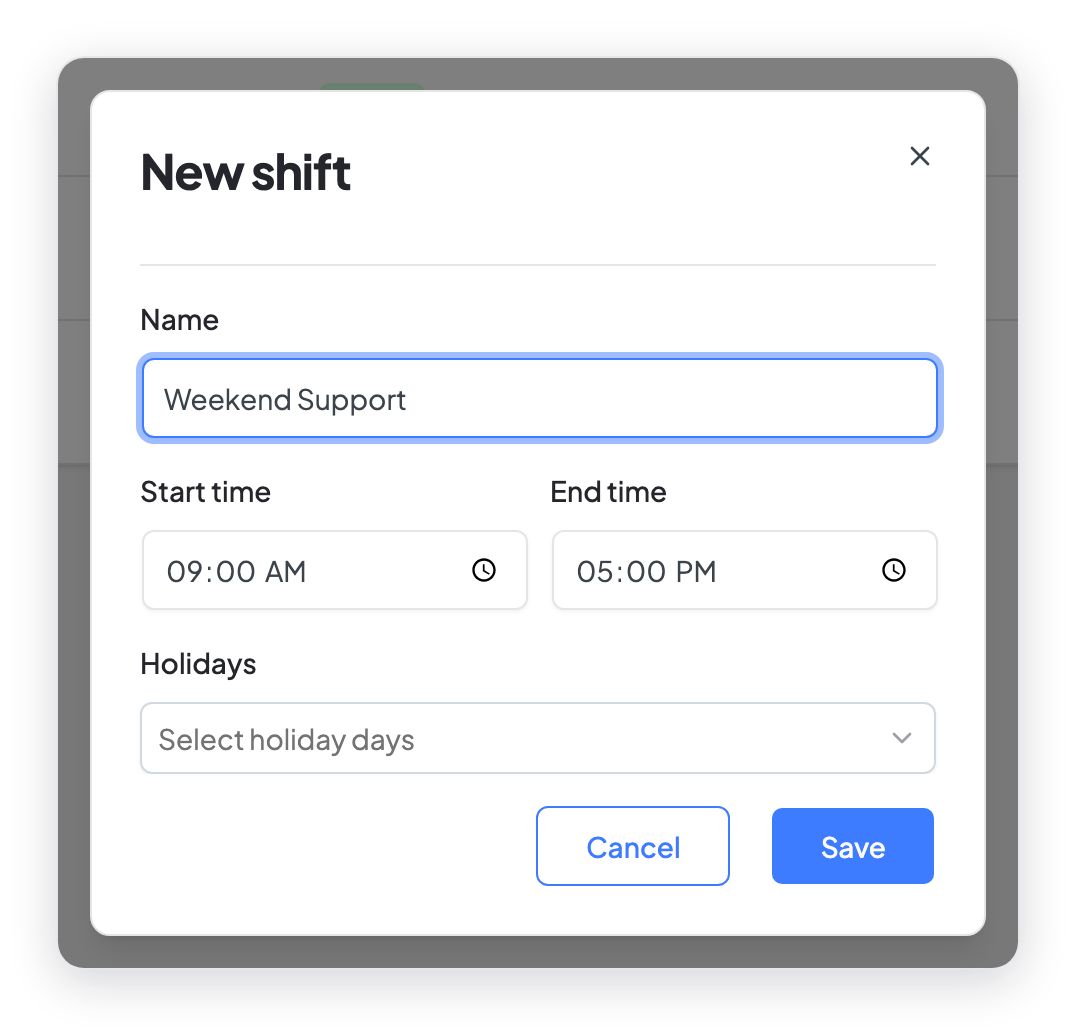
- Type the Name of the shift.
- Set the Start time and the End time.
- In Holidays, select the days of the week when this shift does not work. For example, Saturday and Sunday.
- Click Save.
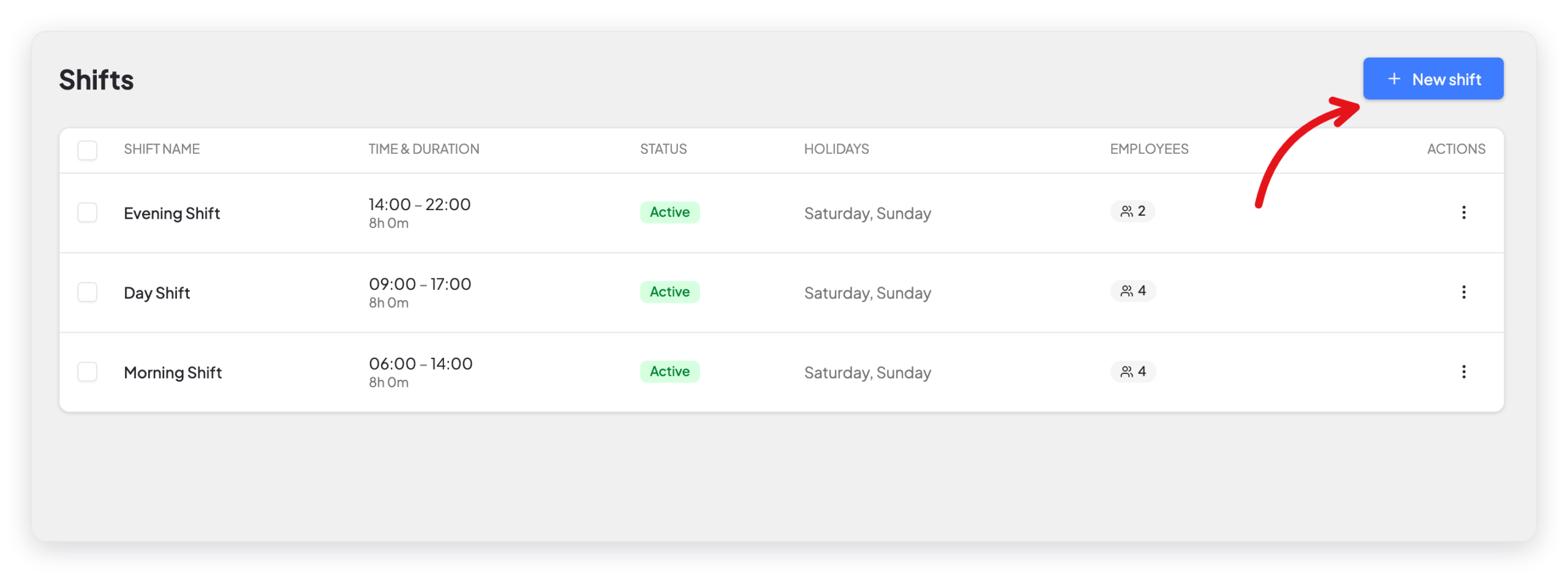
The shift shows in the list with its time, its duration, its status, its holidays, and the number of employees.
Step 2: Assign employees to the shift
Employees can check in only on the dates that their shift is assigned (generated) for.
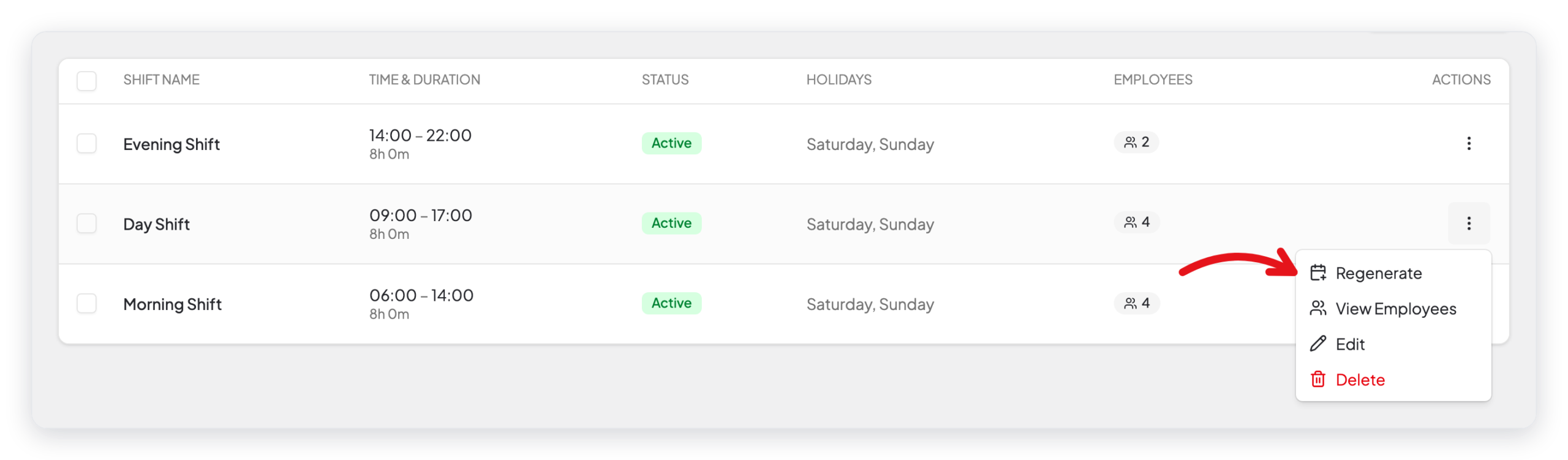
- On the Shifts page, click the ⋮ menu of the shift.
- Click Regenerate.
- Set the Start Date and the End Date.
- In Assign Shift, select who gets this shift: Selected employees, All employees, Department, Designation, or Employment Type.
- If you selected Selected employees, select the employees in Select Employee.
- Select Overwrite Employees if these employees already have a shift in this date range and you want to replace it.
- Click Generate.
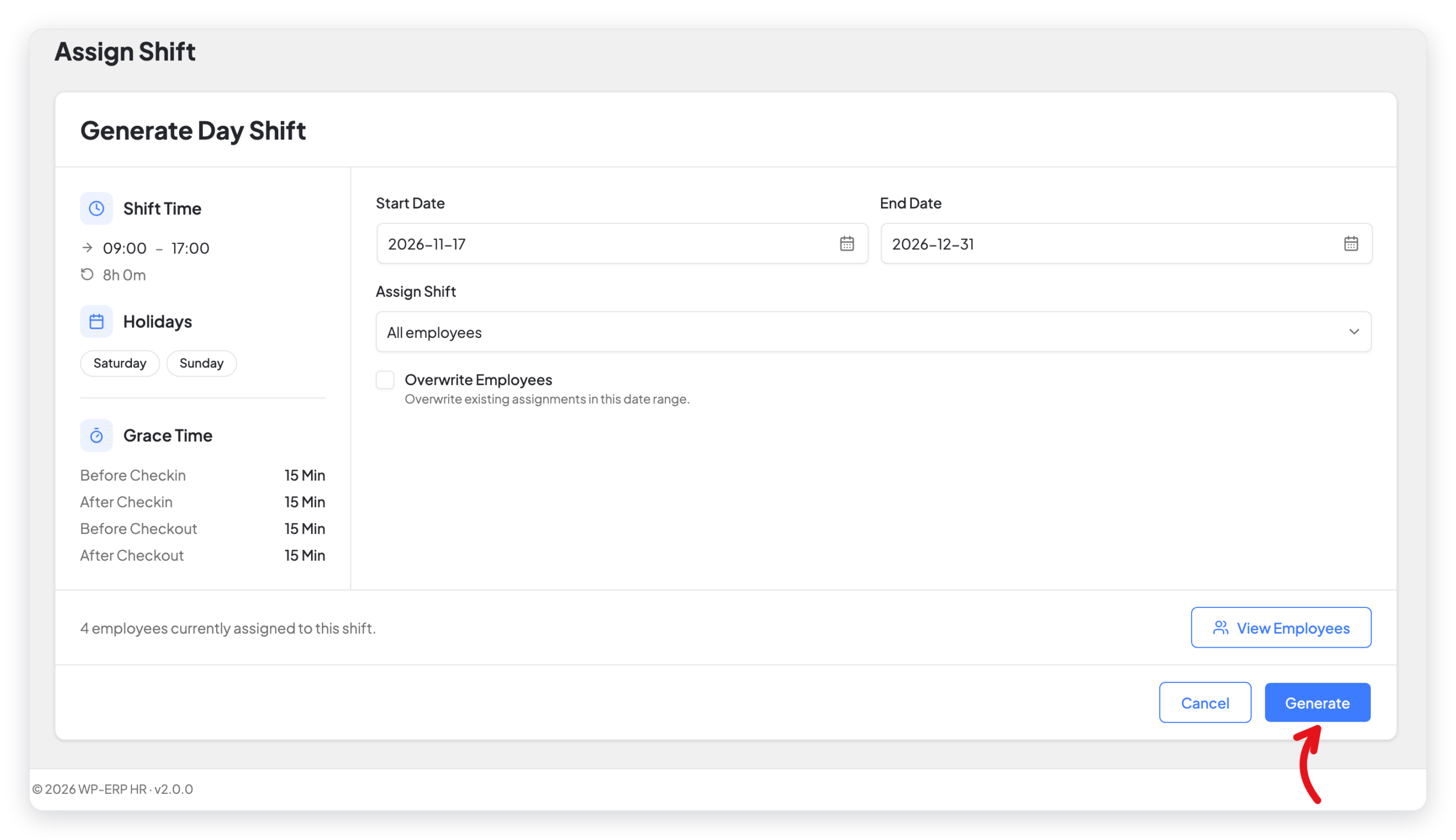
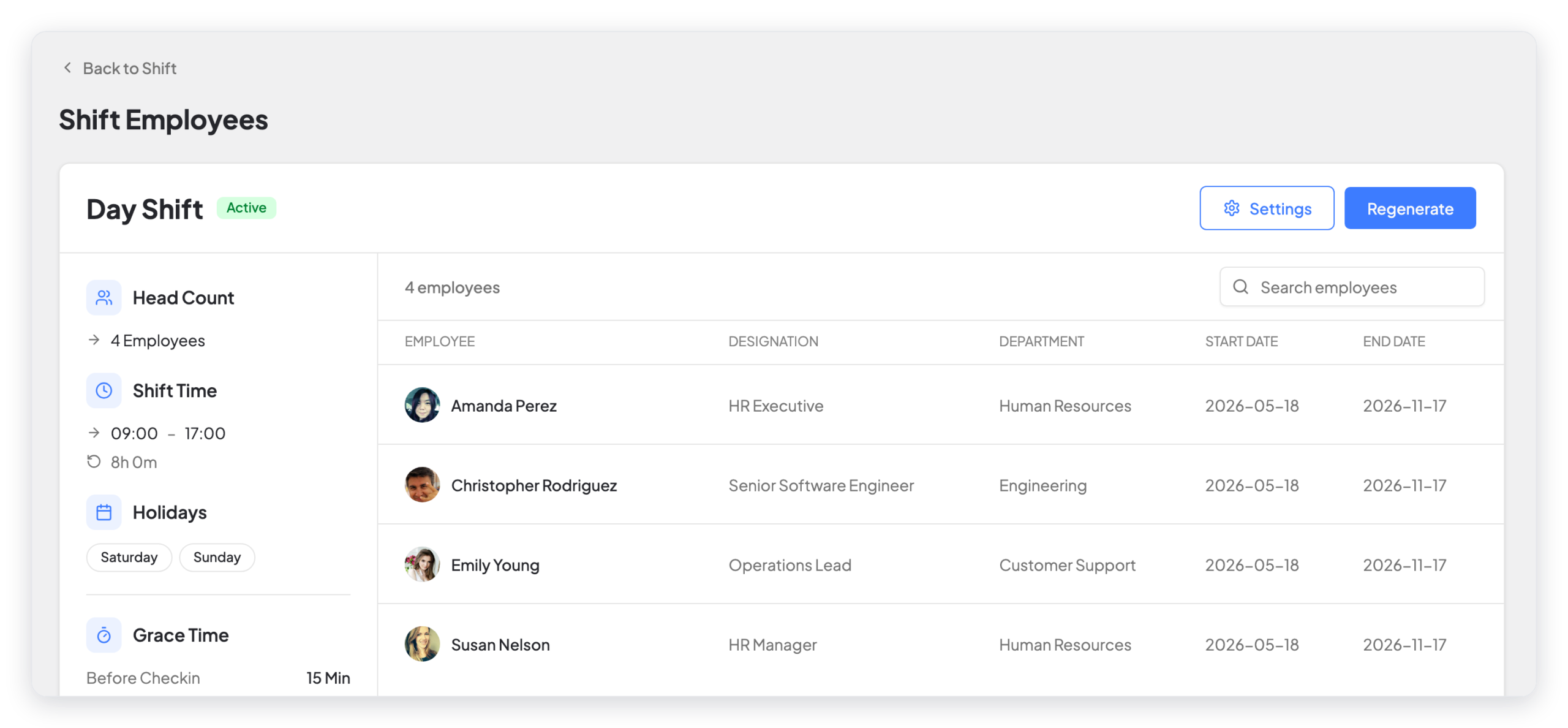
The left side of the page shows the shift time, the holidays, and the grace times of the shift.
Note: After the End Date, the employees of this shift cannot check in. Before the end date comes, generate the shift again for the next date range.
See the employees of a shift
- Click the ⋮ menu of the shift.
- Click View Employees.
The page shows each employee with their designation, department, and the start and end date of their assignment.
Edit or delete a shift
Click the ⋮ menu of the shift, then click Edit or Delete.
What changed in 2.0
- Add New Shift is now New shift.
- The old Assign Bulk Shift page and the Generate action are now one page: Regenerate in the row menu of the shift. It has the new Assign Shift choices (department, designation, employment type) and Overwrite Employees.
- View Employees is new. It shows the date range of each assignment.



