

Attendance Reports
Attendance reports show the attendance of one employee or of all employees for a period. You can download each report as a CSV file.
Open the reports
- Go to WP ERP → HR → Attendance → Reports.
- Click a tab: Employee, Employee based, or Date based.
Employee report
This report shows the attendance of one employee.
- Click the Employee tab.
- Select the Employee.
- Select the Date range. For a custom range, select Custom range, then pick the dates.
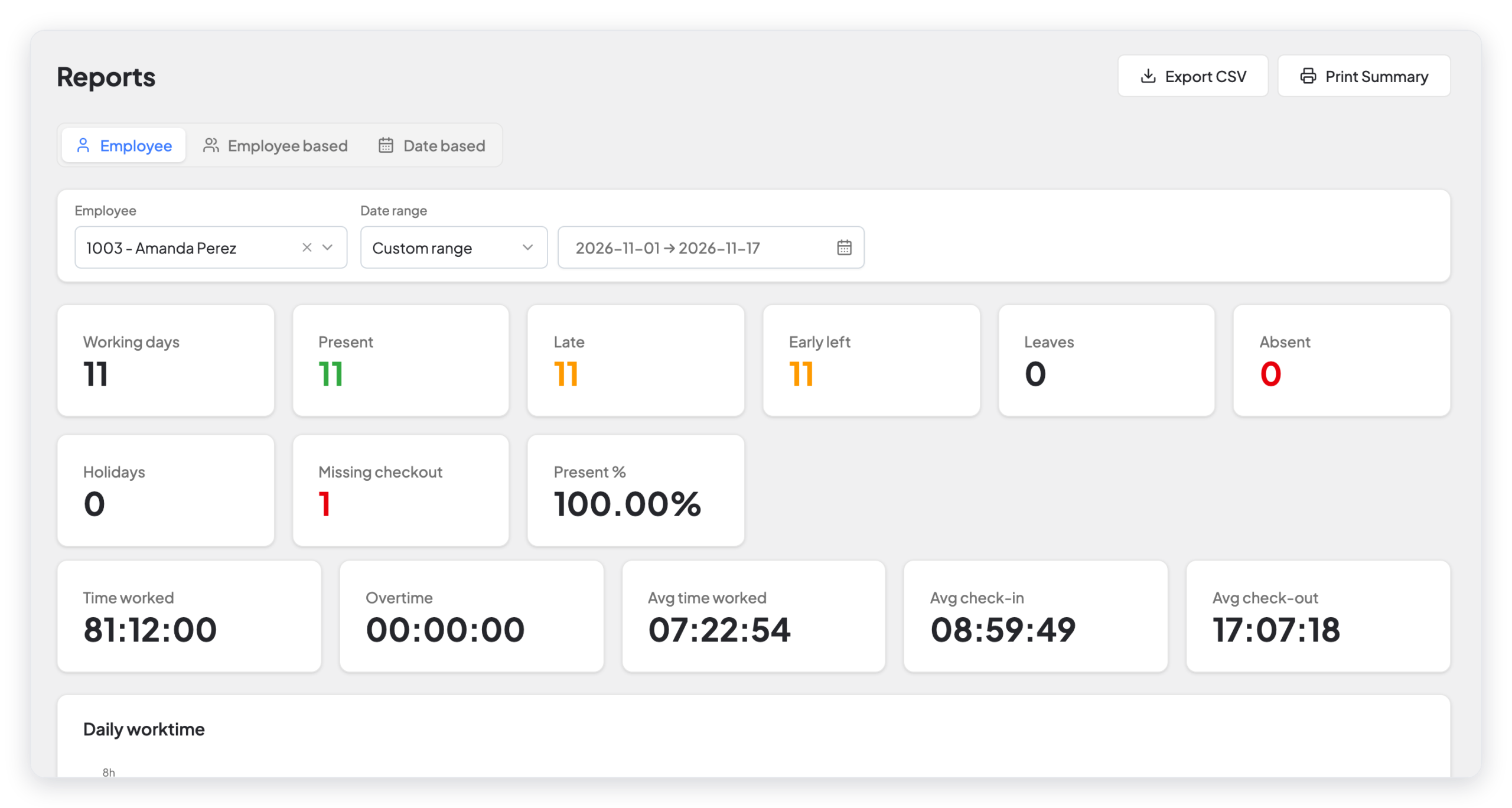
| Card | What it shows |
|---|---|
| Working days | The workdays in the range. |
| Present | The days that the employee checked in. |
| Late | The days that the employee checked in after the grace time. |
| Early left | The days that the employee checked out before the end of the shift and the grace time. |
| Leaves | The days of approved leave. |
| Absent | The workdays without a check-in or leave. |
| Holidays | The holidays in the range. |
| Missing checkout | The days with a check-in but no check-out. |
| Present % | The present days as a percent of the working days. |
| Time worked, Overtime | The total time. |
| Avg time worked, Avg check-in, Avg check-out | The averages for the range. |
Below the cards, a chart shows the work time of each day, and a table lists each day. Click Print Summary to print the report.
Employee based report
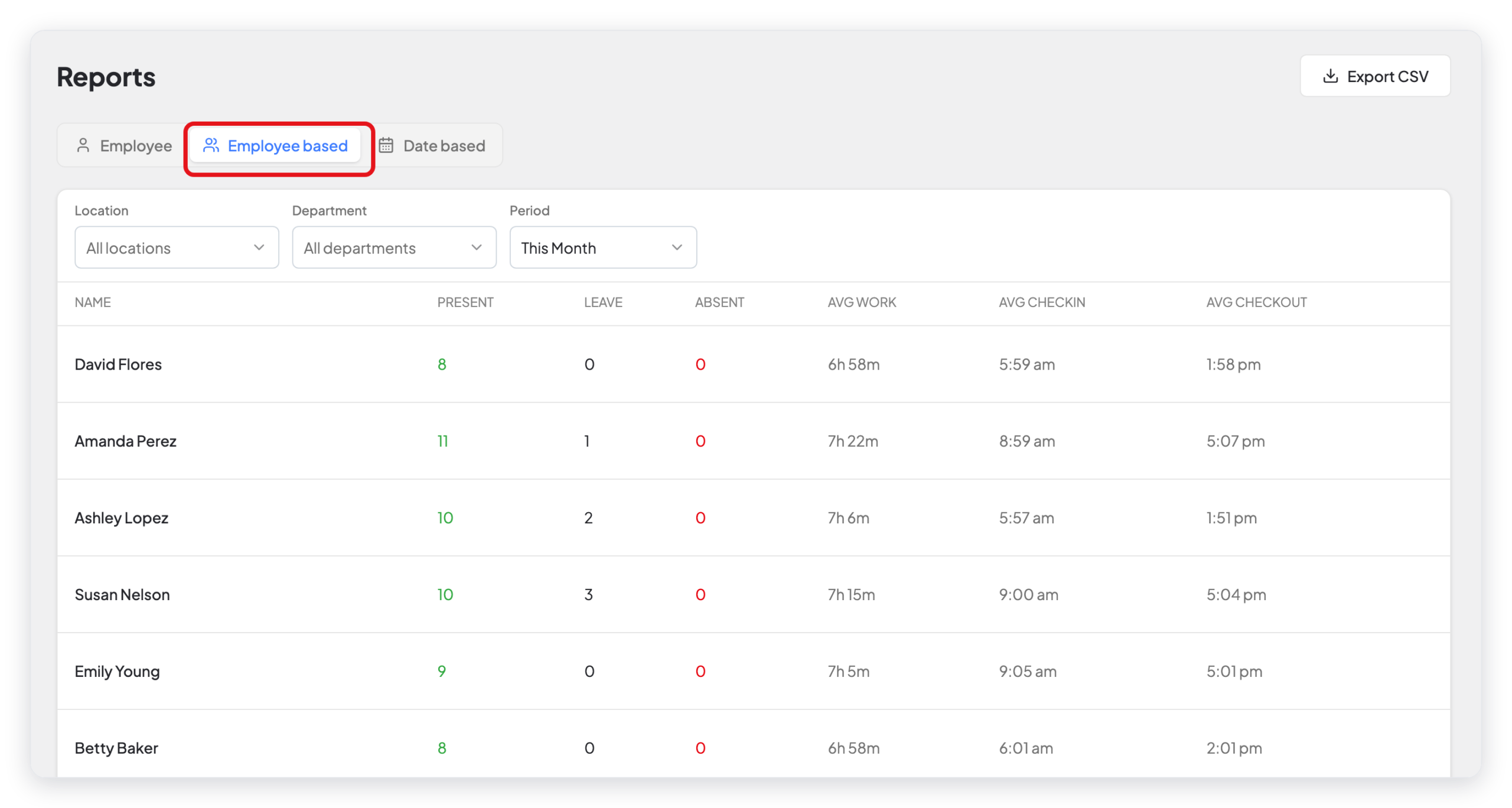
This report shows one row for each employee: the present days, the leave days, the absent days, and the average work time, check-in, and check-out.
- Click the Employee based tab.
- Select the Location, the Department, and the Period.
Date based report
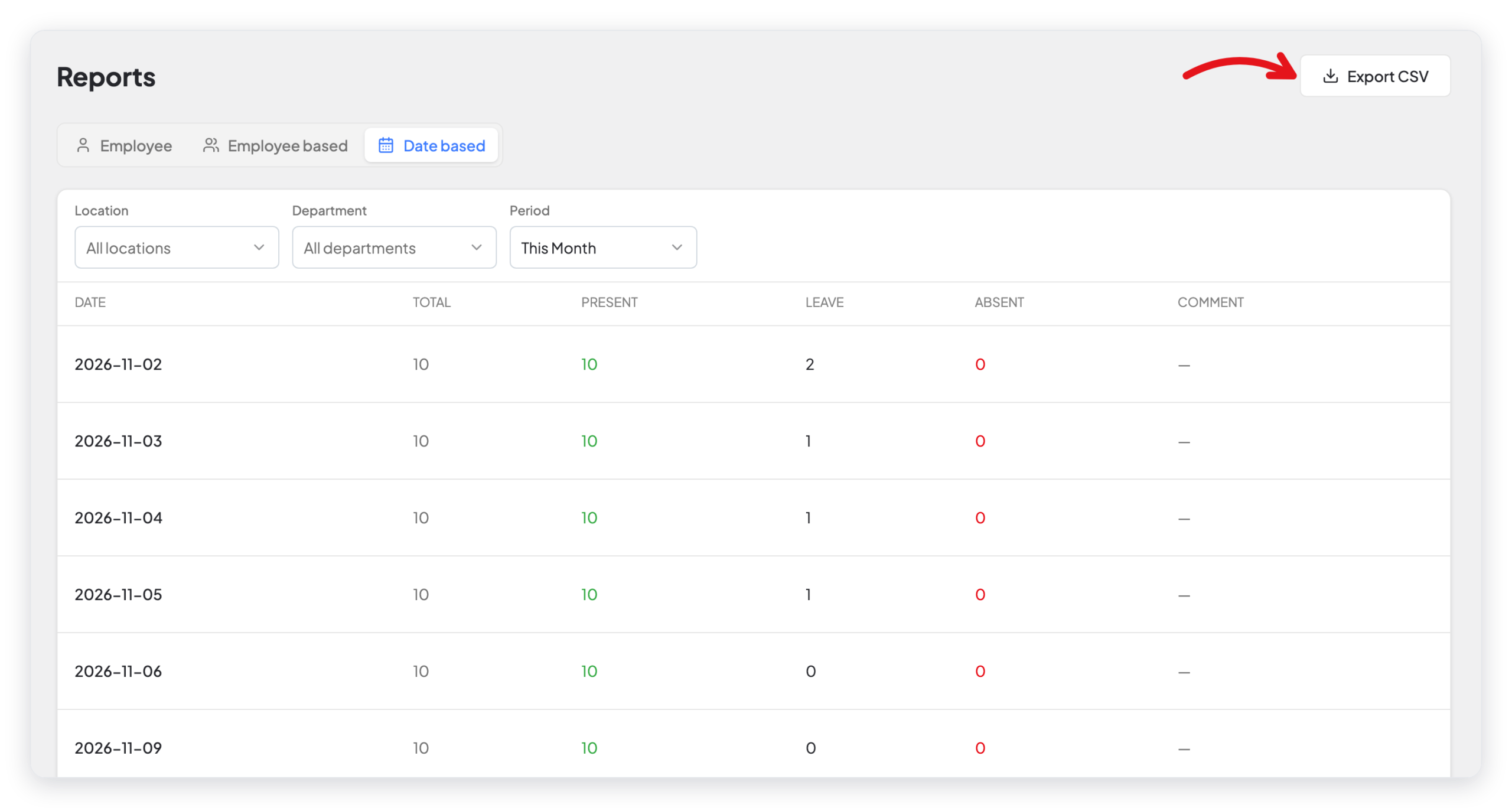
This report shows one row for each day: the number of employees, and how many were present, on leave, or absent.
- Click the Date based tab.
- Select the Location, the Department, and the Period.
Download a report
Click Export CSV at the top right of the report.
What changed in 2.0
- The attendance reports are now on Attendance → Reports. The HR Reports page also lists the two attendance reports, with a PRO label.
- The new Employee tab shows the full attendance of one employee, with summary cards, a chart, and Print Summary.
- The old date-based summary cards (average present, average late, and more) are gone. The Date based tab now shows one row for each day.



