

Pay Calendars
A pay calendar tells WP ERP how often a group of employees gets paid, and on which day. You need at least one pay calendar before you can run payroll. Each pay run uses one pay calendar.
Before you start
- The Payroll module must be on. See Payroll.
- The employees must be active, and each employee must have a basic pay. See Set the pay details of an employee.
Add a pay calendar
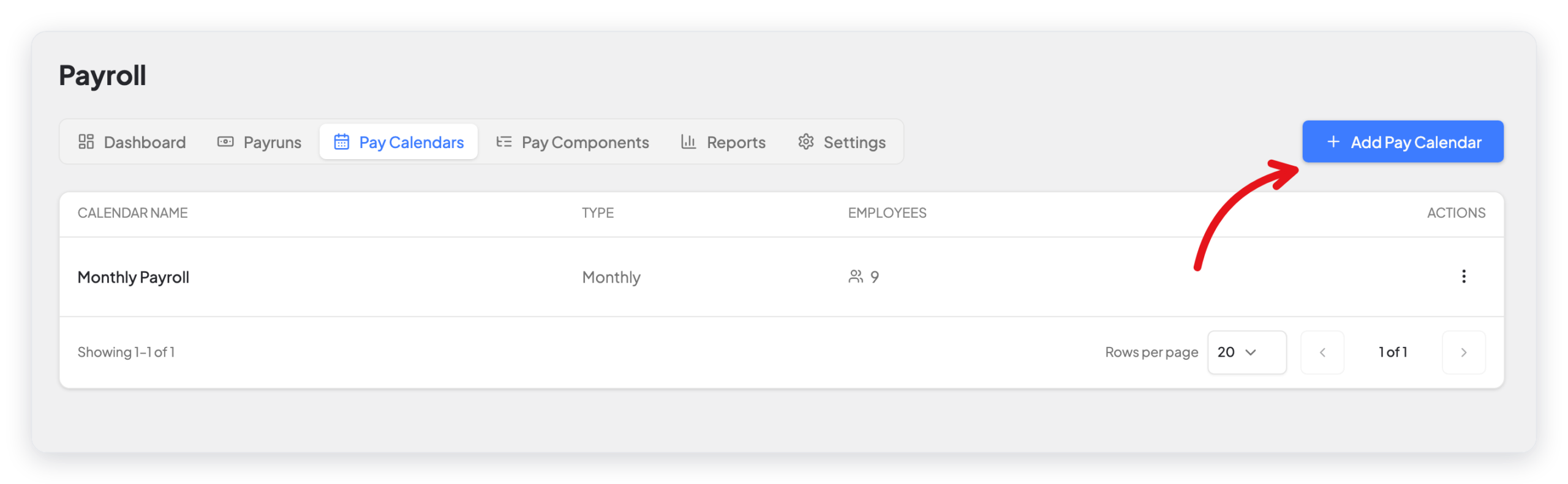
- Go to WP ERP → HR → Payroll.
- Click the Pay Calendars tab.
- Click Add Pay Calendar.

- Type the Calendar Name, for example Monthly Staff.
- Select the Calendar Type: Hourly, Weekly, Biweekly, or Monthly.
- Set the pay day:
- For a Monthly calendar, select the Pay Day Mode.
- For a Weekly, Biweekly, or Hourly calendar, select the Pay Day of the week.
- In Employees, select the employees that this calendar pays.
- Click Create.
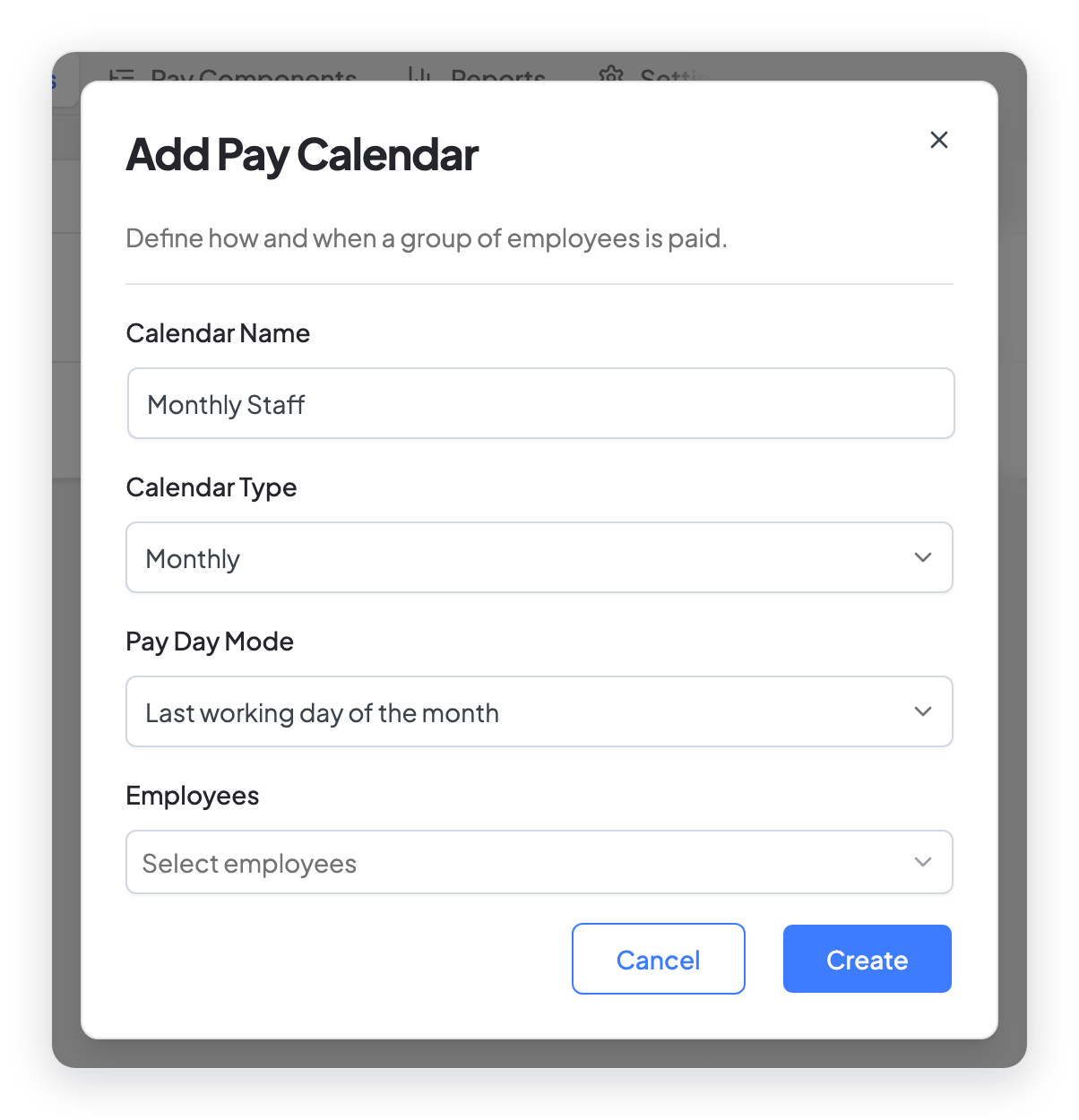
Pay Day Mode for a monthly calendar
| Pay Day Mode | When the pay day is |
|---|---|
| Last working day of the month | The last workday of the month that is not a holiday. |
| Last day of the week each month | The last workday of the month, from your HR workdays settings. Holidays are not skipped. |
| Specific day each month | The date that you type in Pay day (1-31). If the month is shorter, WP ERP uses the last day of the month. |
An Hourly calendar needs the Attendance module, because WP ERP uses the time worked from attendance. If Attendance is off, WP ERP does not let you start a pay run for an hourly calendar.
Start a pay run from a calendar
- On the Pay Calendars tab, click the ⋮ menu of the calendar.
- Click Start Payrun.
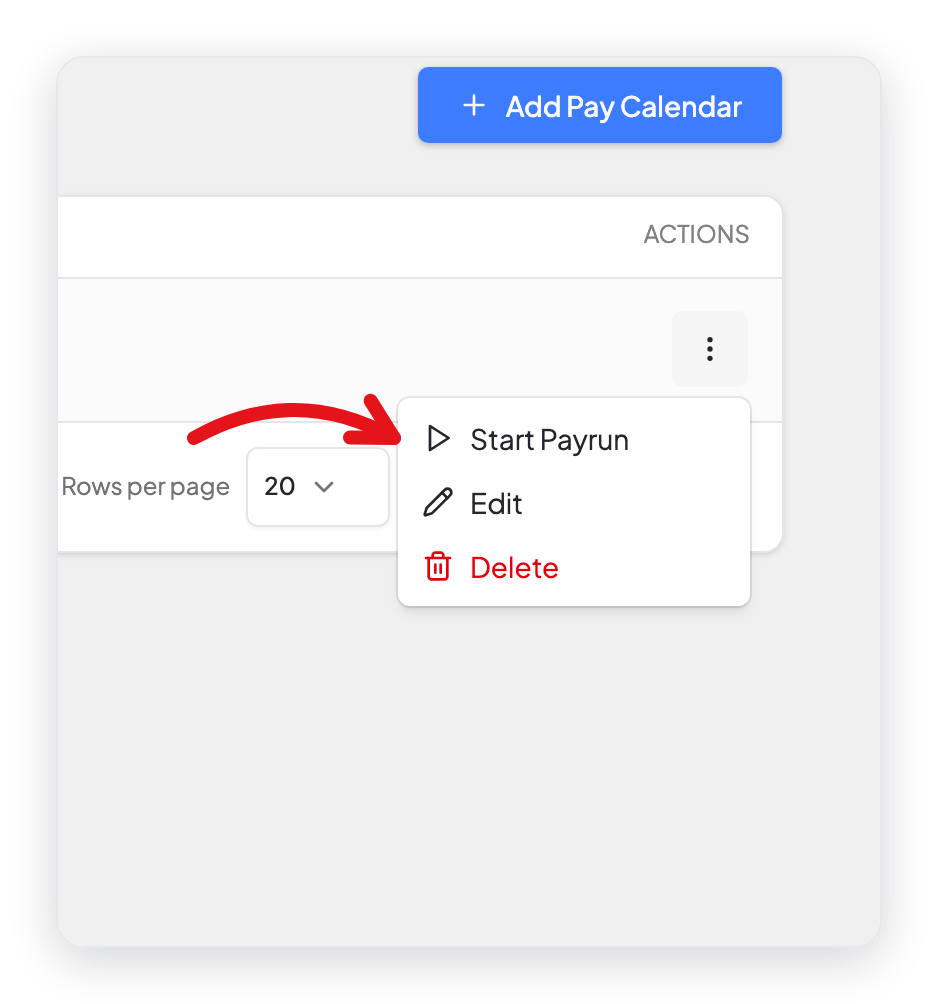
The pay run opens with this calendar already selected. See Run payroll.
Edit or delete a pay calendar
Click the ⋮ menu of the calendar, then click Edit or Delete. Use Edit to add a new employee to the calendar, or to remove an employee who left.
Note: A pay run includes every employee on the calendar who was hired before the period started. This is true also for a terminated employee who is still on the calendar, when Prorate partial-period salary is off. Remove employees who left from the calendar.
What changed in 2.0
- Add Pay Calendar now opens a small window. The old page with the Add Employee pop-up and the Create Pay Calendar button is gone. You select the employees in one field.
- Monthly calendars have a new Pay Day Mode with three choices.
- Start Payrun is now in the row menu of the calendar.
- The old doc said that inactive employees are not counted. In 2.0, a pay run still lists a terminated employee who is on the calendar, unless you turn on Prorate partial-period salary.



