

Question Sets and Stages
A question set is a group of screening questions. Candidates answer them on the application form, before they upload a CV.
A stage is one step of your hiring process, for example Phone Interview. Each candidate is in one stage at a time.
Make your question sets and stages before you make a job opening.
Before you start
You must be a WordPress administrator or an HR manager.
Question sets
Step 1: Open the question sets
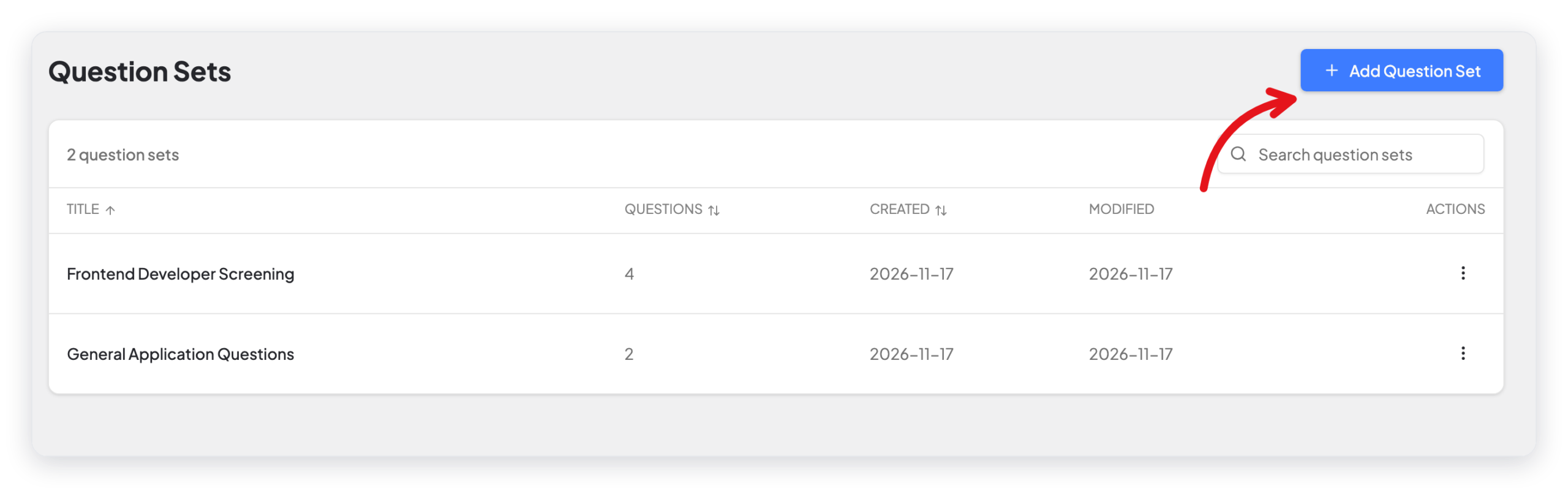
- Go to WP ERP → HR → Recruitment → Question Sets.
- Click Add Question Set.
Step 2: Add the questions
- Type the Title of the set, for example Frontend Developer Screening.
- Click Add Question.
- Type the question in the Question field.
- Select the Type of answer.
- If the answer is a choice, add the options. Click Add Option for each option.
- If the candidate must answer, turn on Required.
- Repeat steps 2 to 6 for each question.
- Click Save Question Set.
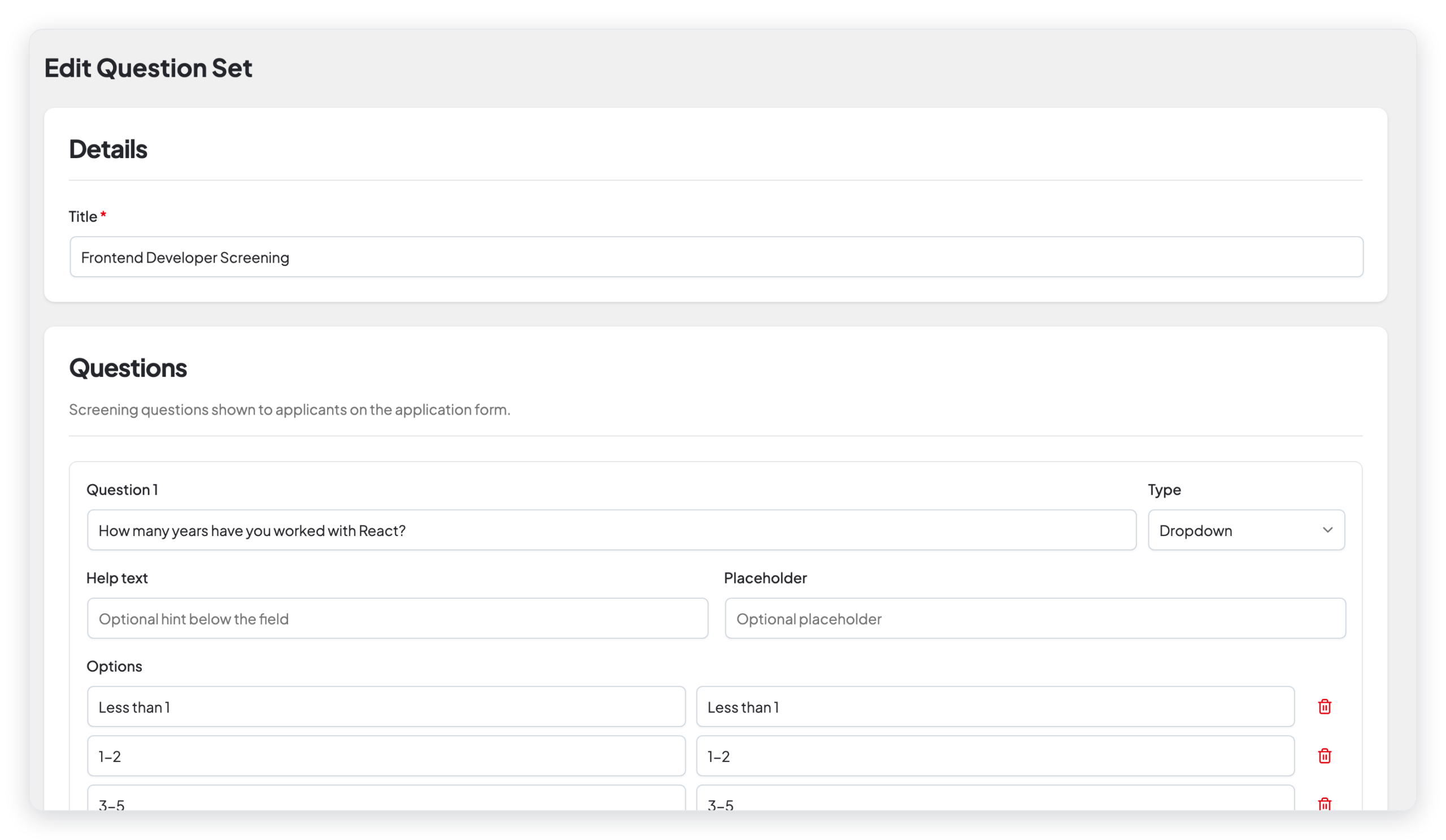
You can also add Help text, which shows below the field, and a Placeholder, which shows inside the empty field.
Question types
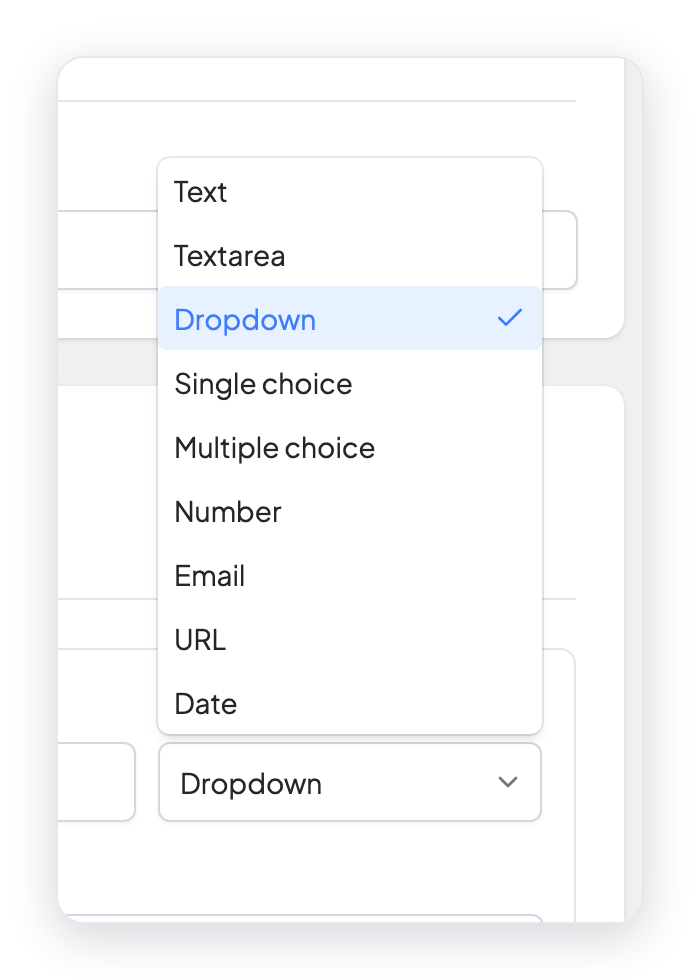
| Type | The candidate |
|---|---|
| Text | Types a short answer. |
| Textarea | Types a long answer. |
| Dropdown | Selects one option from a list. |
| Single choice | Selects one option. |
| Multiple choice | Selects one or more options. |
| Number | Types a number. |
| Types an email address. | |
| URL | Types a web address. |
| Date | Selects a date. |
Dropdown, Single choice, and Multiple choice questions need at least one option.
Step 3: Use the question set in a job
Open a job opening and go to the Question Set step. Select the question set. For more information, read Job Openings.
The answers of each candidate show in the Exam Details tab of the candidate page.
To edit or delete a question set, click the ⋮ button of the set on the Question Sets page.
Stages
WP ERP adds four stages for you: Screening, Phone Interview, Face to Face Interview, and Make an Offer.
Add a stage
- Go to WP ERP → HR → Recruitment → Stages.
- Click Add Stage.
- Type the stage title, and save it.
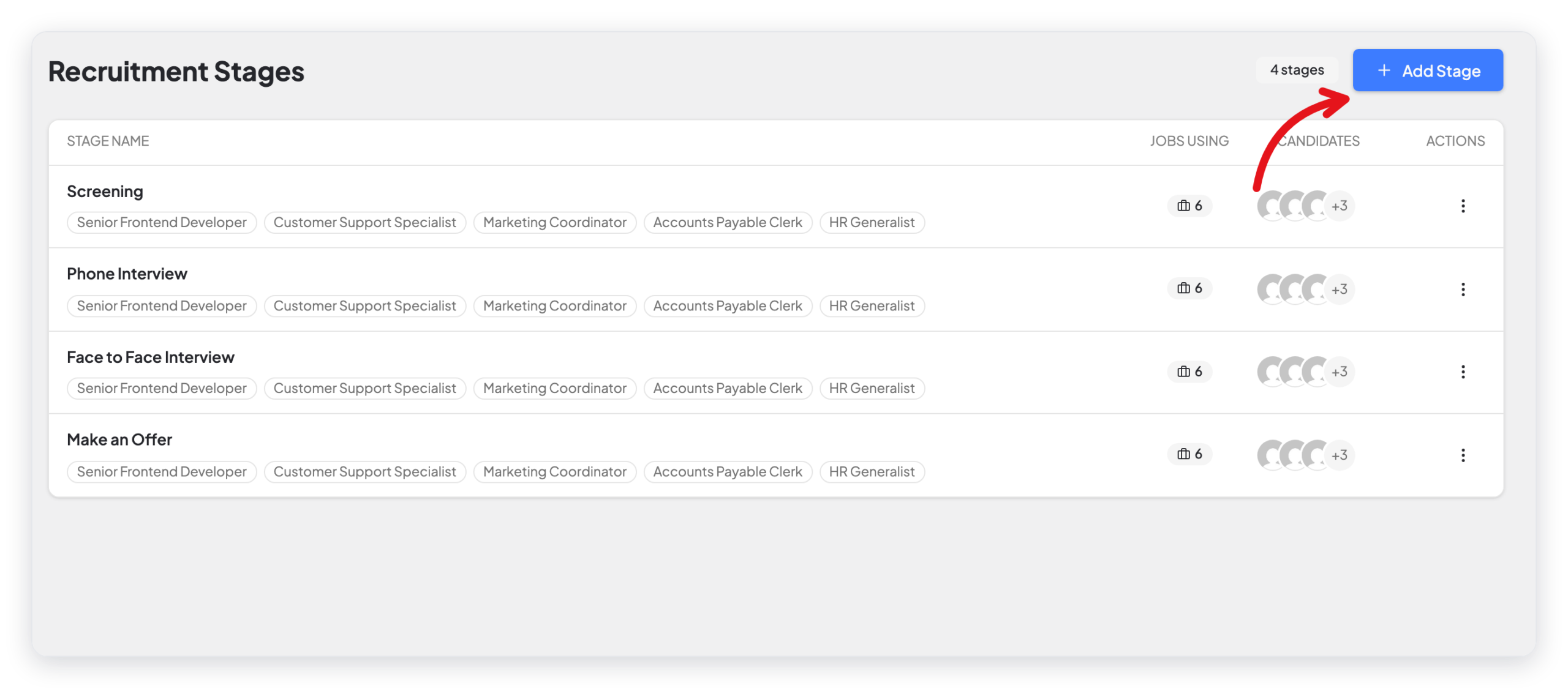
Each stage must have a different title. The Jobs Using column shows the jobs that use the stage. The Candidates column shows the candidates in the stage.
Rename or delete a stage
Click the ⋮ button of the stage. Then click Rename or Delete.
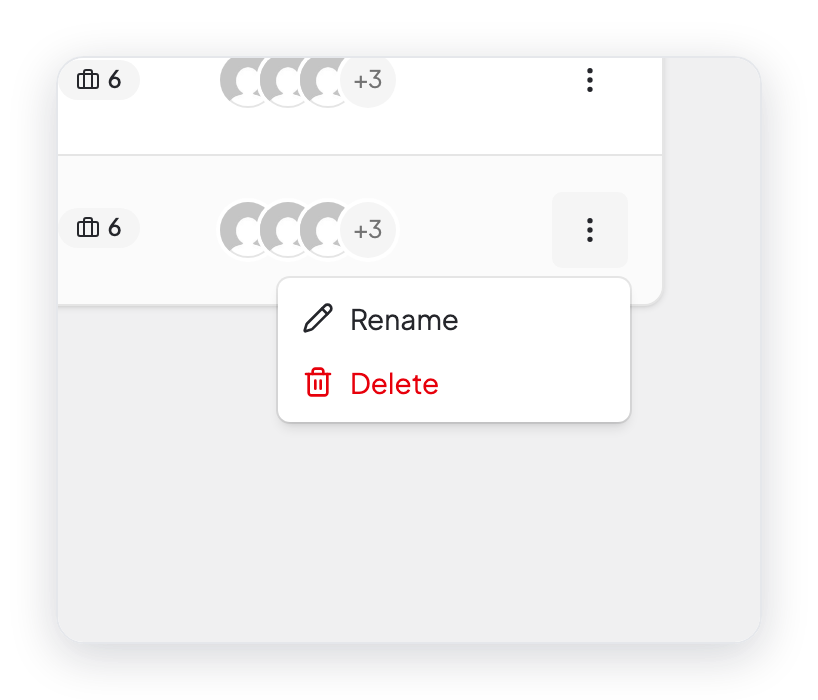
You cannot delete a stage that has candidates, or a stage that a job uses. First move the candidates to a different stage, and remove the stage from the jobs.
To choose the stages of one job and their order, use the Hiring Workflow step of the job. For more information, read Job Openings.
What changed in 2.0
- "HR Questionnaire" is now Question Sets. It has its own page in the Recruitment menu.
- New question types: Number, Email, URL, and Date. The old types Radio and Checkbox are now Single choice and Multiple choice.
- Each question can have Help text and a Placeholder.
- A job can use more than one question set.
- New: the Stages page, where you add, rename, and delete stages in one place.



