

Extensions and WP ERP Pro
Extensions add more features to the three WP ERP modules. For example, Payroll and Attendance add to HR, and Deals adds to CRM. All extensions come with WP ERP Pro. Your WP ERP Pro license decides which extensions you can turn on.
You see and manage all extensions on the Modules & Extensions page.
Before you start
- You must be a WordPress administrator.
- To use an extension, you need the WP ERP Pro plugin and an active license. Without WP ERP Pro, you can only see the list.
- Each extension needs its module to be on. See Turn Modules On or Off.
Find an extension
- In your WordPress admin, go to WP ERP → Modules.
- Scroll down to the list of extensions, under the three modules.
- To filter the list, click HRM, CRM, or Accounting on the left. Click All to see all extensions again.
- To find an extension by name, type in the Search extensions box.
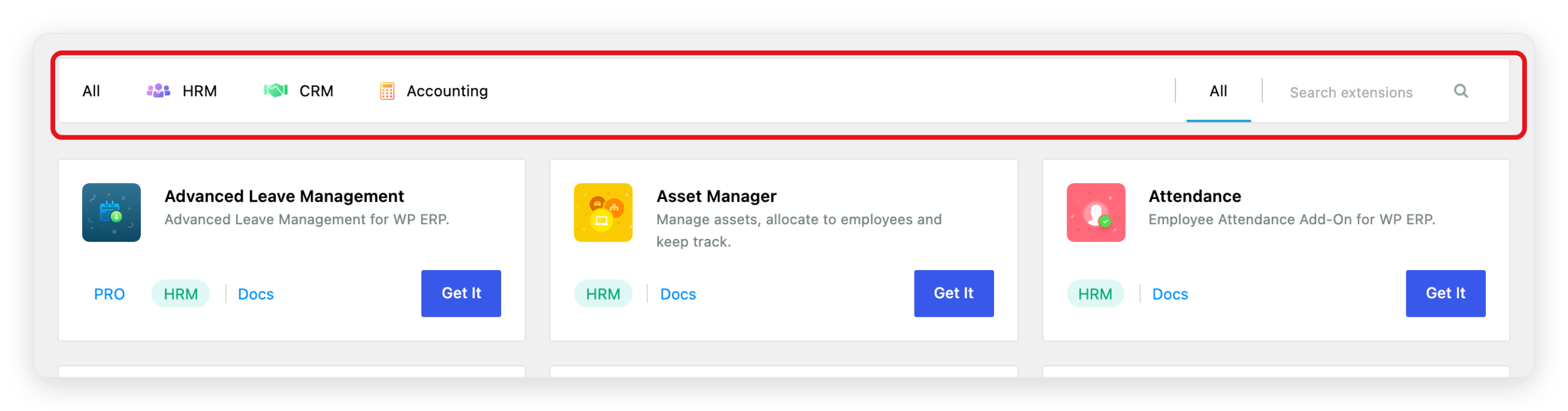
Each card shows the name of the extension, a short description, and the module that it adds to, for example HRM. Some cards also have a PRO label. To see which extensions your plan includes, use the Purchased filter (WP ERP Pro only).
Learn about an extension or get it
On the card of the extension:
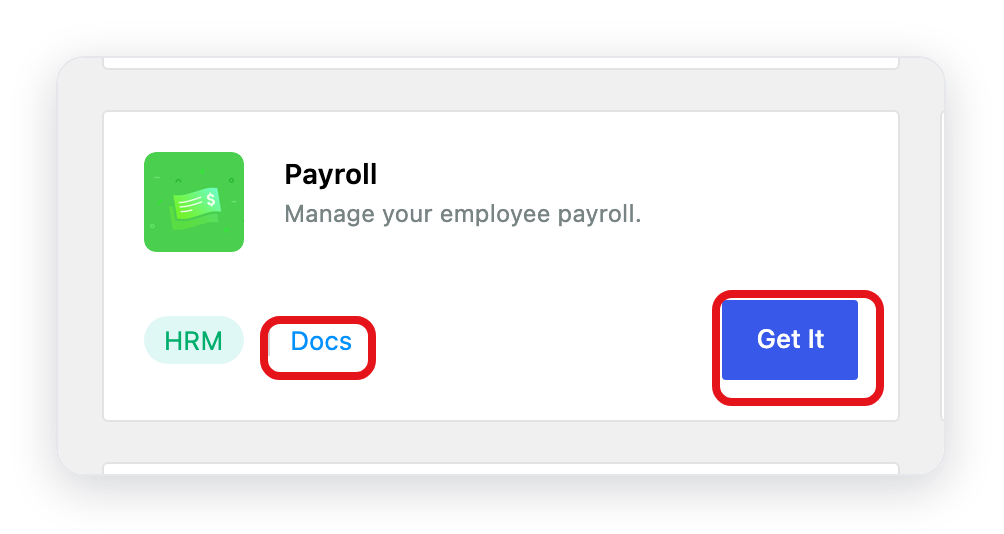
- Click Docs to read the documentation of the extension.
- Click Get It to see the WP ERP Pro plans and buy a plan.
Turn an extension on or off (WP ERP Pro)
When WP ERP Pro is active and your license includes an extension, its card shows a switch in place of Get It.
- Go to WP ERP → Modules.
- Find the extension.
- Click the switch on its card. WP ERP shows Please wait!, then reloads the page.
To turn on or off many extensions at one time:
- Select the check box on each extension card. To select all, use Select All in the bar that opens at the top.
- Click Activate or Deactivate.
With WP ERP Pro, the page has more filters:
- Purchased shows only the extensions that your license includes.
- Active and Inactive on the right show the extensions that are on or off.
NOTE: Your license also sets the number of employees. If you have more employees than your license allows, the extensions do not work. In that case, the switches stay off.
The WP ERP Pro page
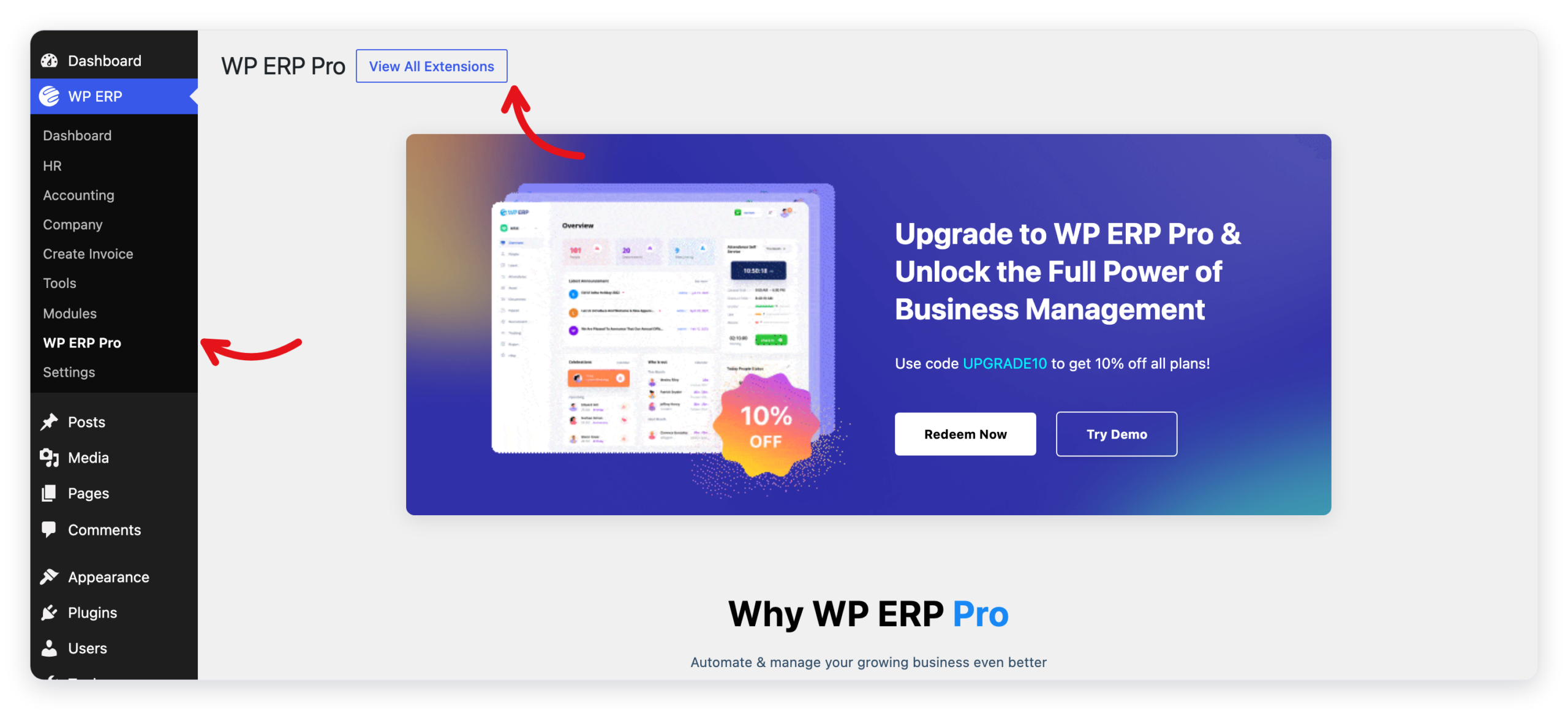
Go to WP ERP → WP ERP Pro to see what WP ERP Pro adds and to get a discount code. Click View All Extensions to see all extensions on wperp.com.
What changed from the old doc
- The extensions are now on the WP ERP → Modules page, below the three modules. The page title is Modules & Extensions.
- The WP ERP → WP ERP Pro page shows the Pro plans. Its View All Extensions button opens wperp.com.
- In WP ERP 2.0, Org Chart is part of the free HR module. It is no longer an extension. See Org Chart.



