

The System Status Report
The system status report shows the versions, settings, and server details of your WP ERP site. Use it to find a problem, and send it to support when you open a ticket.
The values on your site are different from the values in the screenshots. They depend on your site and your server.
Before you start
- You must be a WordPress administrator.
Open the system status report
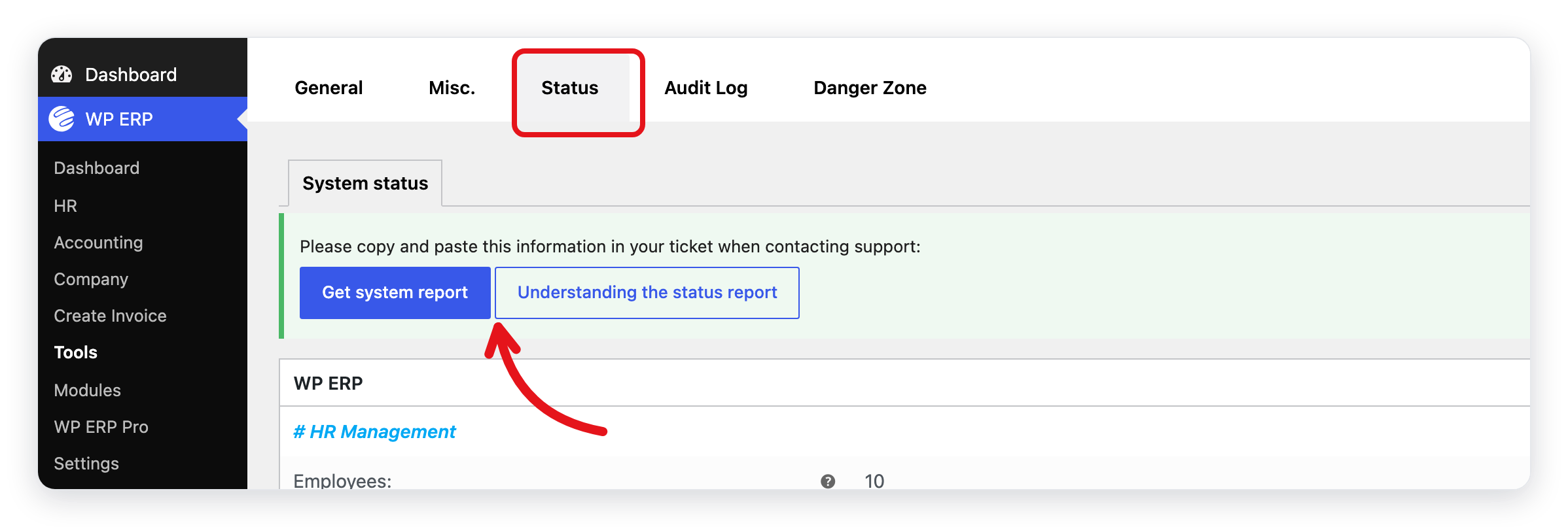
- In your WordPress admin, go to WP ERP → Tools.
- Click the Status tab.
Copy the report for support
- Click Get system report. A box with the full report as text opens.
- Click Copy for support. WP ERP copies the text.
- Paste the text into your support ticket.
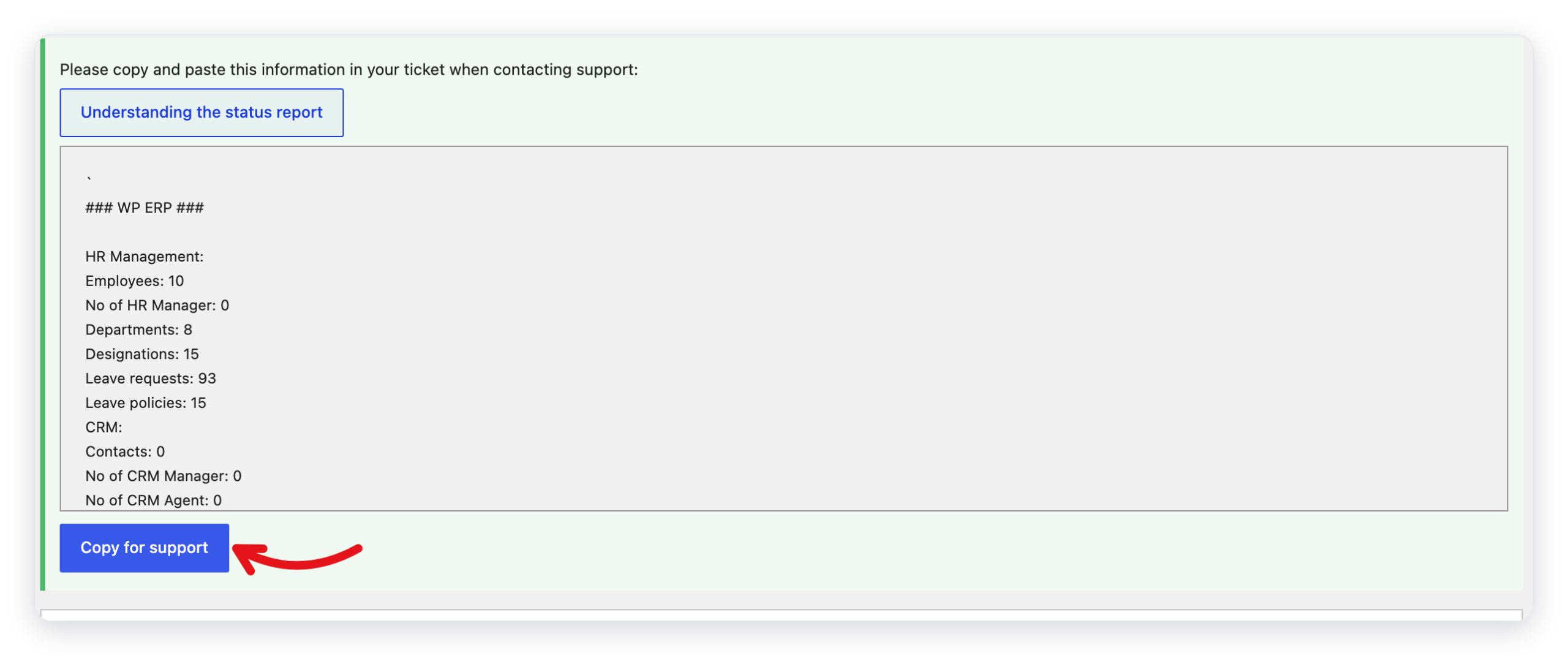
The report shows your site address, file paths, and server details. Send it only in a private support ticket. Do not put it on a public forum.
Understanding the status report opens this help page on wperp.com.
How to read the report
- Move the pointer on the ? icon of a row to see what the row means.
- A green value or a green check mark shows that the setting is good.
- A ! icon shows a problem. The text next to it tells you what to change.
- A dash (–) shows that the feature is off or not in use.
The sections of the report
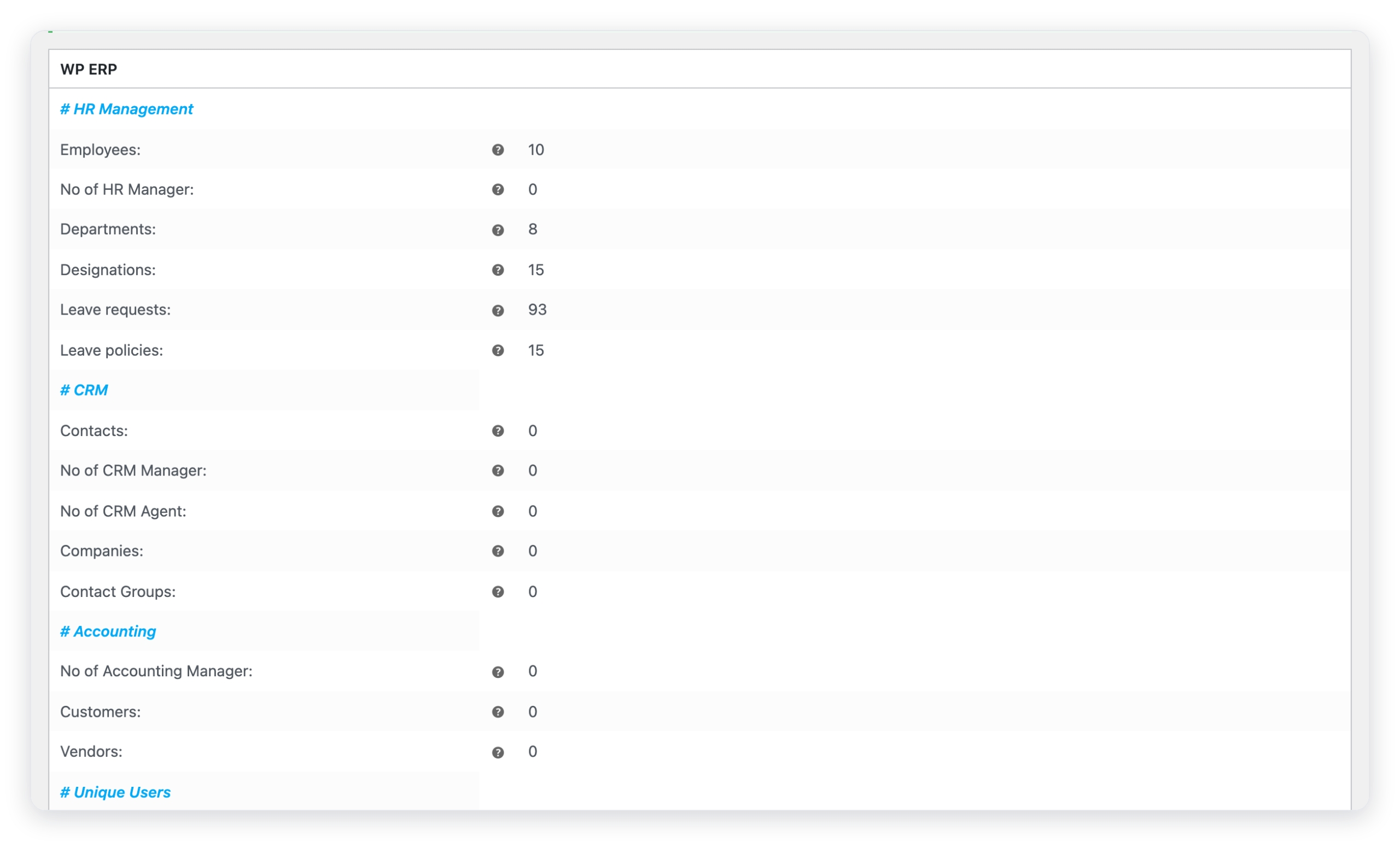
WP ERP
The number of records in each module. For example, the number of employees, departments, leave requests, contacts, and customers. Unique Users is the number of different people who use WP ERP.
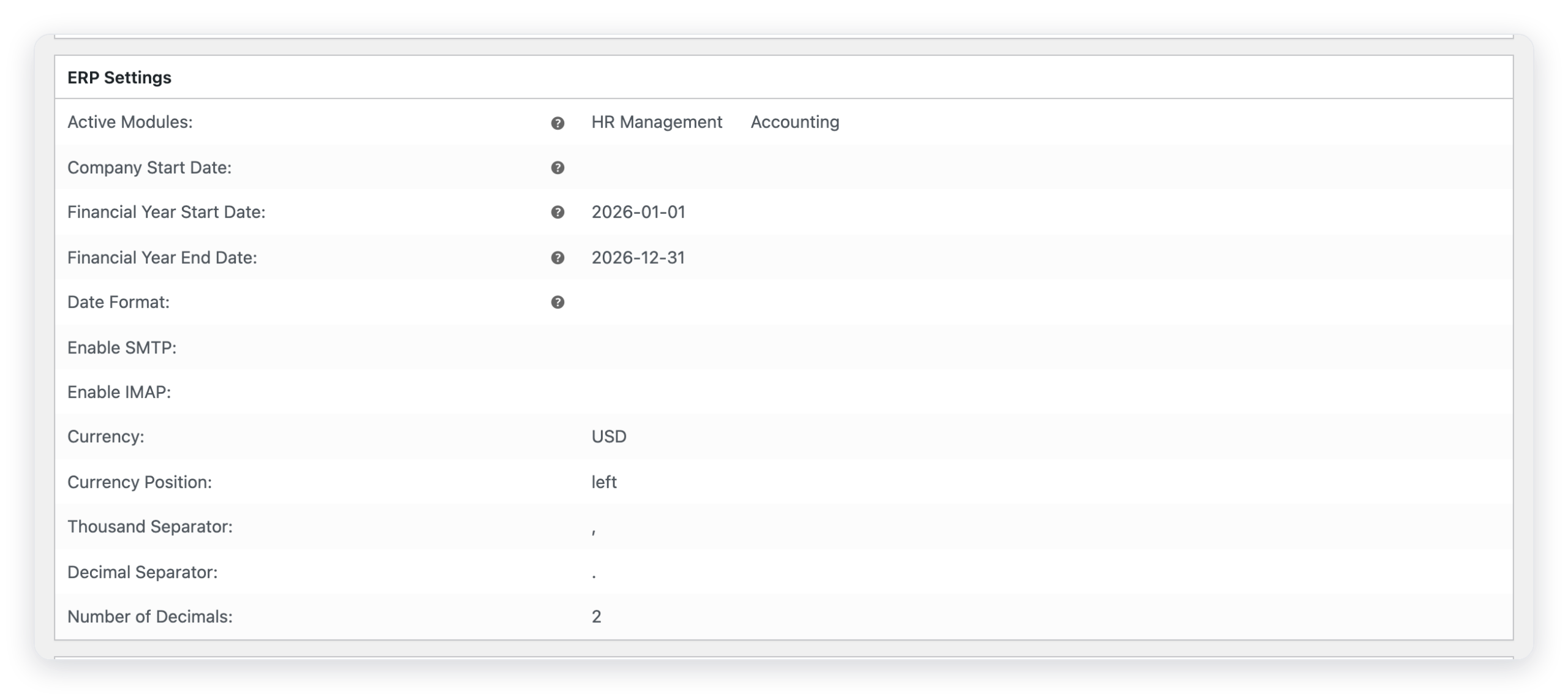
ERP Settings
The main WP ERP settings: the active modules, the financial year, the date format, email (SMTP and IMAP), and the currency format.
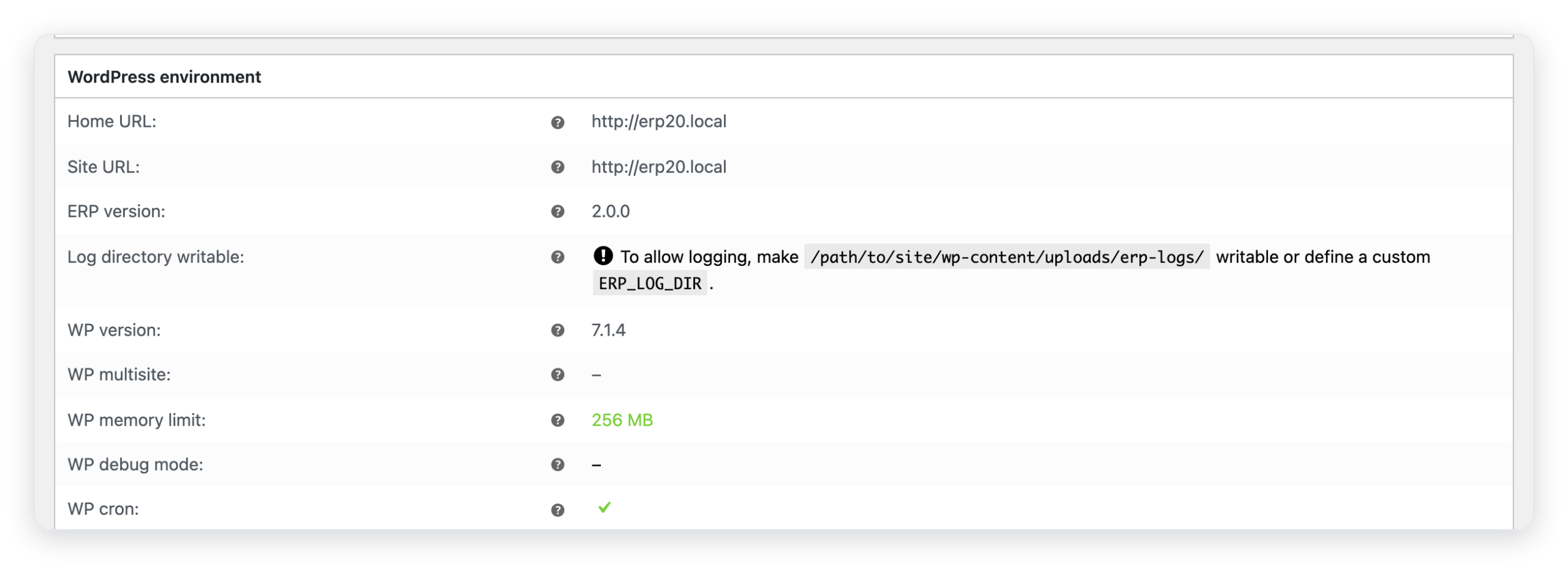
WordPress environment
The details of your WordPress installation.
| Row | What it shows |
|---|---|
| Home URL, Site URL | The address of your site. |
| ERP version | The WP ERP version. |
| Log directory writable | If WP ERP can write its log files. If not, the row tells you which folder to make writable. |
| WP version | The WordPress version. |
| WP multisite | If the site is part of a WordPress network. |
| WP memory limit | The memory that WordPress can use. |
| WP debug mode | If WordPress debug mode is on. |
| WP cron | If WordPress runs scheduled tasks. WP ERP needs this for reminders and other scheduled emails. |
| Language | The language of the site. |
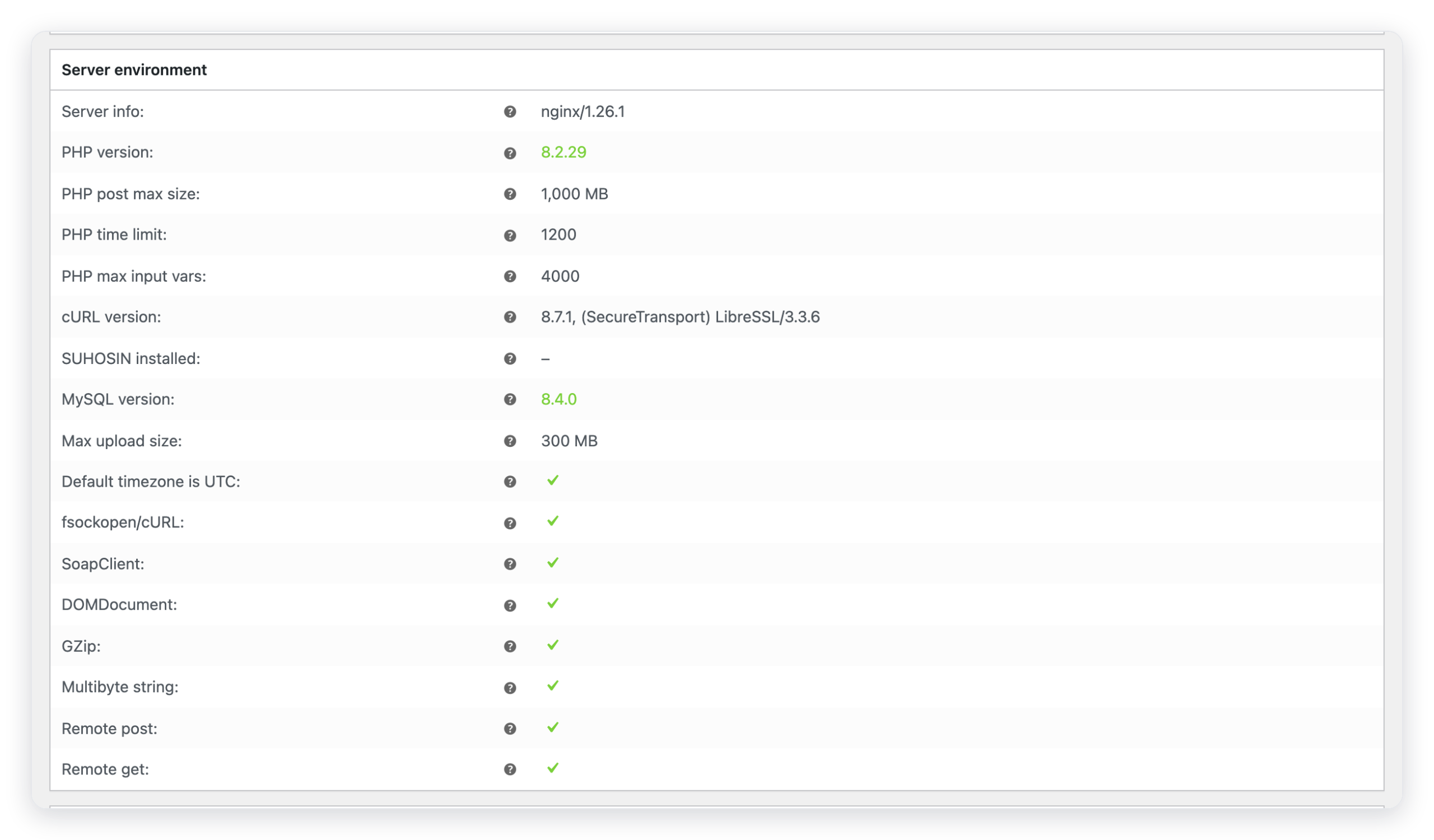
Server environment
The details of your web server: the server software, the PHP and MySQL versions, the PHP limits, the upload size, and the PHP features that WP ERP uses (cURL, SOAP, DOMDocument, GZip, multibyte strings, and remote requests).
Database
The WP ERP database version, the table prefix, and the size of the database.

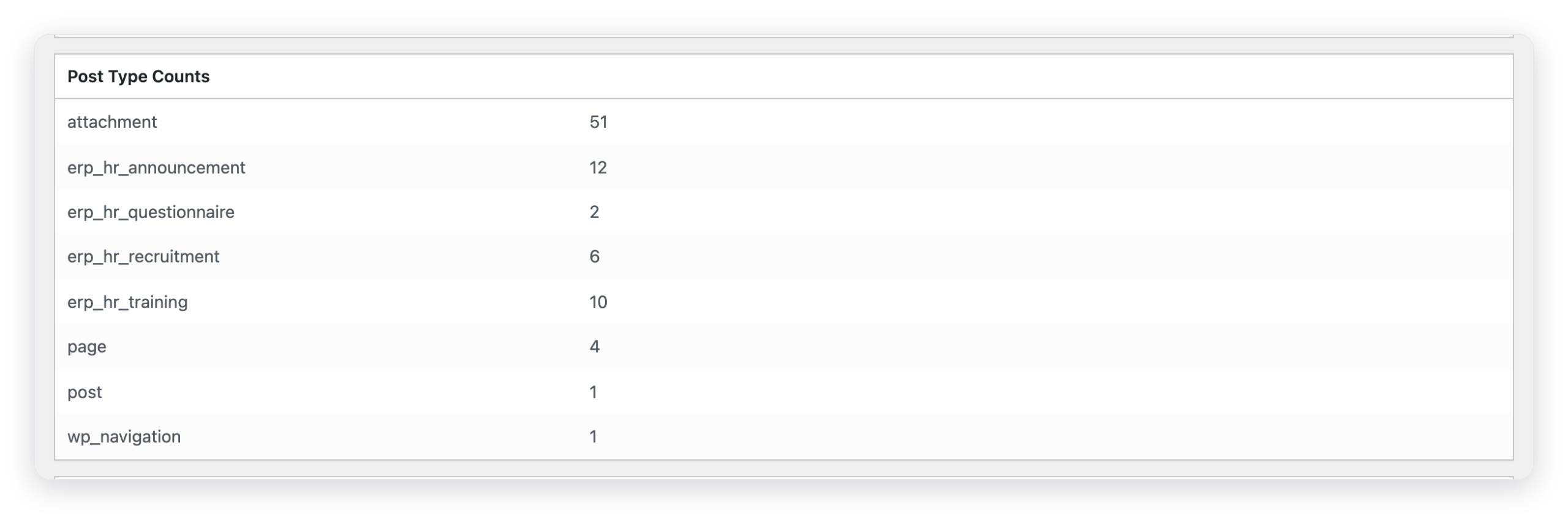
Post Type Counts
The number of items of each post type on your site, for example pages, posts, and HR announcements. The list changes with the plugins that you use.
Security
- Secure connection (HTTPS) shows if your site uses HTTPS.
- Hide errors from visitors shows if PHP errors are hidden from visitors of your site.

Active plugins
All active plugins with their author and version.

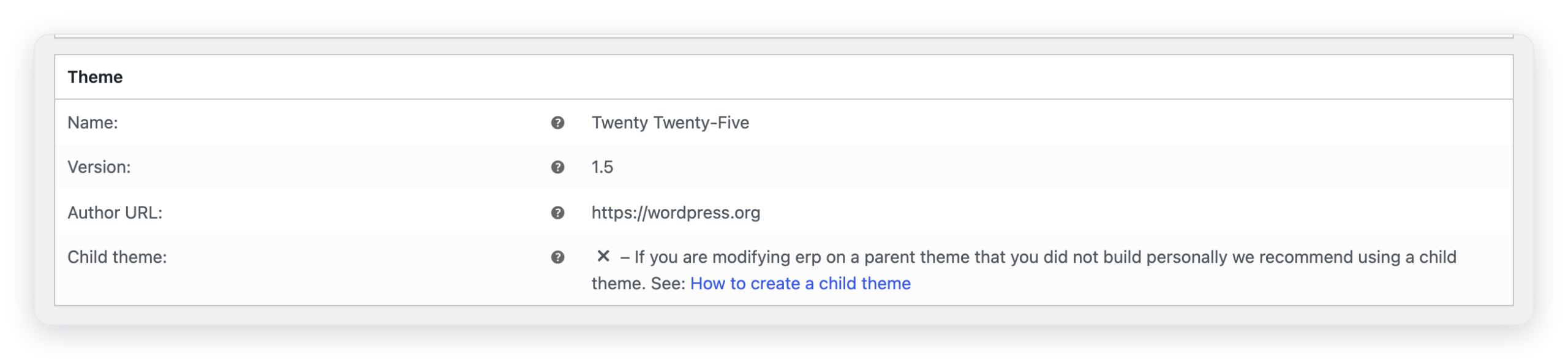
Theme
The name, version, and author of your active theme, and if it is a child theme.
What changed in 2.0
Nothing. The status report works as in earlier versions.



