

Install WP ERP
WP ERP is a free plugin on WordPress.org. Install it from your WordPress admin like any other plugin. After you activate it, the setup wizard opens.
Before you start
- You must be a WordPress administrator.
- Your site must use WordPress 5.6 or later and PHP 7.4 or later.
- To install WP ERP Pro later, you must install the free WP ERP plugin first. WP ERP Pro adds to the free plugin. It does not replace it.
Step 1: Find WP ERP
- In your WordPress admin, go to Plugins → Add Plugin.
- In the Search Plugins box, type
WP ERP. - Find the card ERP: Complete HR, Accounting & CRM Suite Built for WooCommerce by weDevs. This is WP ERP.
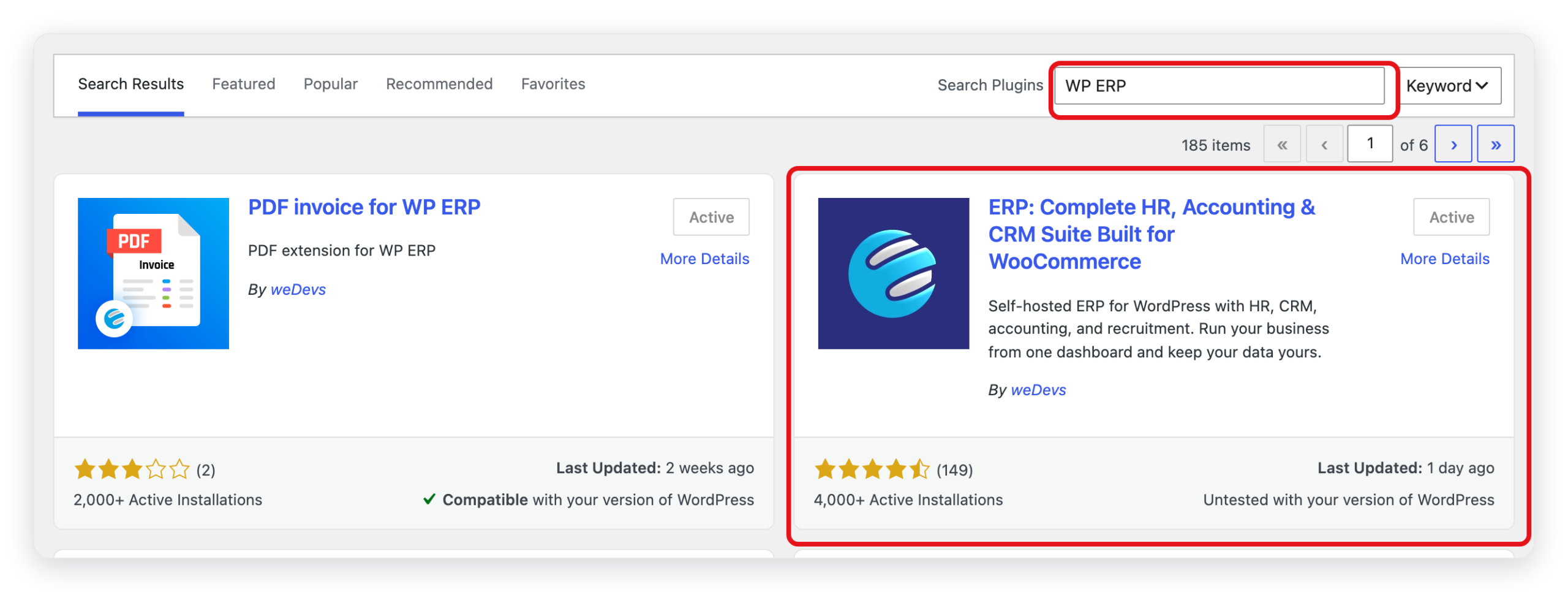
On WordPress.org, the plugin has a long name. In your admin, the plugin list and the menu show the short name ERP and WP ERP.
Step 2: Install and activate
- On the WP ERP card, click Install Now.
- When the button changes to Activate, click Activate.
WP ERP then opens the setup wizard. To learn about each step of the wizard, read Use the Setup Wizard.
Result
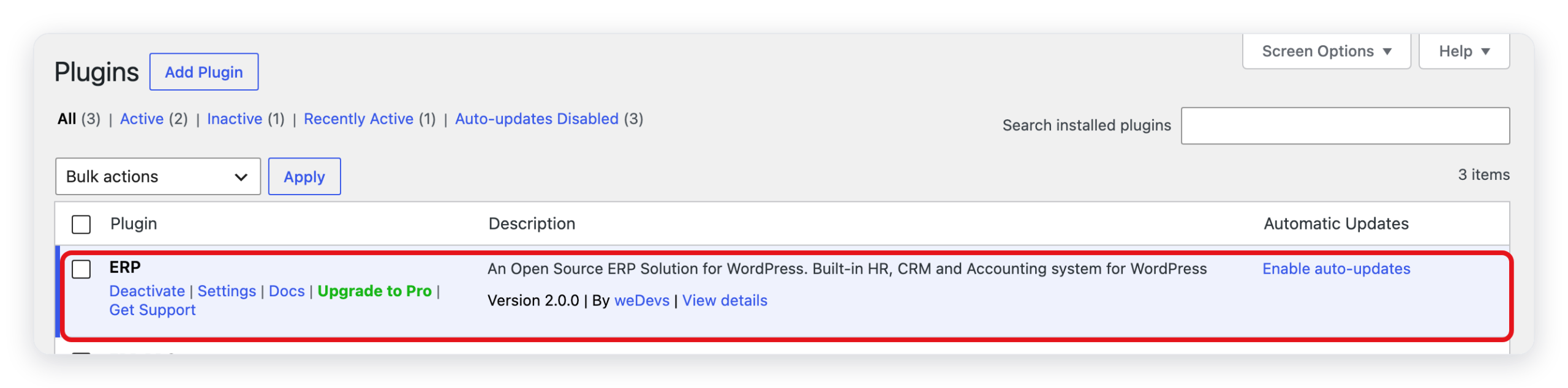
Go to Plugins → Installed Plugins. The ERP row shows Deactivate, so the plugin is active. The row also shows the version number.
A new WP ERP menu shows in the admin sidebar. It has these items:
- Dashboard: the overview of all modules.
- HR, Accounting, and CRM: one item for each module that is on. CRM is not in the screenshot because it is off on this site.
- Company: your company details and office locations.
- Tools, Modules, WP ERP Pro, and Settings.
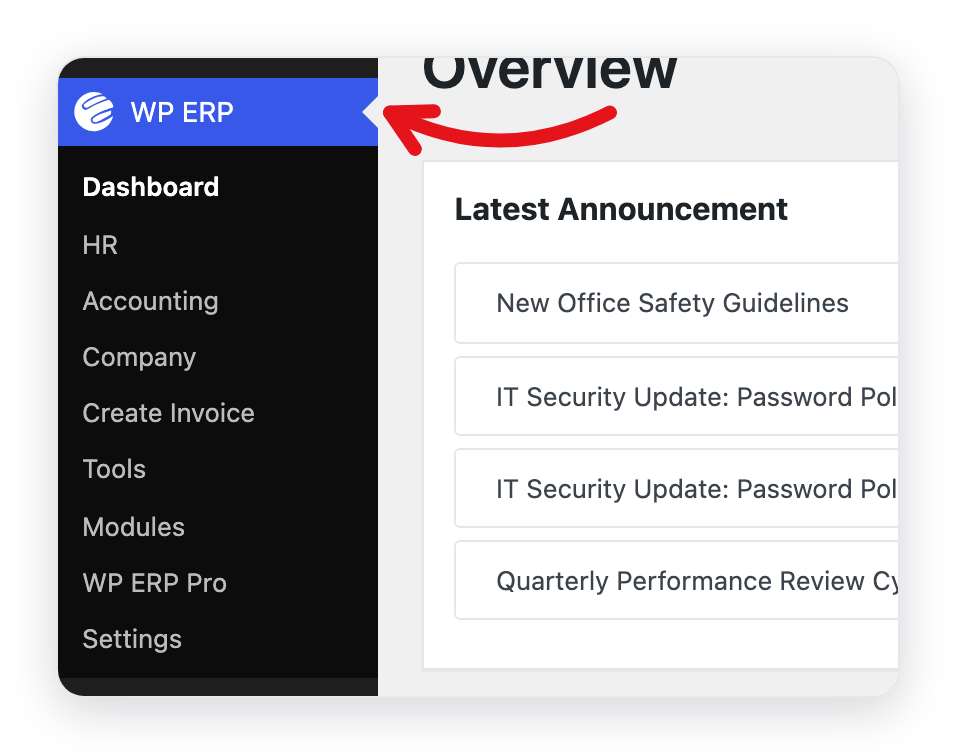
Some items only show when their module is on. For example, Create Invoice comes from the Accounting module.
Install from a zip file
If you have the plugin as a zip file, for example from a backup:
- Go to Plugins → Add Plugin.
- Click Upload Plugin.
- Select the zip file, then click Install Now.
- Click Activate Plugin.
You install WP ERP Pro the same way. You get the WP ERP Pro zip file from your account on wperp.com.
Install from GitHub (for developers)
The source code is at https://github.com/wp-erp/wp-erp. Use it only for development. For a live site, install from WordPress.org.
You need Git, Composer, and Node.js 24 or later.
- Clone the repository into the plugins folder:
- Install the PHP packages:
- Build the HR screens. This script installs its own packages. It needs Node.js 24.
- Go to Plugins → Installed Plugins and activate ERP.
If you change the older screens (CRM, Accounting, and settings), also run npm install and npm run build in the plugin folder.
What changed in 2.0
- The setup wizard has new steps. It now also sets up leave and lets you import your team. See Use the Setup Wizard.
- The old doc showed separate ERP Settings, HRM, and CRM menus. Now all items are in one WP ERP menu.
- The HR screens are new and use React. A developer copy needs Node.js 24 to build them. The old steps with Grunt and
SCRIPT_DEBUGare not necessary.



