

Edit the Email Templates
WP ERP sends emails by itself when something happens. For example, it sends a welcome email to a new employee and a reminder before a holiday. Each email has a template. You can change the text of a template, and you can turn some emails off.
Before you start
- You must be a WordPress administrator.
- Set the sender name and address first. See WP ERP Settings, step 5.
- The CRM templates show only when the CRM module is on.
Step 1: Open the email templates
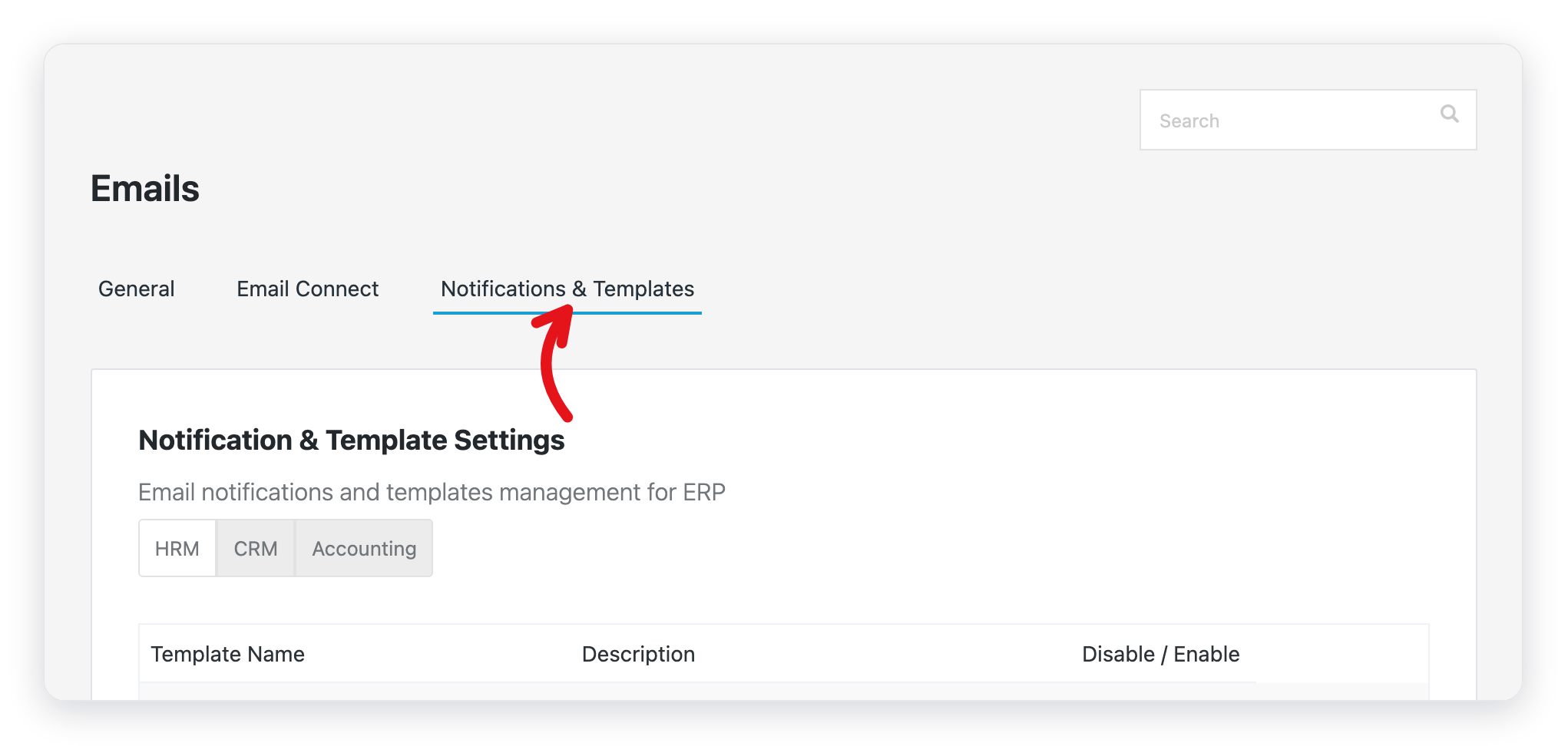
- In your WordPress admin, go to WP ERP → Settings.
- Open the Emails tab.
- Click Notifications & Templates.
Step 2: Find the email
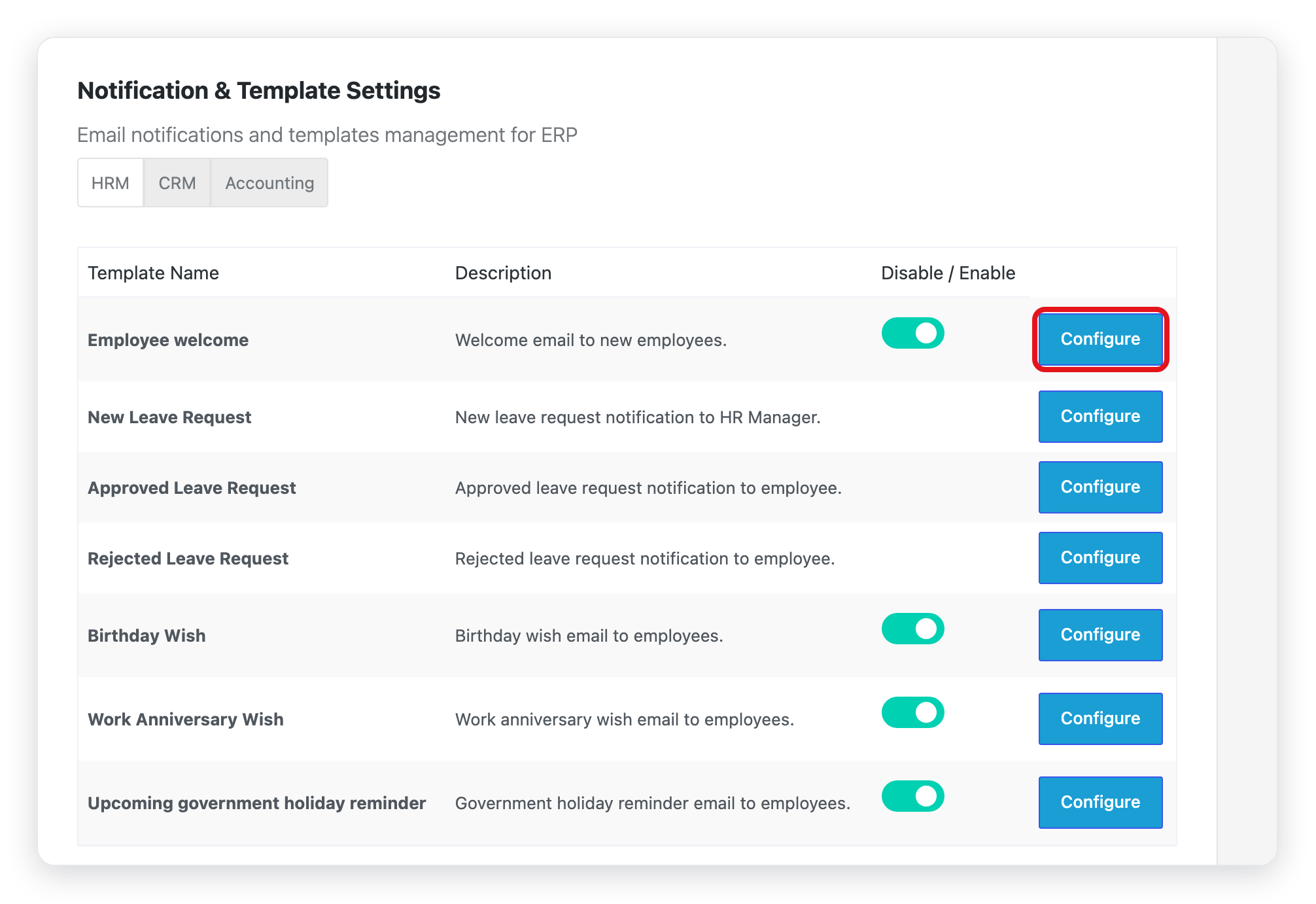
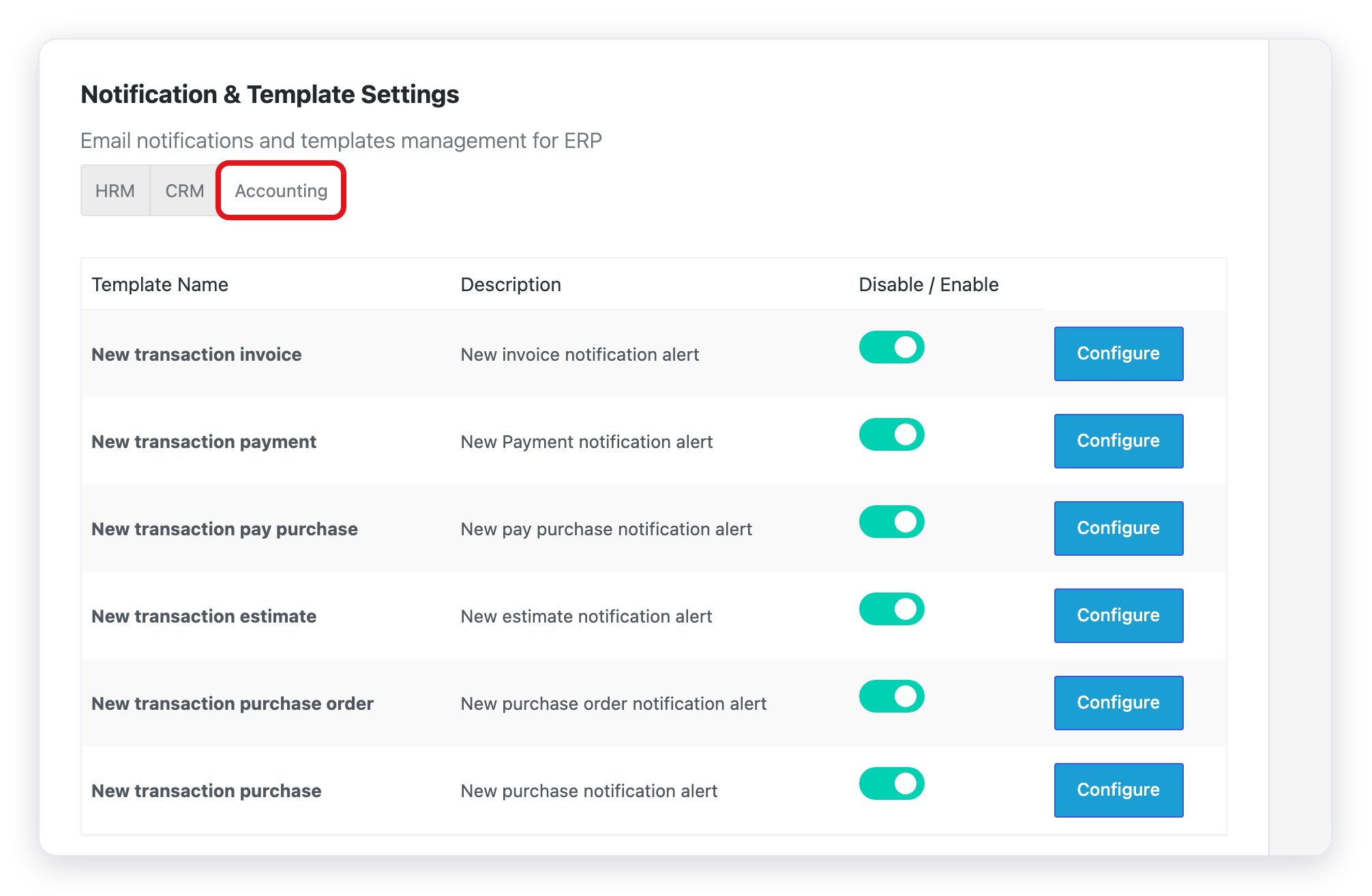
The templates are in three groups. Click a group to see its emails.
- HRM: emails to your employees and HR managers.
- CRM: emails to your contacts and your sales team.
- Accounting: emails about invoices, payments, estimates, and purchases.
Step 3: Turn an email on or off
Click the switch in the Disable / Enable column. Green means that WP ERP sends this email.
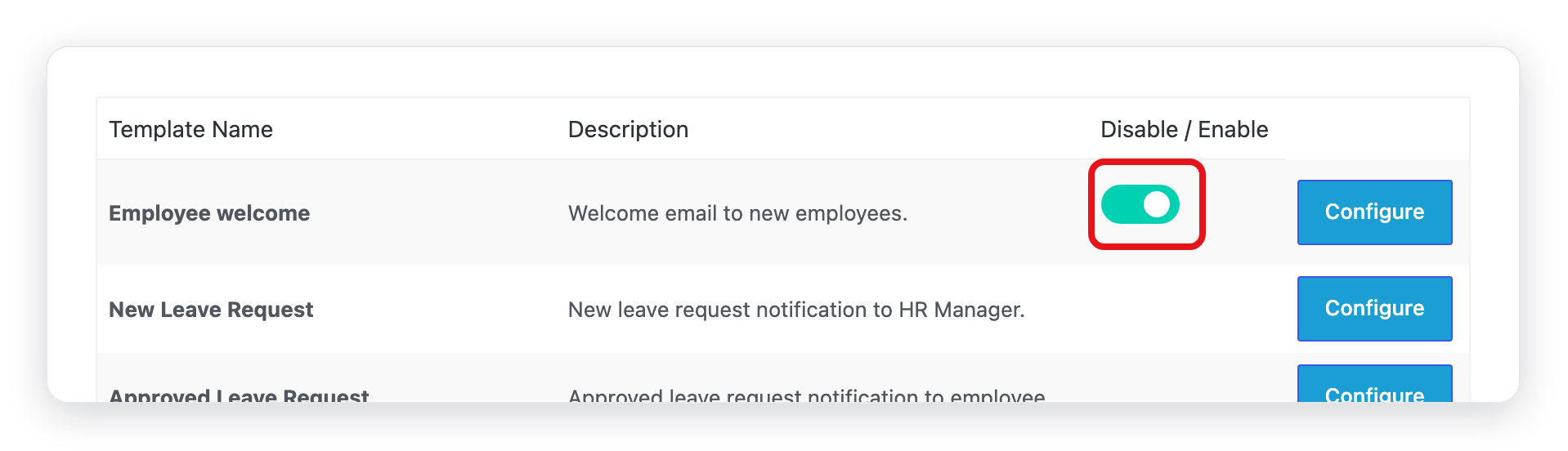
The leave request emails do not have a switch. WP ERP always sends them.
Step 4: Change the text of the email
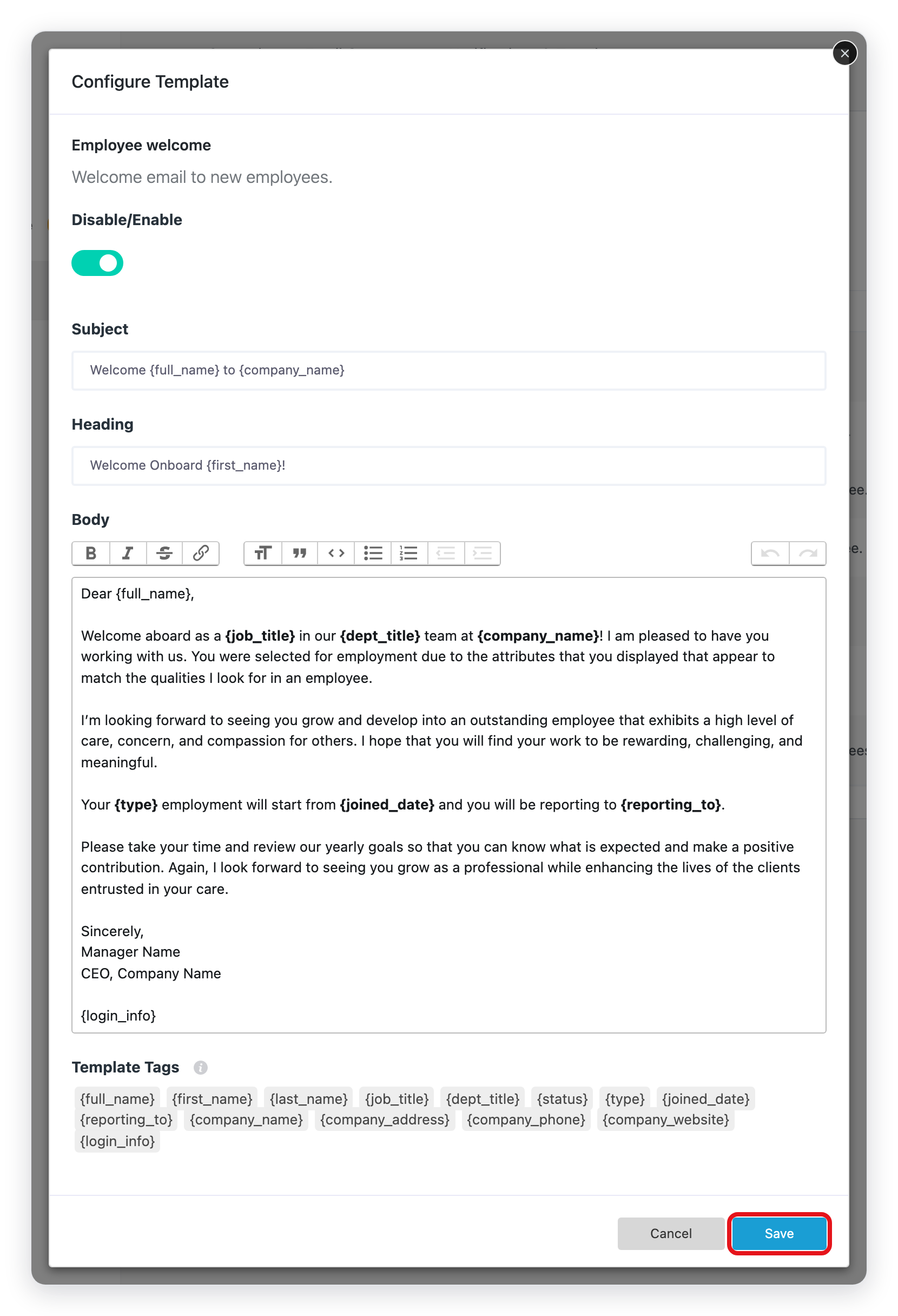
- Click Configure next to the email.
- Change the Subject, the Heading, and the Body.
- To add a value that changes for each email, type a template tag. For example,
{first_name}puts in the first name of the person. The Template Tags list under the body shows the tags that this email can use. - Click Save.
Result
WP ERP uses your new text the next time that it sends this email. Emails that WP ERP already sent do not change.
The emails
HRM
| Who gets it | When | |
|---|---|---|
| Employee welcome | The new employee | When you add the employee and select the welcome email. |
| New Leave Request | The HR manager | When an employee asks for leave. |
| Approved Leave Request | The employee | When HR approves the leave. |
| Rejected Leave Request | The employee | When HR rejects the leave. |
| Birthday Wish | The employee | On the birthday of the employee. |
| Work Anniversary Wish | The employee | On the hire date of the employee, each year. |
| Upcoming government holiday reminder | The employees | Before a holiday. |
CRM
| Who gets it | |
|---|---|
| New Task Assigned | The team member who gets a new task. |
| New Contact Assigned | The team member who becomes the owner of a contact. |
| Birthday Greetings To Contacts | The contact, on their birthday. See Send Birthday Greetings to Your Contacts. |
Accounting
| When | |
|---|---|
| New transaction invoice | You make an invoice. |
| New transaction payment | You record a payment. |
| New transaction pay purchase | You pay for a purchase. |
| New transaction estimate | You make an estimate. |
| New transaction purchase order | You make a purchase order. |
| New transaction purchase | You record a purchase. |
What changed in 2.0
These are the changes since the old version of this article.
- The leave request emails have no on/off switch. All other templates have one.
- Configure opens the template in a window on the same page.
- Each template shows its own list of template tags under the body.



