
SMS Notification
The SMS Notification extension sends text messages from WP ERP. It works in two places:
- HR: send an announcement to employees as an SMS, together with the email.
- CRM: send an SMS to a contact or a company.
WP ERP sends each SMS through an SMS service. You can use Twilio, Clickatell, SMSGlobal, Nexmo, Hoiio, Intellisms, or Infobip.
Before you start
- You must have WP ERP Pro with the SMS Notification extension.
- You must have an account with one of the SMS services above.
- Each employee or contact must have a mobile number in their profile. WP ERP sends the SMS to this number.
Step 1: Turn on the extension
- In your WordPress admin, go to WP ERP → Modules.
- Find SMS Notification and turn it on.
For more about extensions, see Extensions and WP ERP Pro.
Step 2: Connect your SMS service
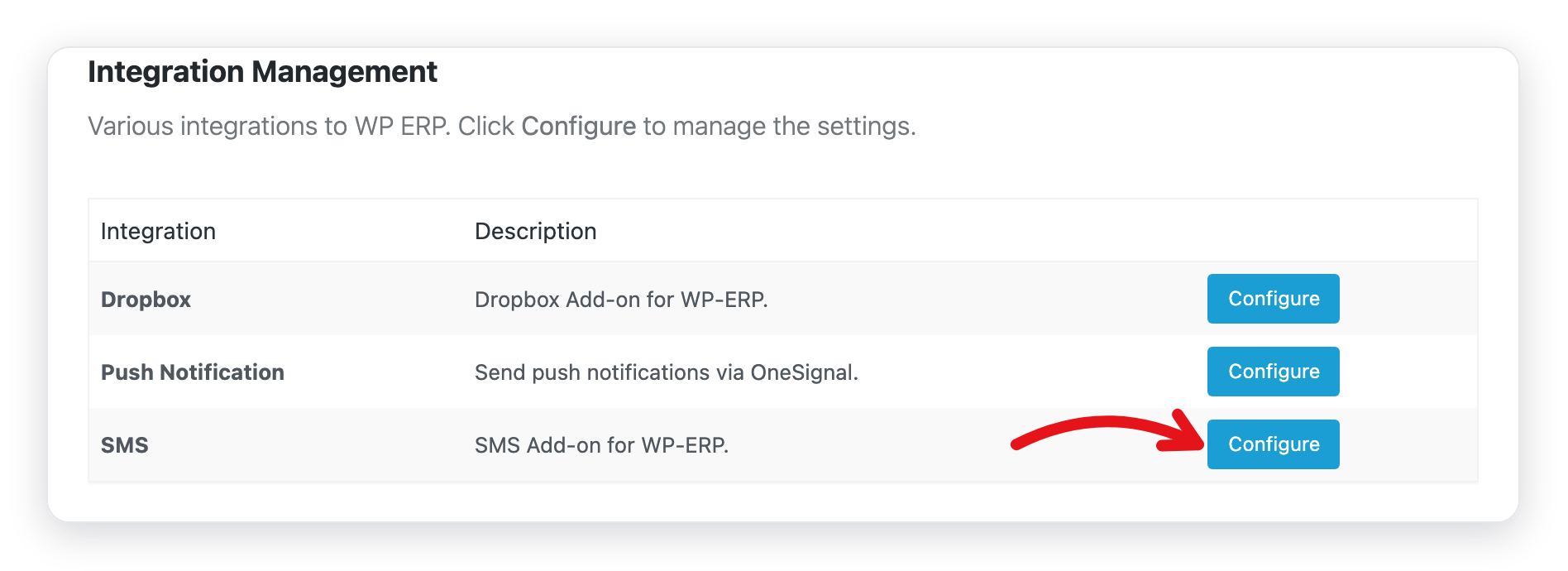
- Go to WP ERP → Settings → Integration.
- In the SMS row, click Configure.
- In the SMS Integration window, select your service in Active Gateway.
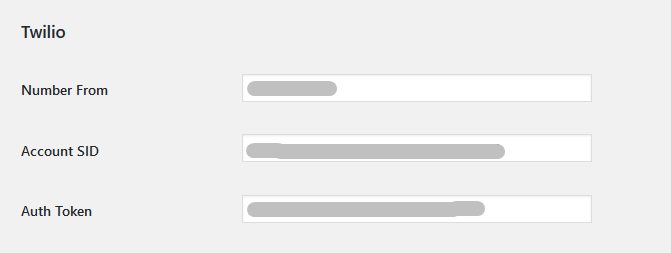
- Fill in the fields of the service. For Twilio, the fields are Number From, Account SID, and Auth Token.
- Click Save.
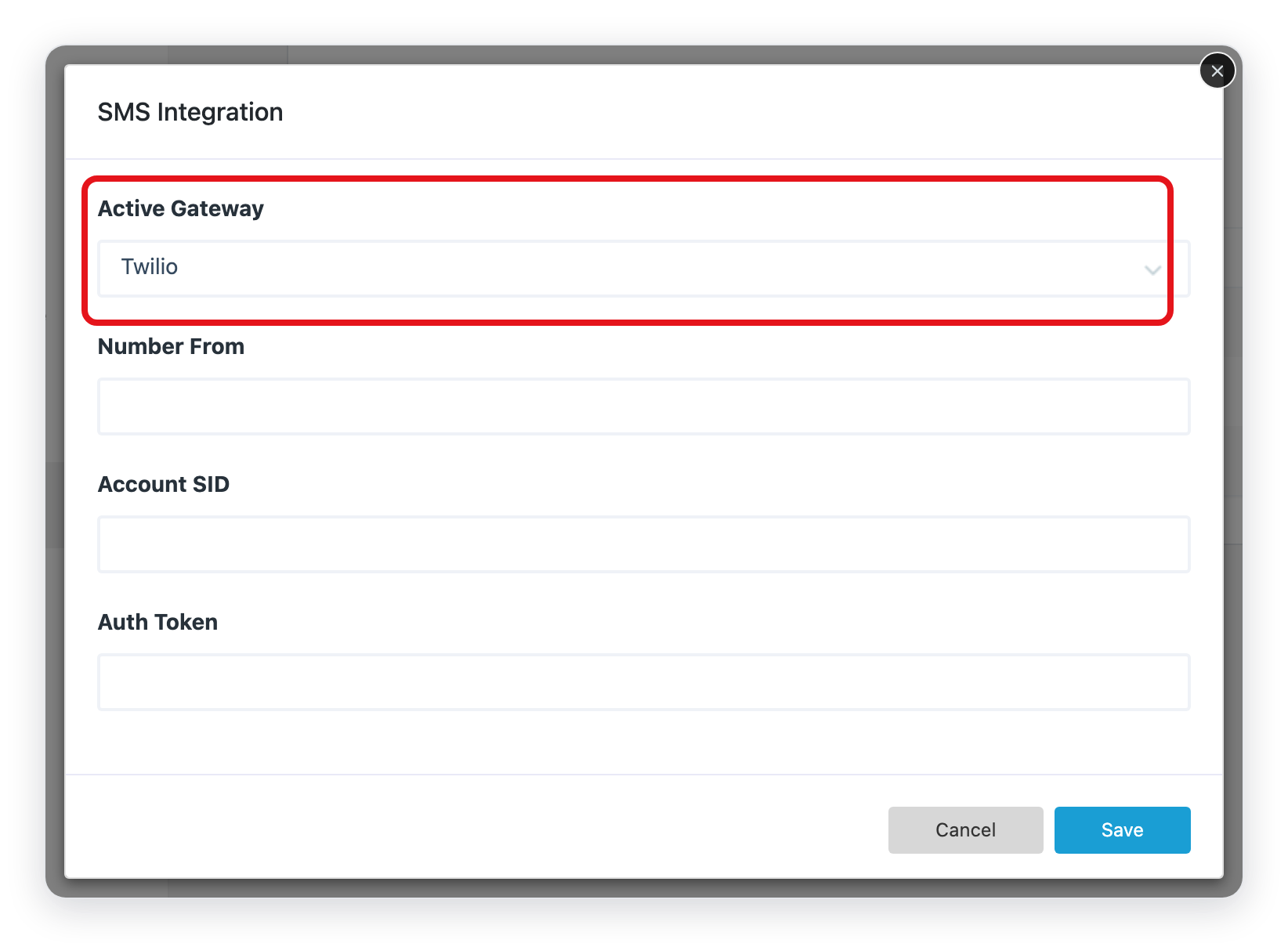
The fields change with the service that you select. Get the values from the account page of your SMS service.
Get your Twilio details
- In Twilio, create a project.
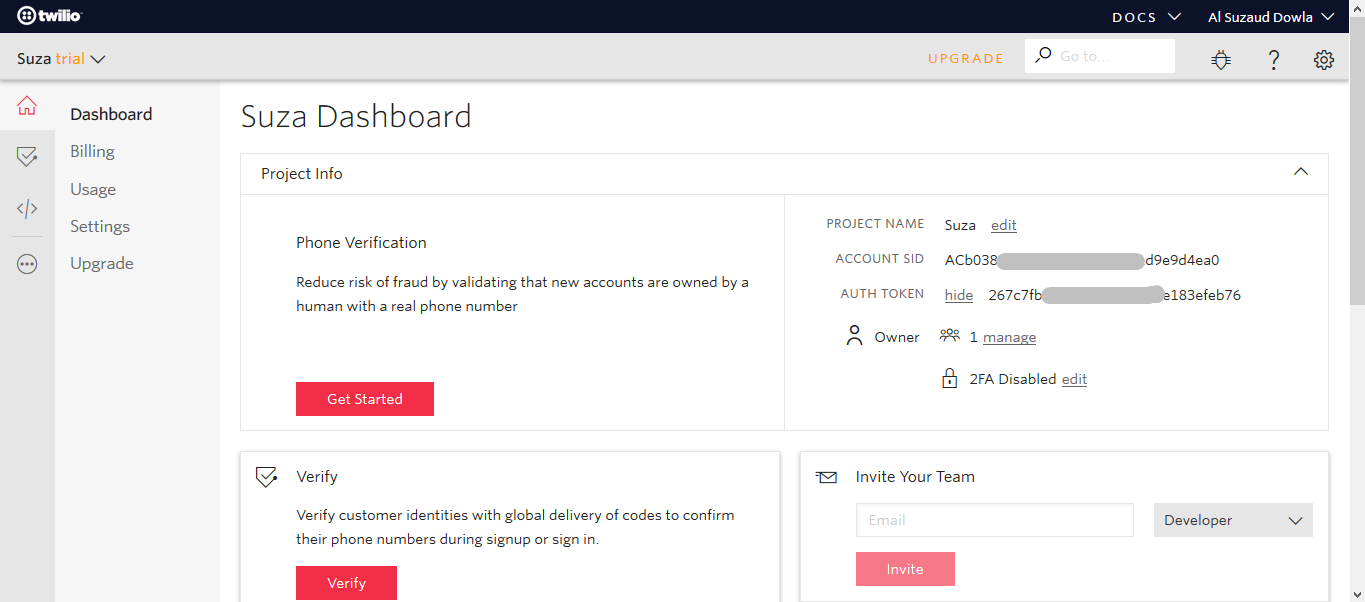
- Open your Twilio dashboard. Copy the Account SID and the Auth Token.
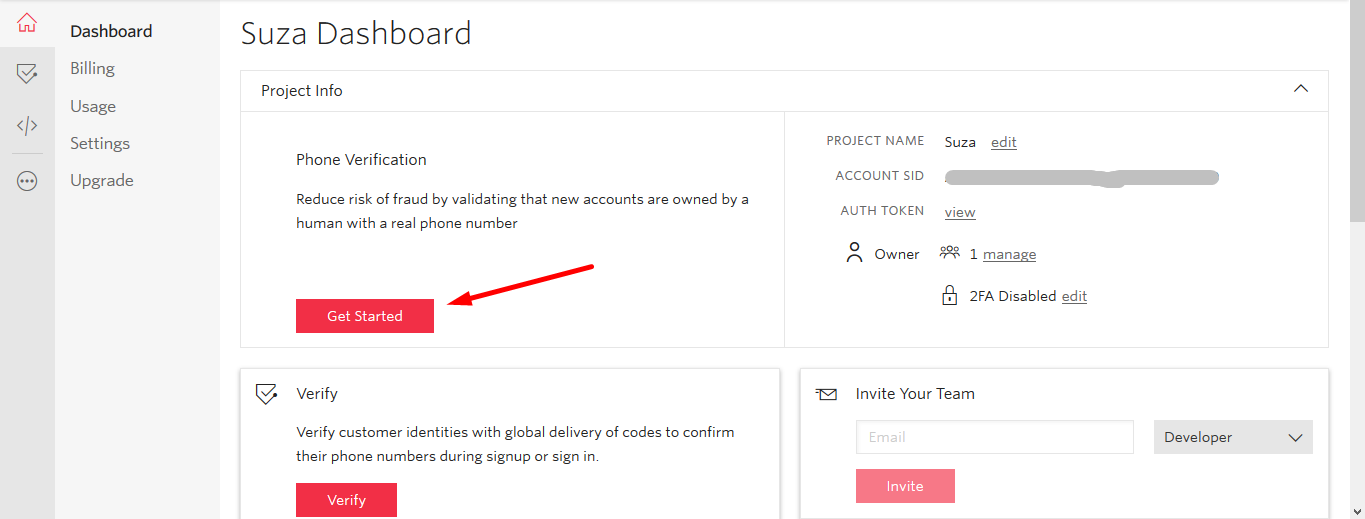
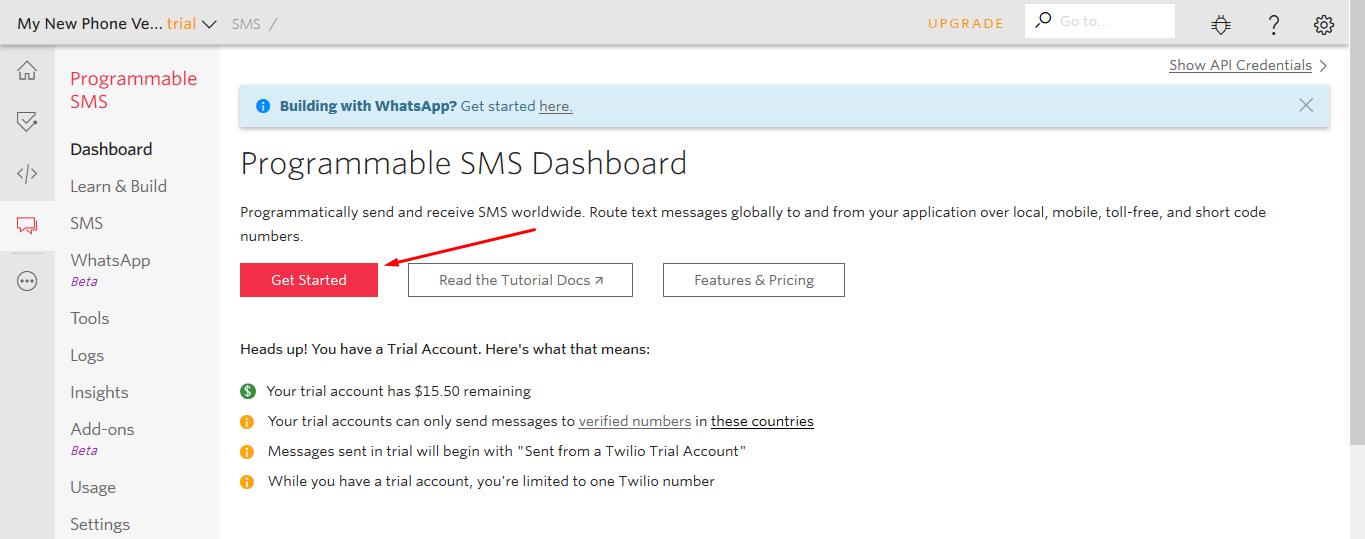
- To get a Twilio phone number, click Get Started in the phone verification part.
- Open the Programmable SMS page and click Get Started.
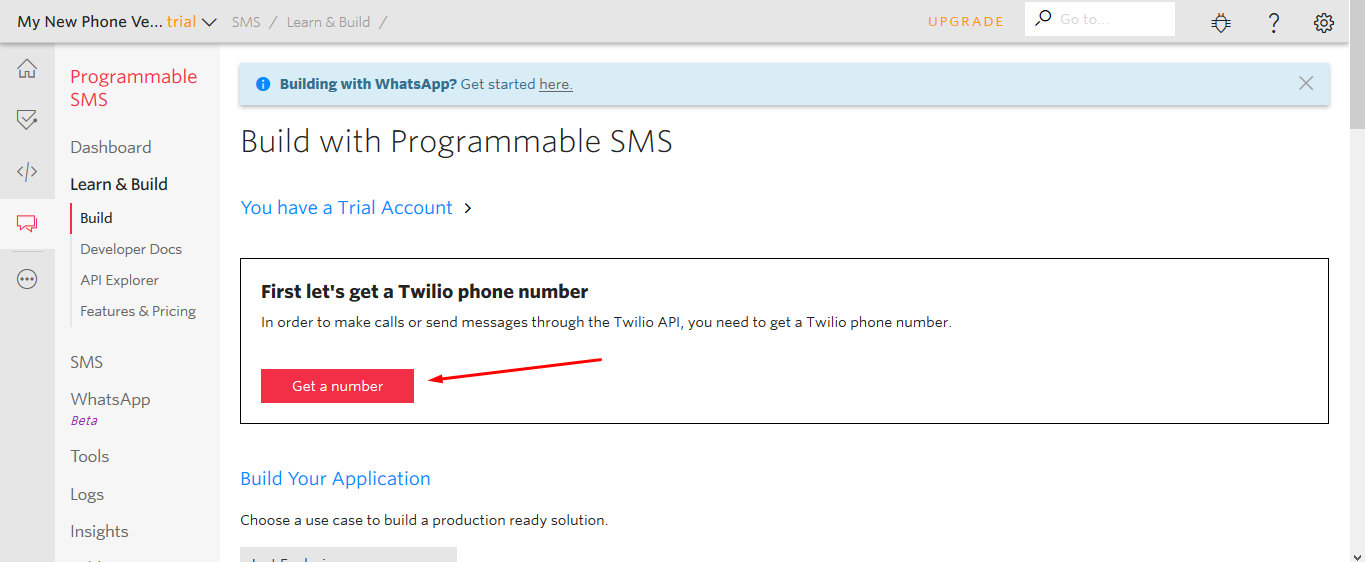
- Click Get a number.
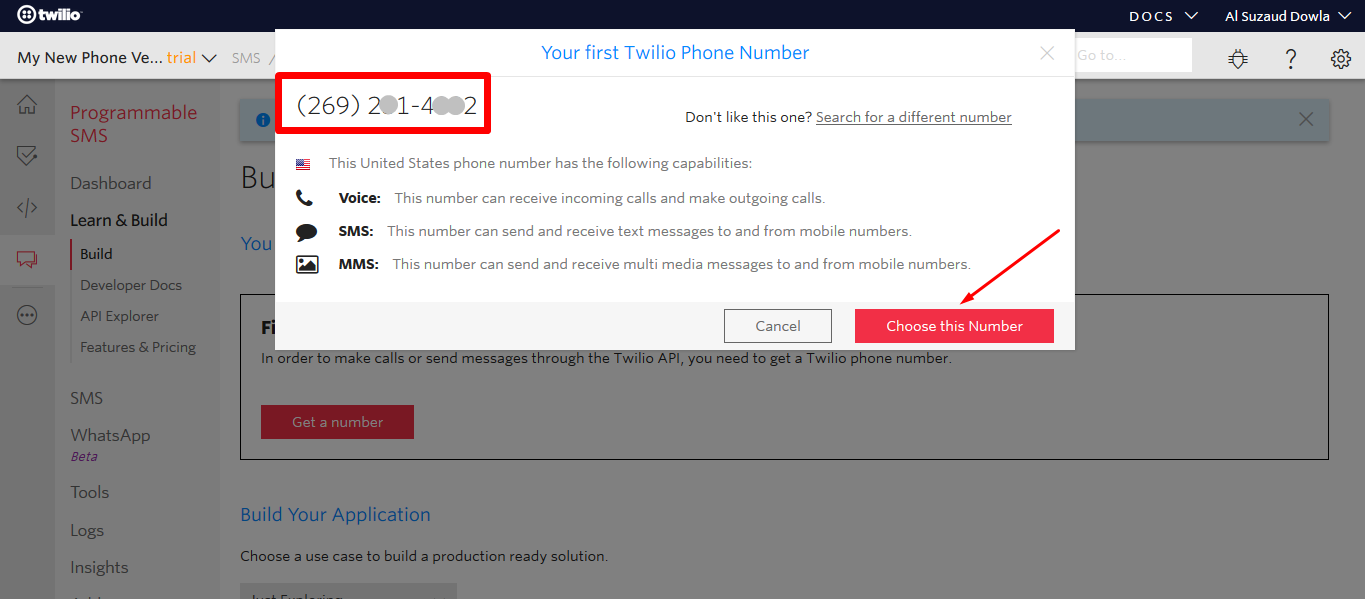
- Twilio gives you a number. Click Choose this number.
- Verify your phone number in Twilio. Use the phone number of your Twilio account.
- In WP ERP, type the Twilio number in Number From, then type the Account SID and the Auth Token.
- In Twilio, set the geographic permissions for the countries that you send SMS to.
Send an announcement as SMS (HR)
- Go to WP ERP → HR → People → Announcements.
- Click New Announcement.
- Type the Title and the content. Select who gets it in Send To.
- In Also deliver as, select SMS.
- Type the text in SMS body.
- Click Publish.
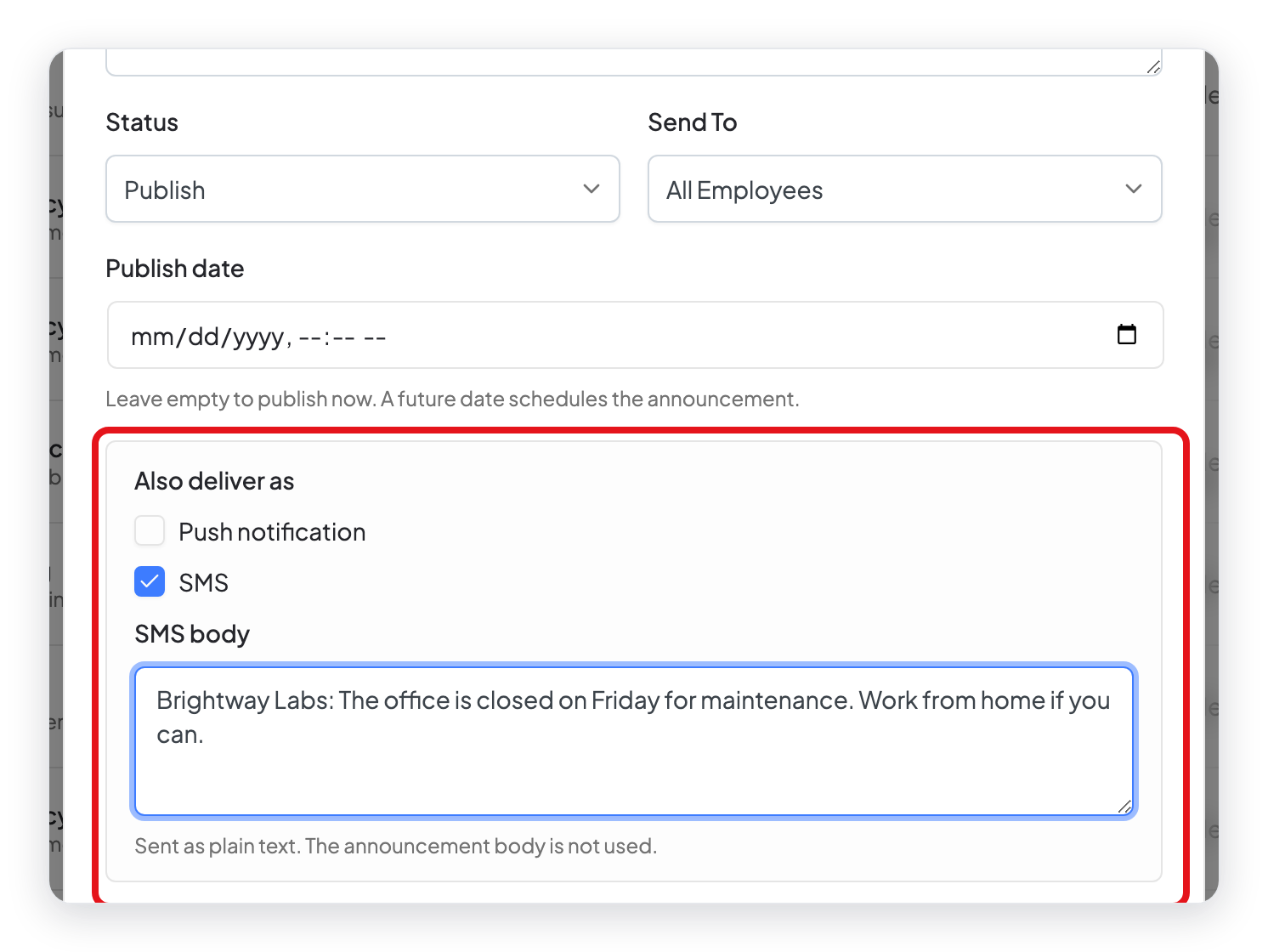
WP ERP sends the SMS body as plain text when the announcement is published. The SMS does not include the announcement content. Write the full message in SMS body.
For more about announcements, see Send an Announcement.
Send an SMS to a contact (CRM)
You can send an SMS to a customer, a lead, or an opportunity. WP ERP uses the Mobile field of the contact.
- Go to WP ERP → CRM → Contacts.
- Click a contact.
- Open the SMS tab.
- Type the message and click Send SMS.
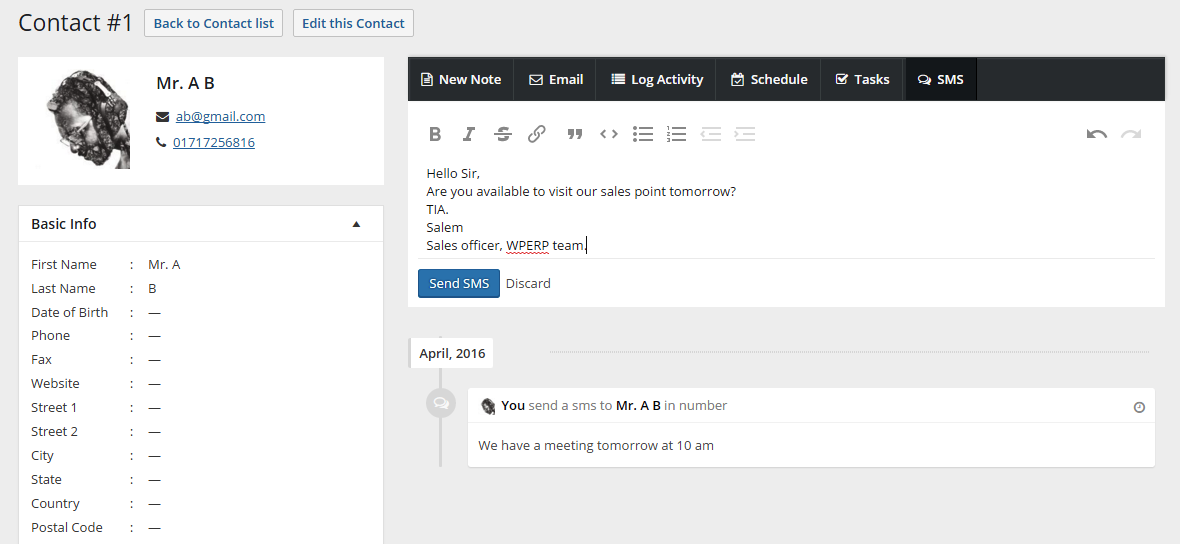
If the SMS is sent, the message shows in the activity list of the contact. If the contact has no mobile number, WP ERP cannot send the SMS.
What changed in 2.0
- The SMS option is in the new New Announcement window. Select SMS in Also deliver as. The old Announcement Settings check box is gone.
- The SMS body is plain text. WP ERP does not send the announcement content in the SMS.
- The SMS settings are in WP ERP → Settings → Integration → SMS → Configure.