

FlyHR Mobile App Overview
FlyHR puts your WP ERP HR module on your team’s phones. Employees check in, request leave, update their own profiles, and read company announcements without opening WordPress. Every action syncs back to your WP ERP dashboard in real time.
This page covers what the app does. For installation steps, use the setup guides at the bottom of this page.
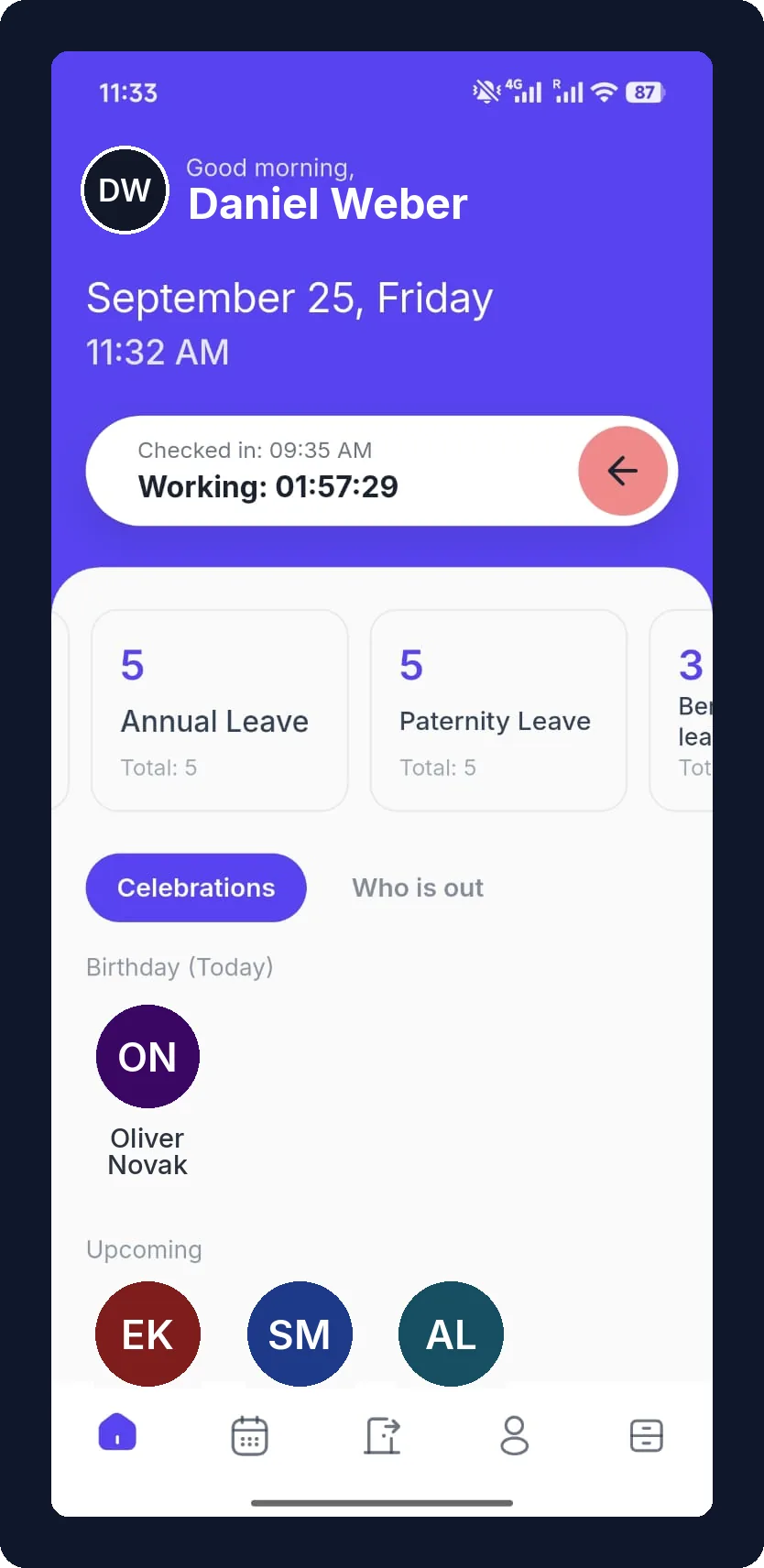
Check In And Out From The Home Screen
The app opens on the check-in slider. Slide once to check in, slide again to check out. The home screen shows your check-in time, a live counter of hours worked, your leave balances, and today’s birthdays and who is out.
- Weather card. Turn on local weather for the home screen from the app settings.
- Real time sync. Attendance logs appear in your WP ERP dashboard instantly.
Track Your Month In The Attendance Report
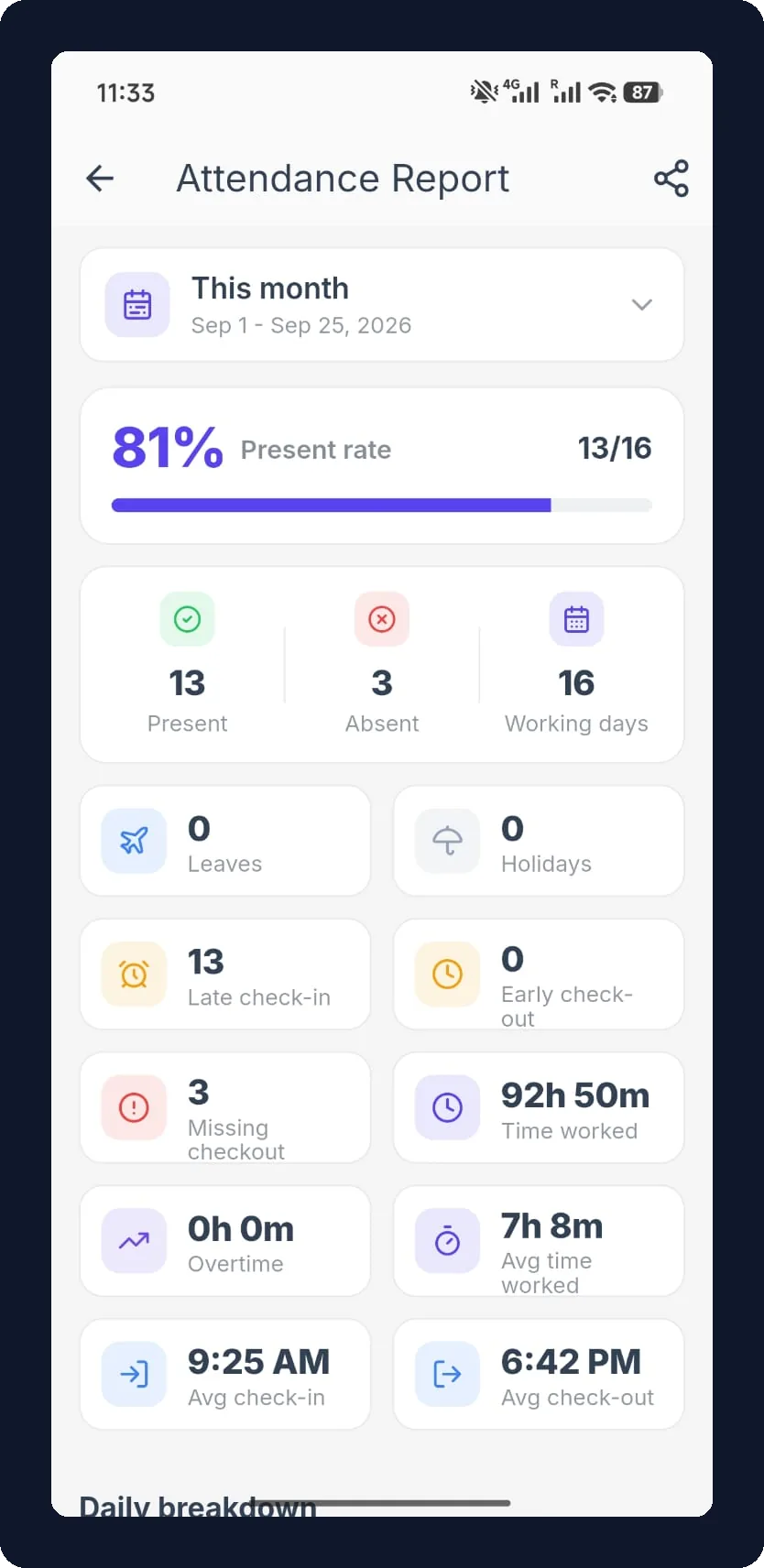
Every employee gets a personal attendance report for any month. It shows the present rate, present and absent days against working days, late check-ins, early check-outs, missing checkouts, total time worked, overtime, and average check-in and check-out times. A daily breakdown lists the exact in and out times for each day, and the calendar tab marks your approved leave days.
Request And Track Leave
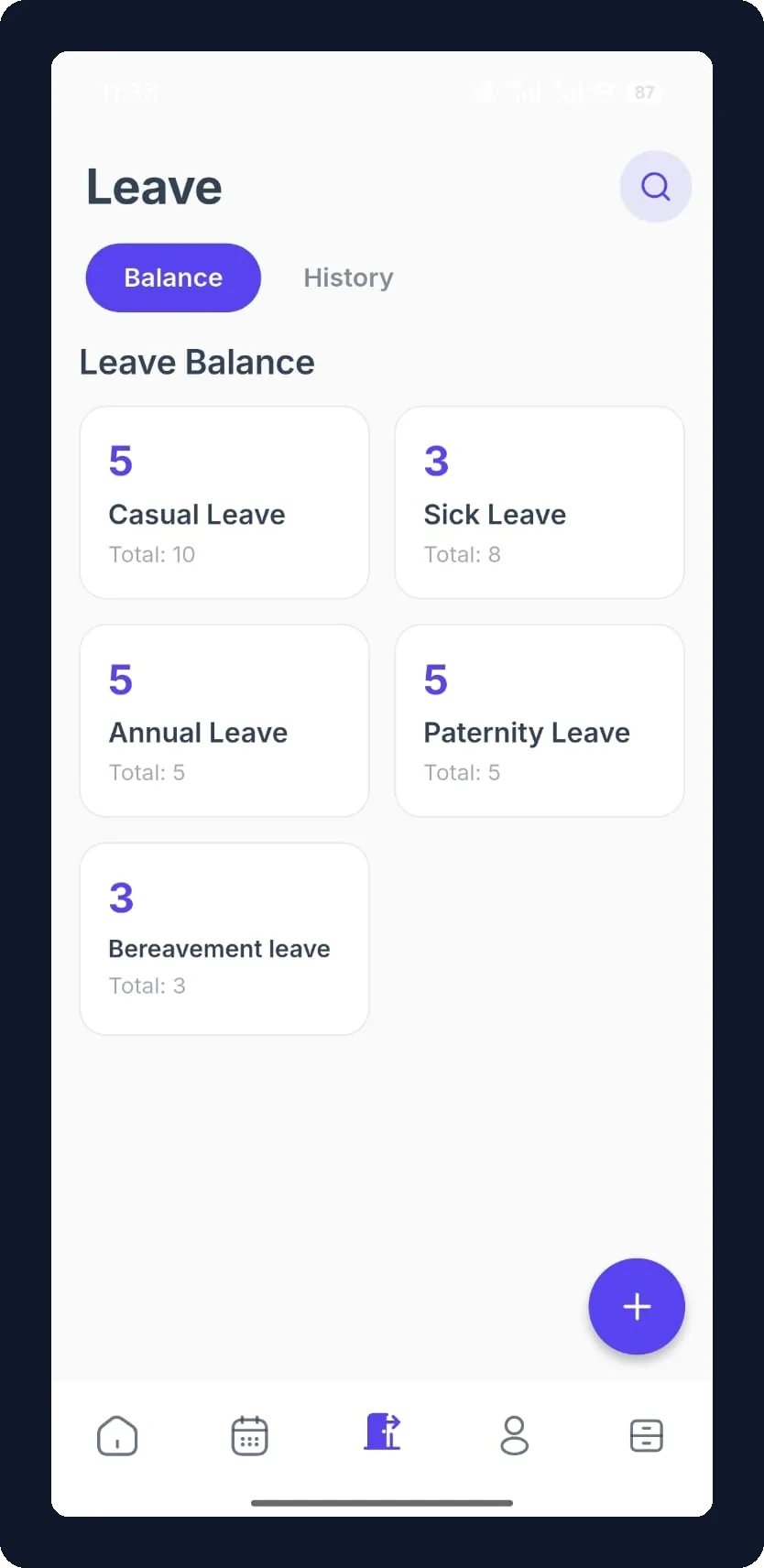
The Leave tab has two views. Balance shows every leave type from your WP ERP leave policies with the days you have left. Tap the plus button to submit a new request.
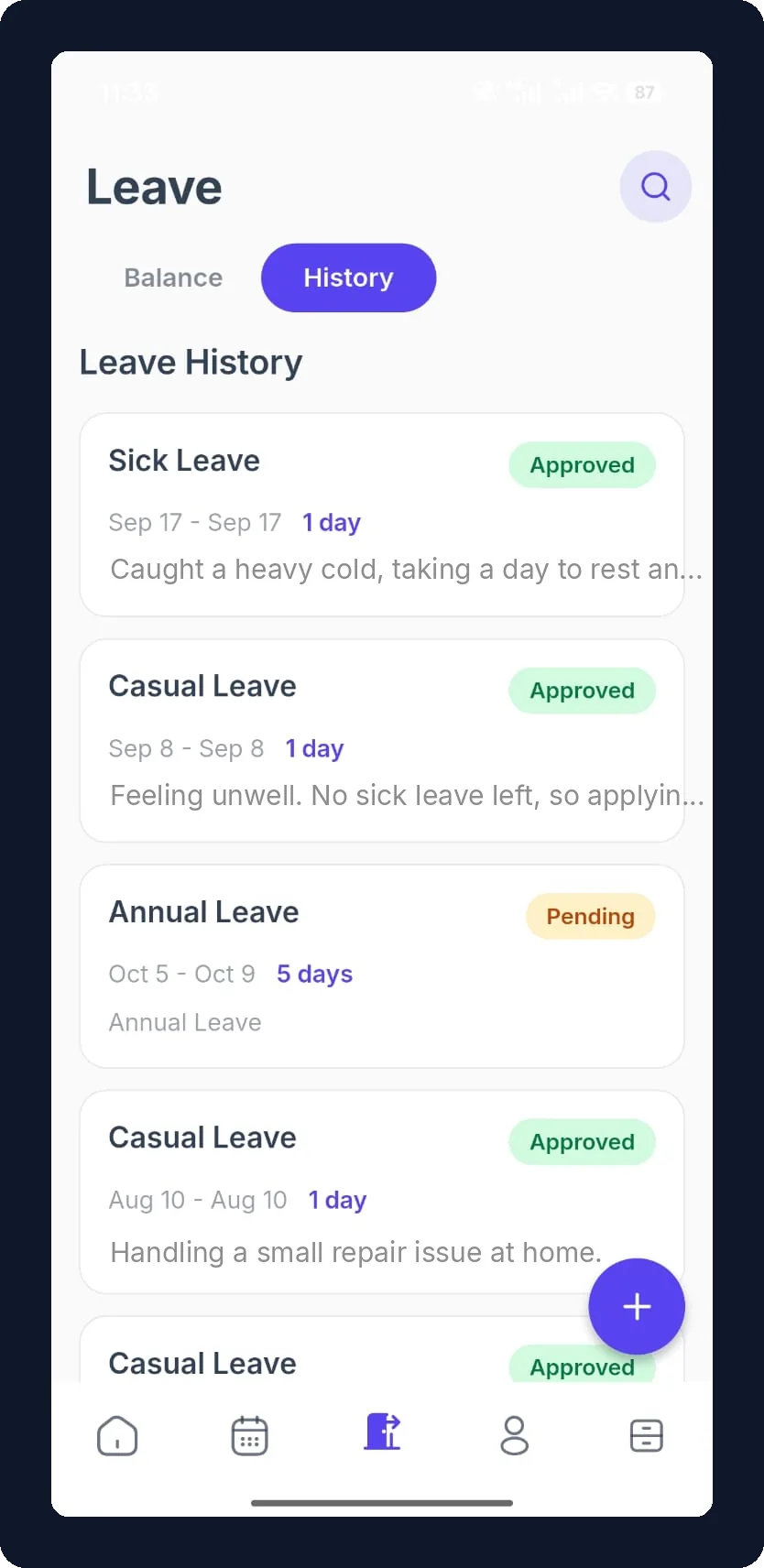
History lists every request with its dates, duration, reason, and status. A request stays Pending until a manager acts on it, then shows Approved or Denied.
Find Any Teammate In The People Directory
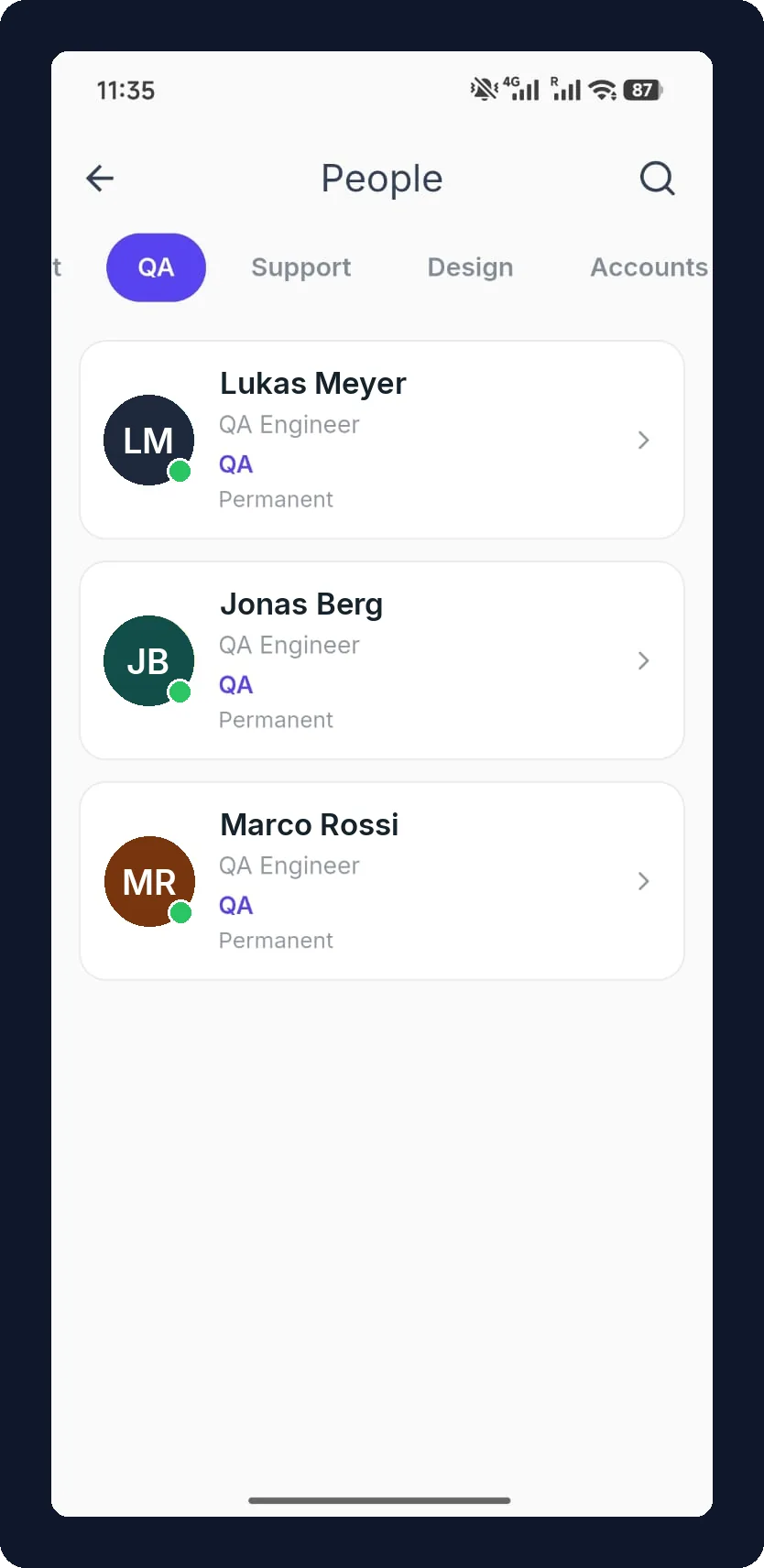
The People screen lists your whole company. Filter by department, search by name, and open any profile. A green dot shows who is currently checked in, and you can call or email a teammate directly from their profile.
View And Update Employee Profiles
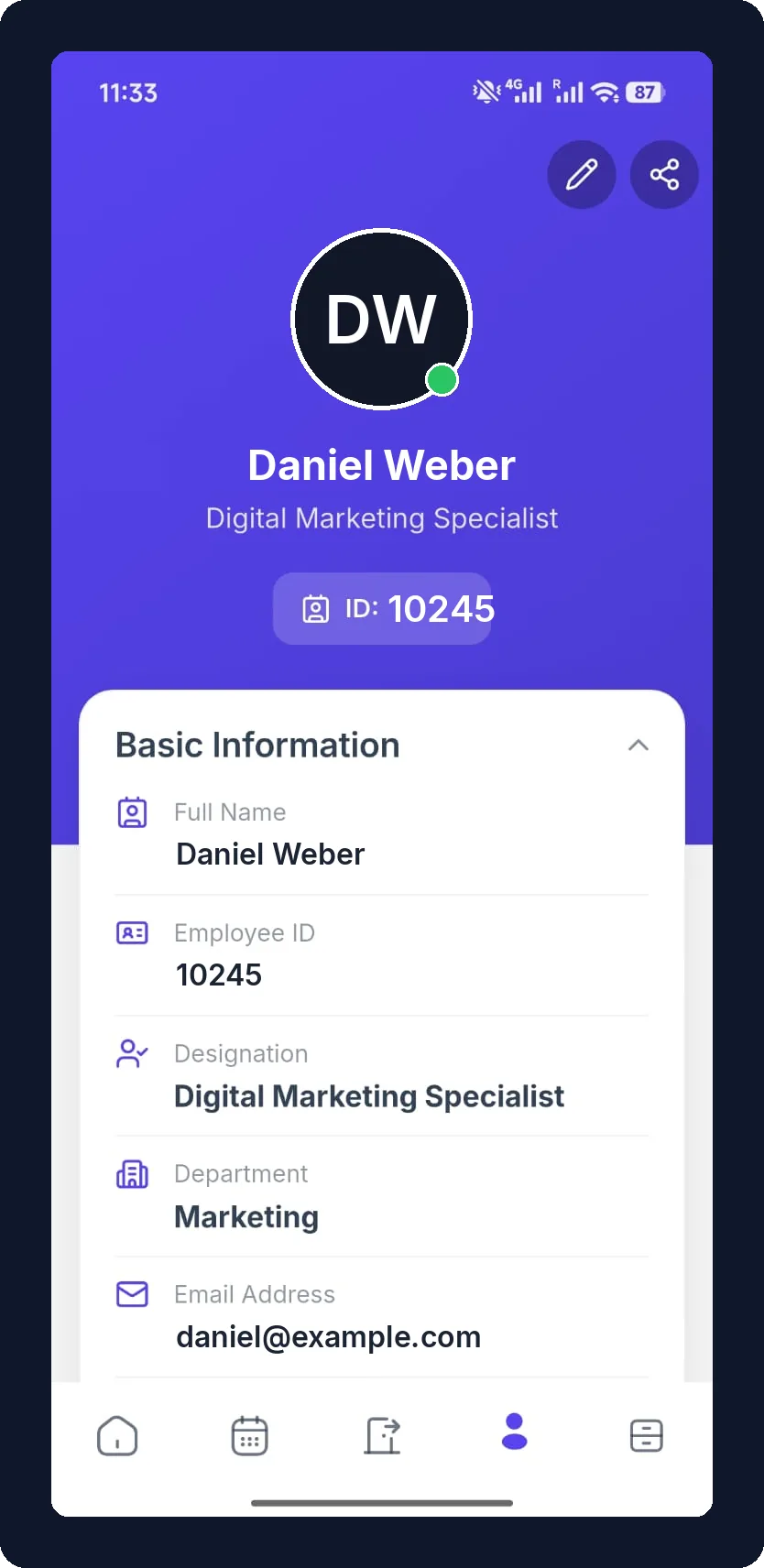
Each profile carries the full employee record from WP ERP. Basic information, work details such as department, designation, reporting line and hire date, plus personal information, education, and work experience. Employees update their own details from the pencil icon, with no WordPress admin access needed.
Read Company Announcements
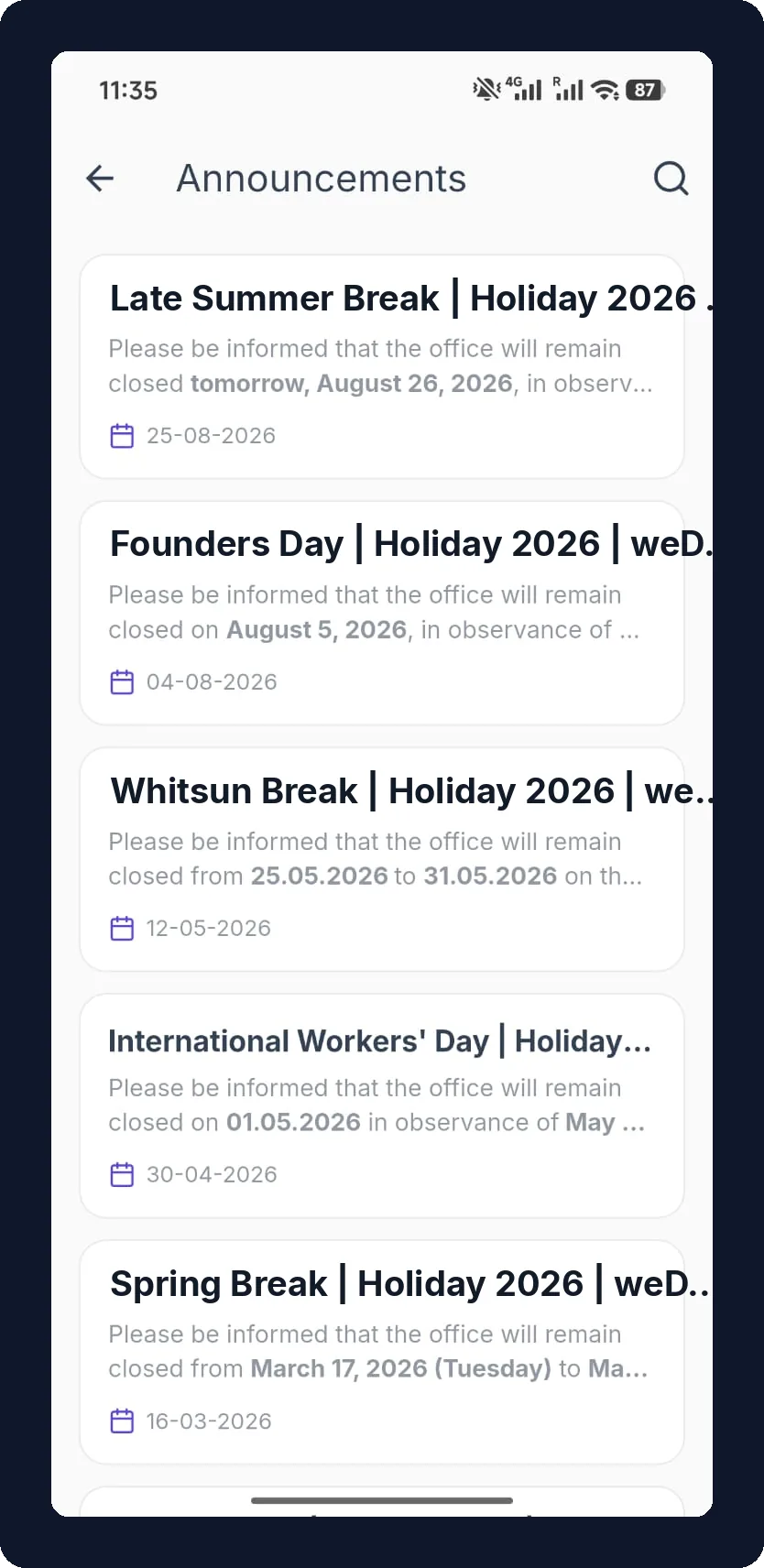
Announcements published in WP ERP reach every employee the moment they go live. They appear on the home screen and in the announcements list, and a push notification goes out for each one.
Make The App Yours In Settings
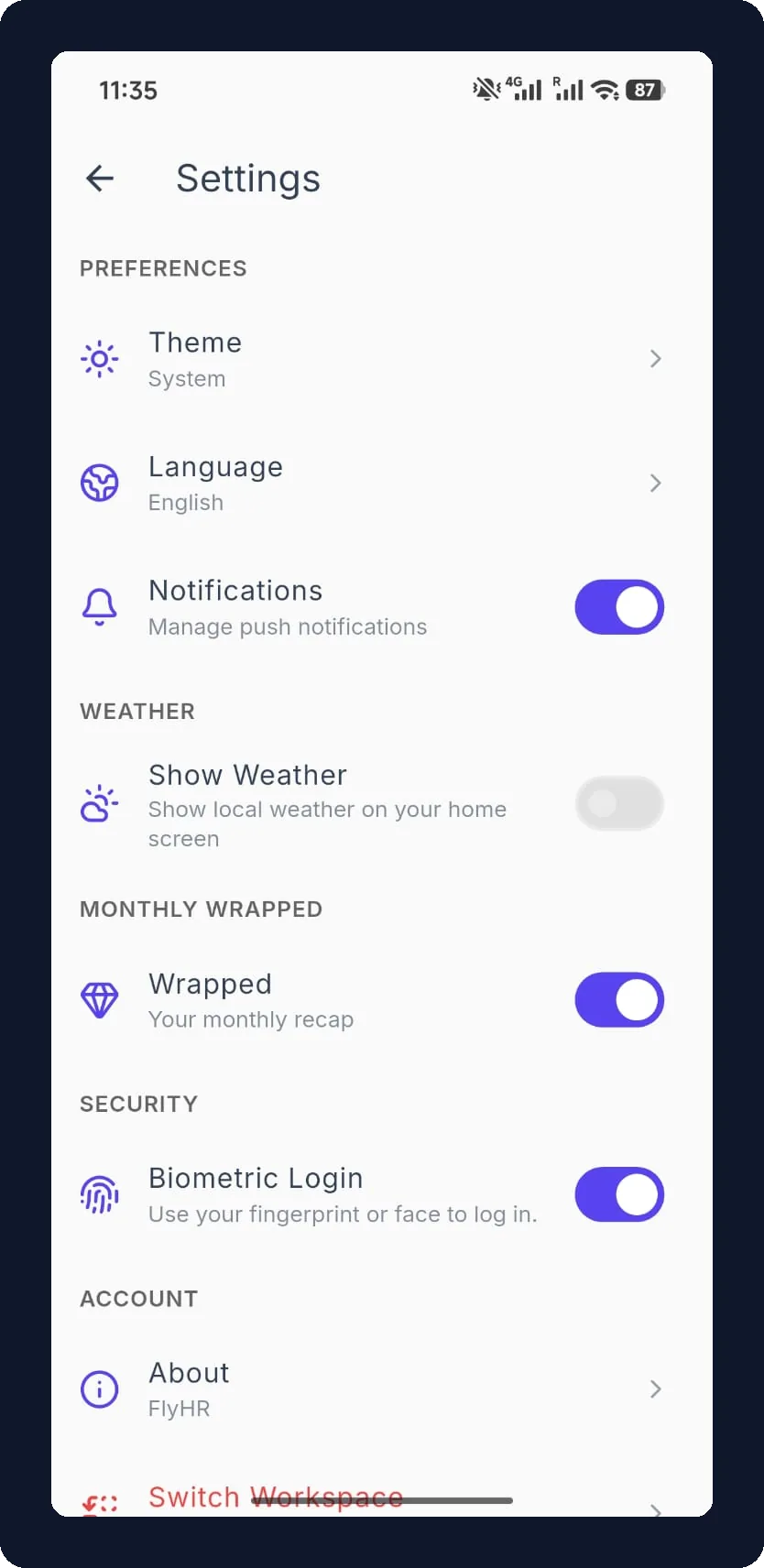
Each employee controls the app on their own phone. Pick a light, dark, or system theme, set the language, and turn push notifications on or off. There is also an optional weather card for the home screen, a monthly recap, and biometric login with fingerprint or face.
Manage Your Team As An Admin Or HR Manager
Admins and HR managers get extra tools inside the same app. The Leave tab shows your team’s leave requests, and the Menu adds a full Recruitment section. Regular employees do not see these screens.
- Employee role required. An admin or HR manager can sign in to the app only if their WordPress account also has the employee role. Add that role first, then log in.
Review Team Leave Requests
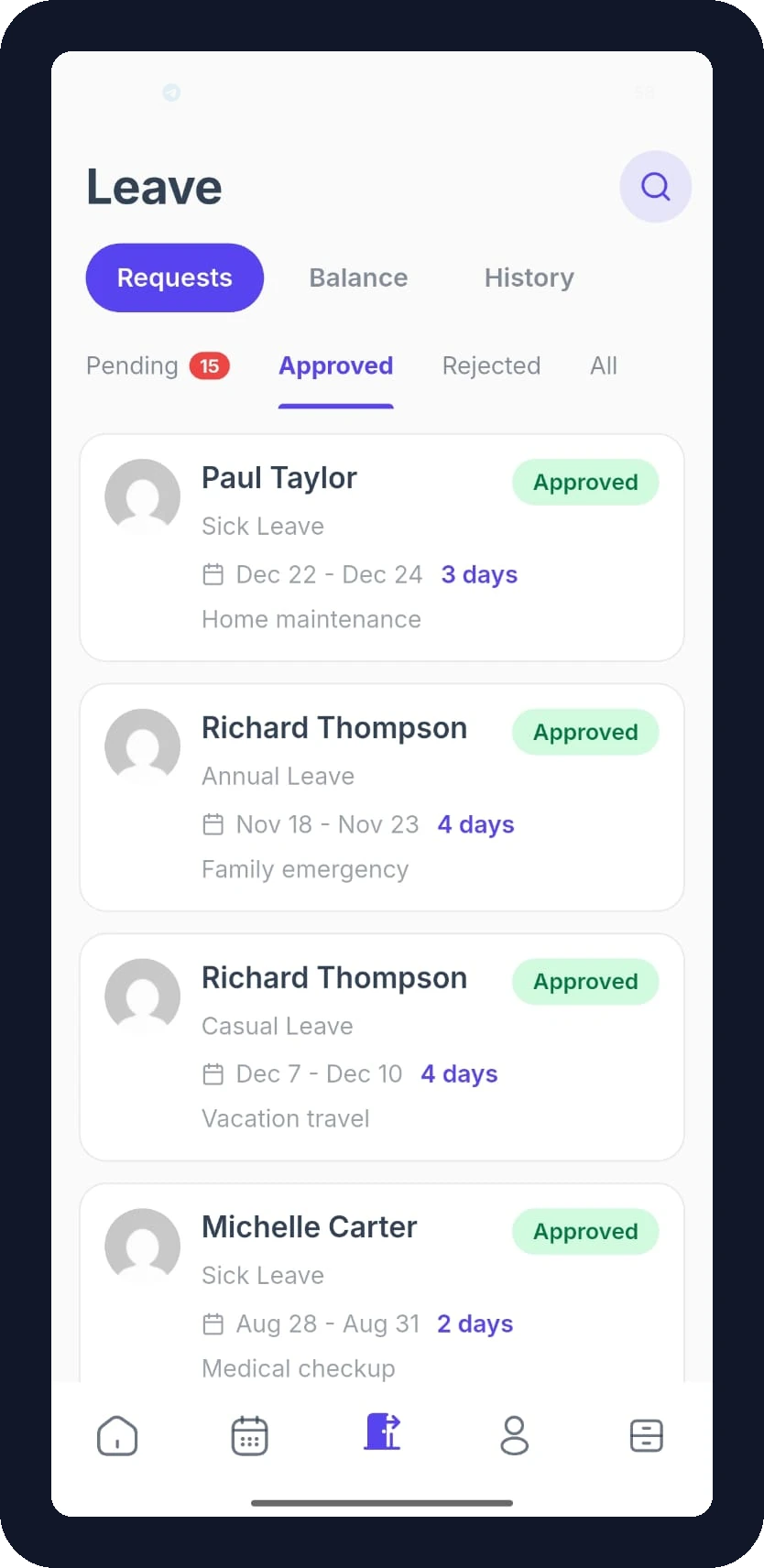
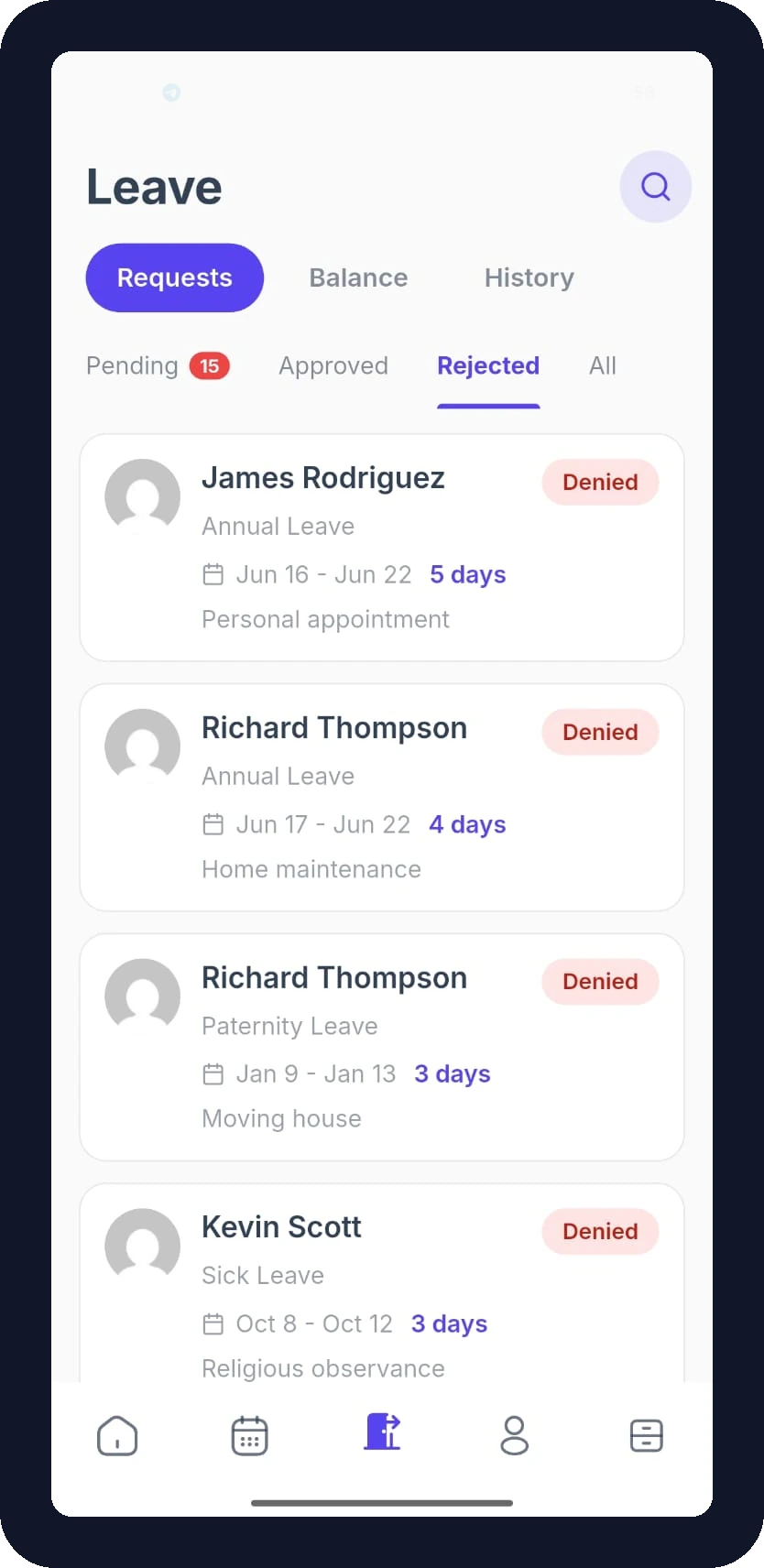
The Leave tab opens on Requests, a list of leave requests from your team. Switch between Pending, Approved, Rejected, and All. A red badge shows how many requests are still pending. Each card shows the employee, leave type, dates, number of days, reason, and status. Balance and History still show your own leave.
Open Recruitment From The Menu
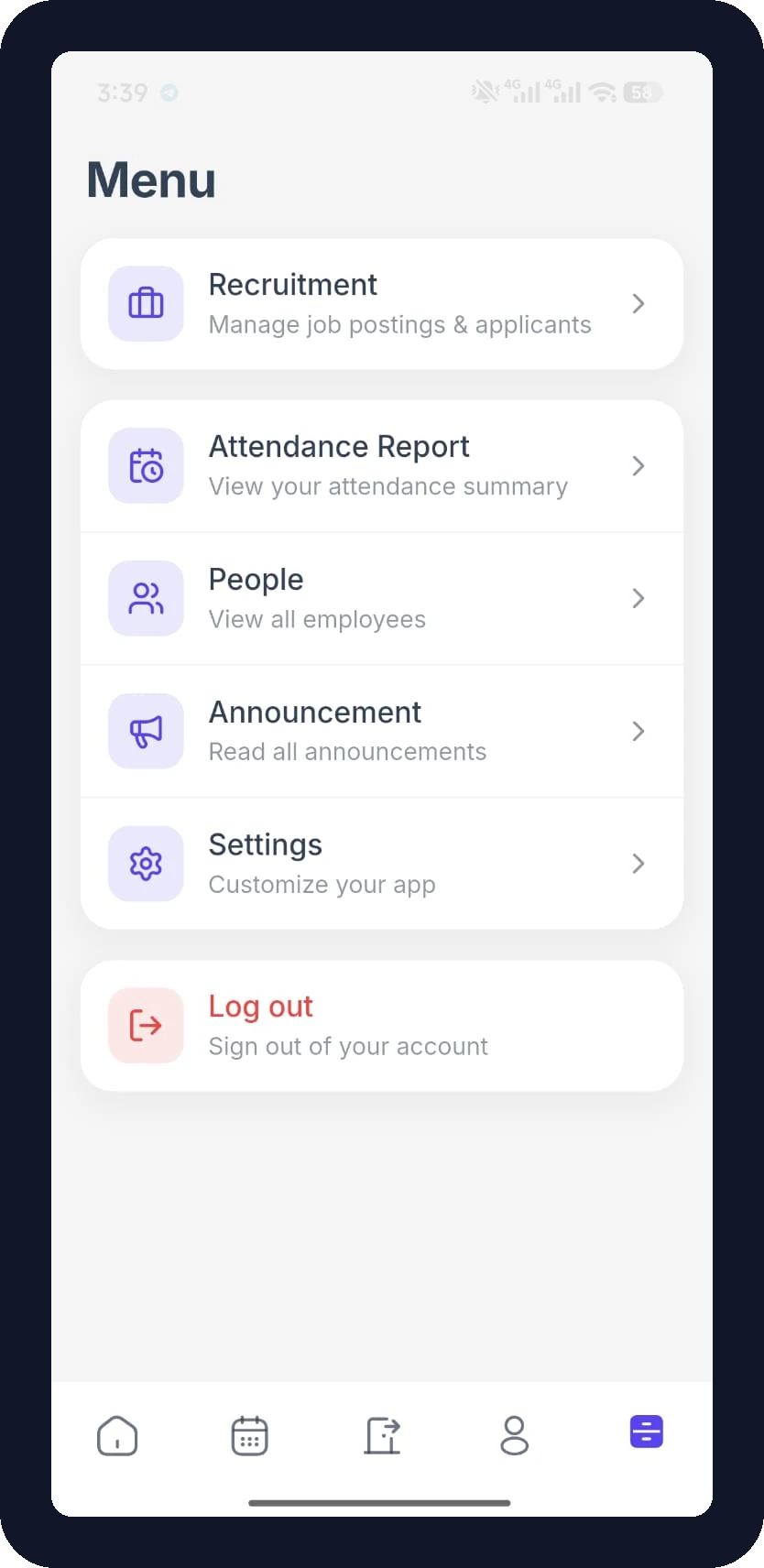
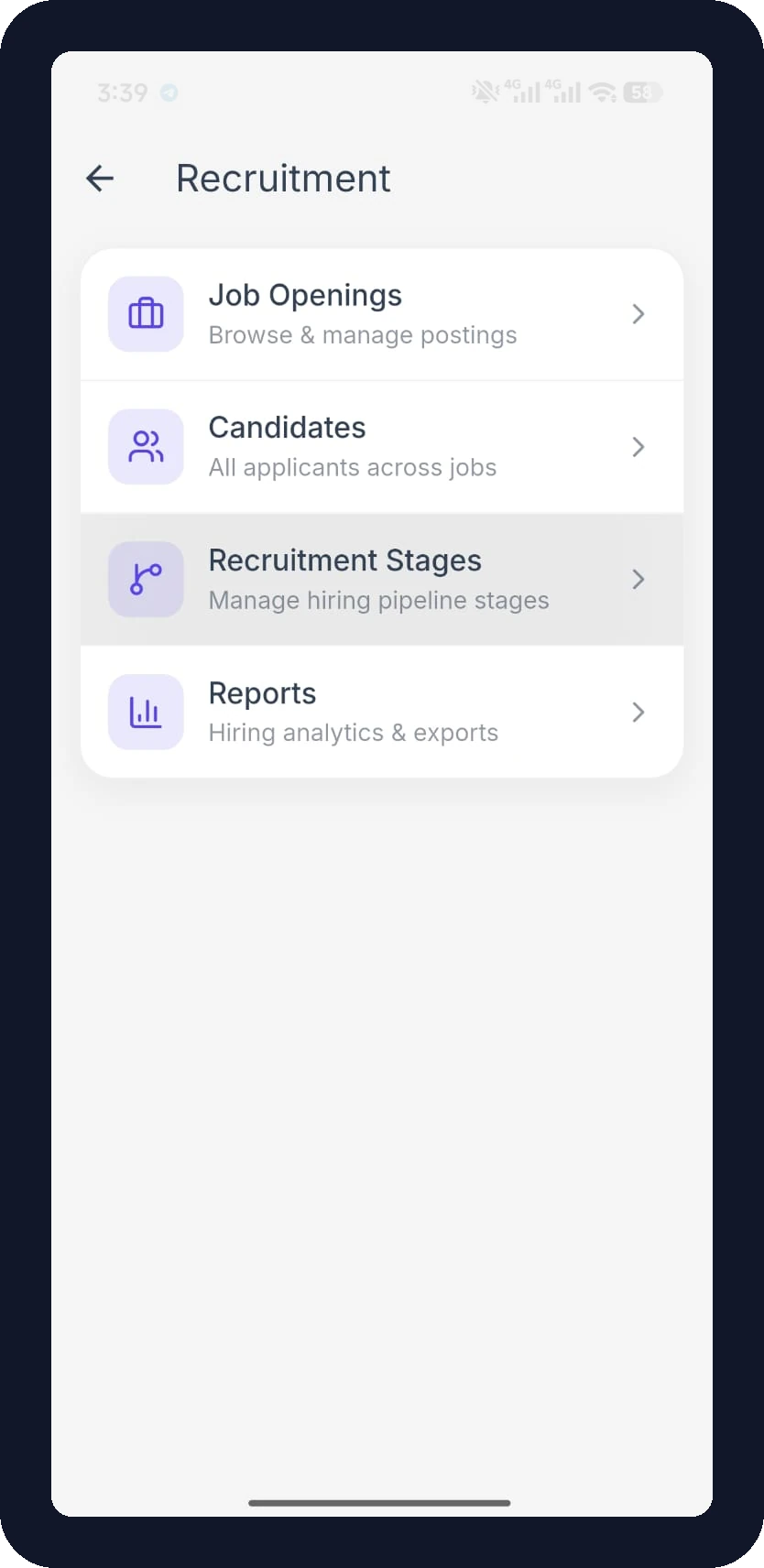
The Menu gets a Recruitment entry at the top. It holds four screens: Job Openings, Candidates, Recruitment Stages, and Reports for hiring analytics and exports.
Browse Job Openings
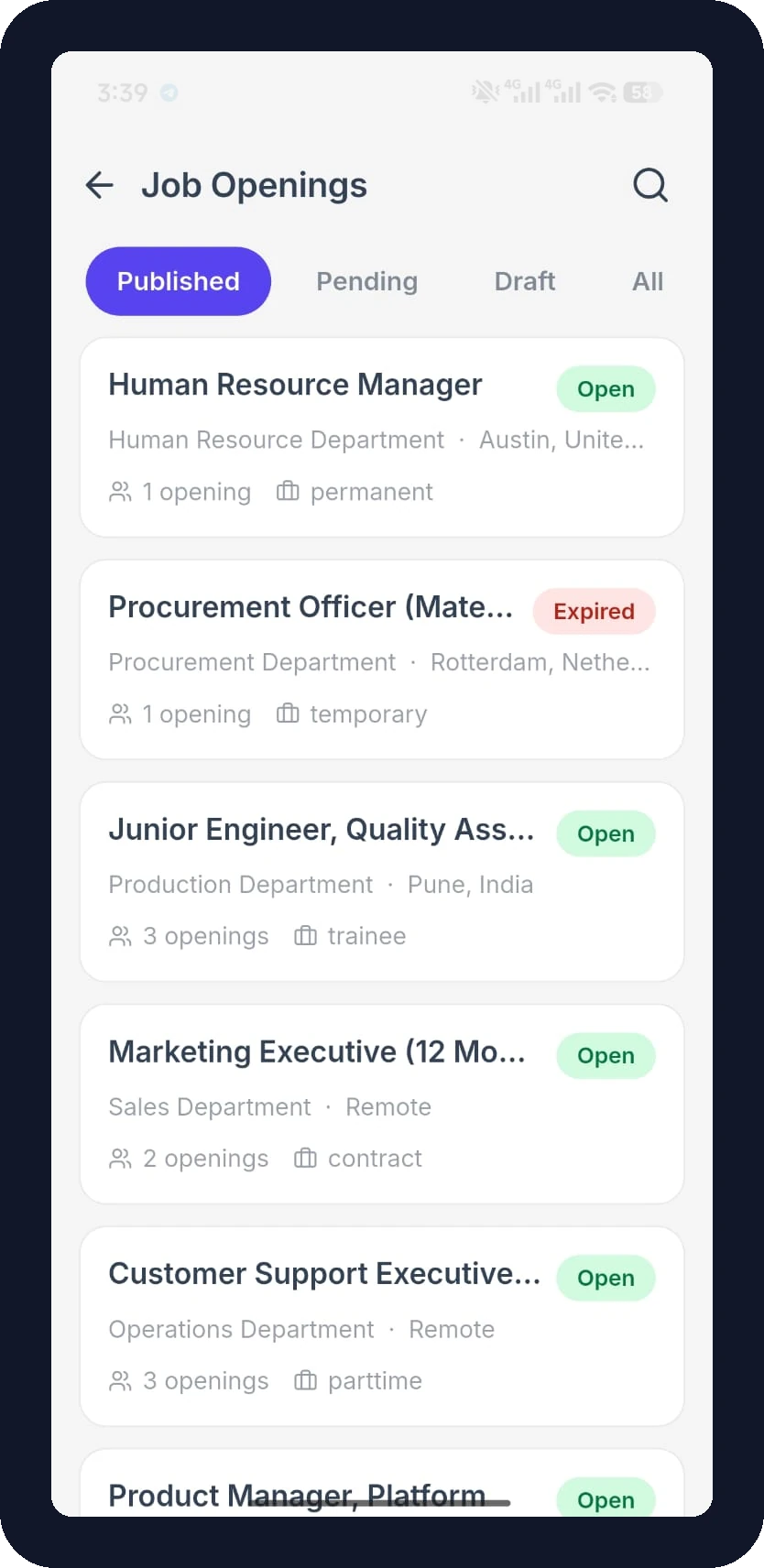
Job Openings lists your job posts with tabs for Published, Pending, Draft, and All. Each card shows the job title, department, location, number of openings, and employment type. A badge tells you if the job is Open, Expired, or still a Draft.
Track Every Candidate
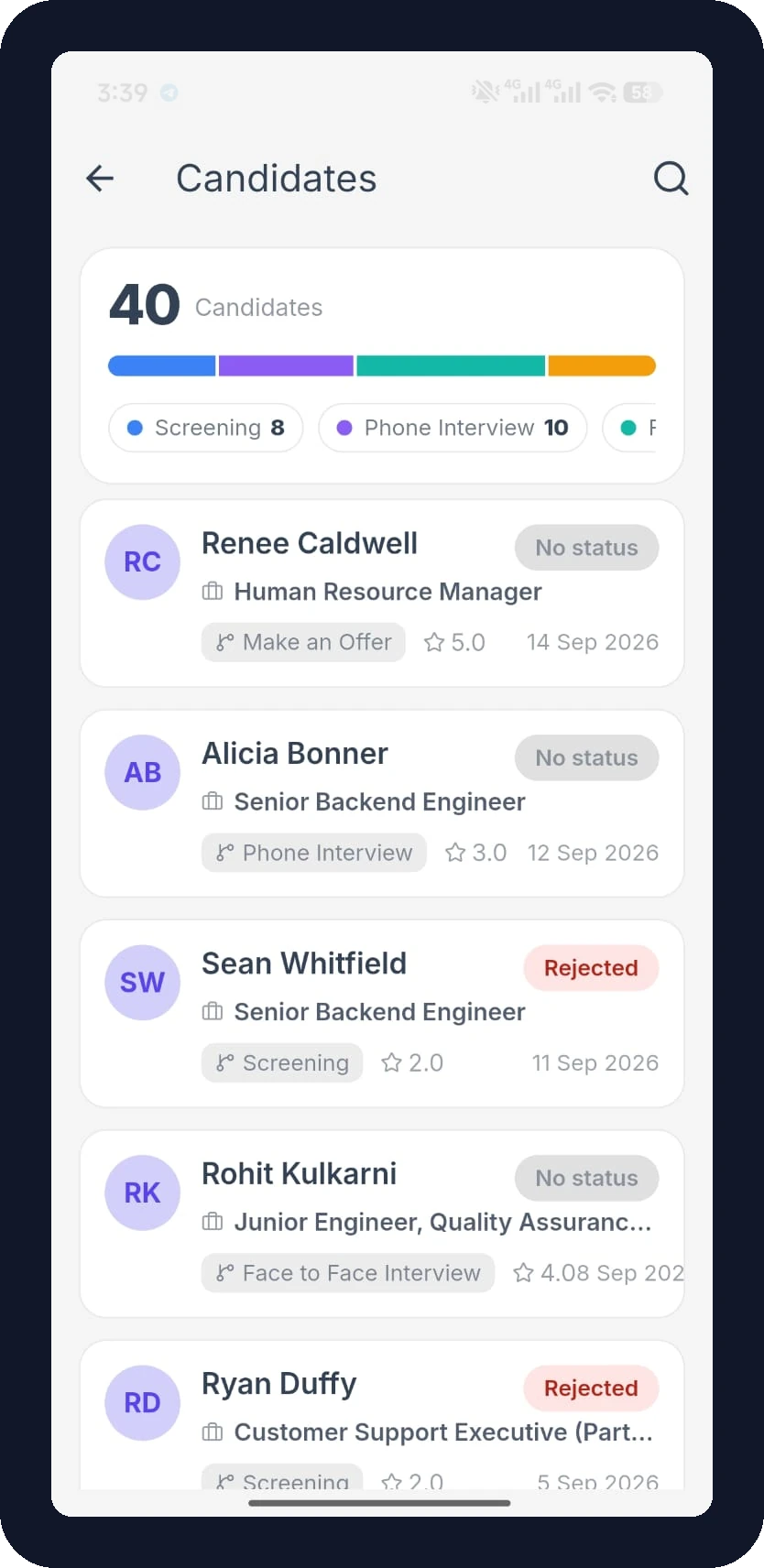
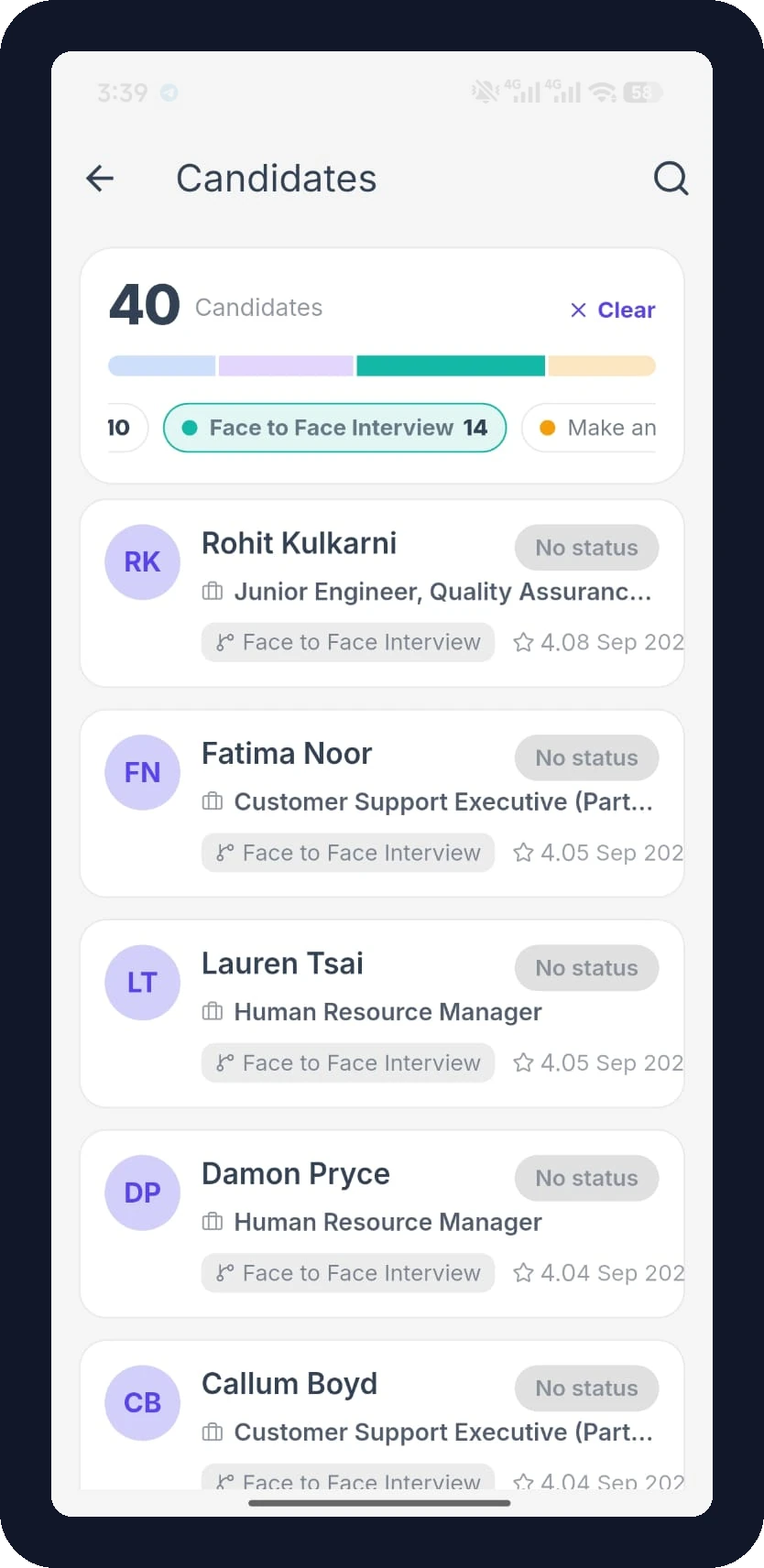
Candidates shows every applicant across all your jobs. A bar at the top splits the total by hiring stage. Tap a stage to filter the list, then tap Clear to see everyone again. Each card shows the candidate’s name, the job they applied for, their current stage, rating, date, and status, such as Rejected.
See Your Hiring Stages
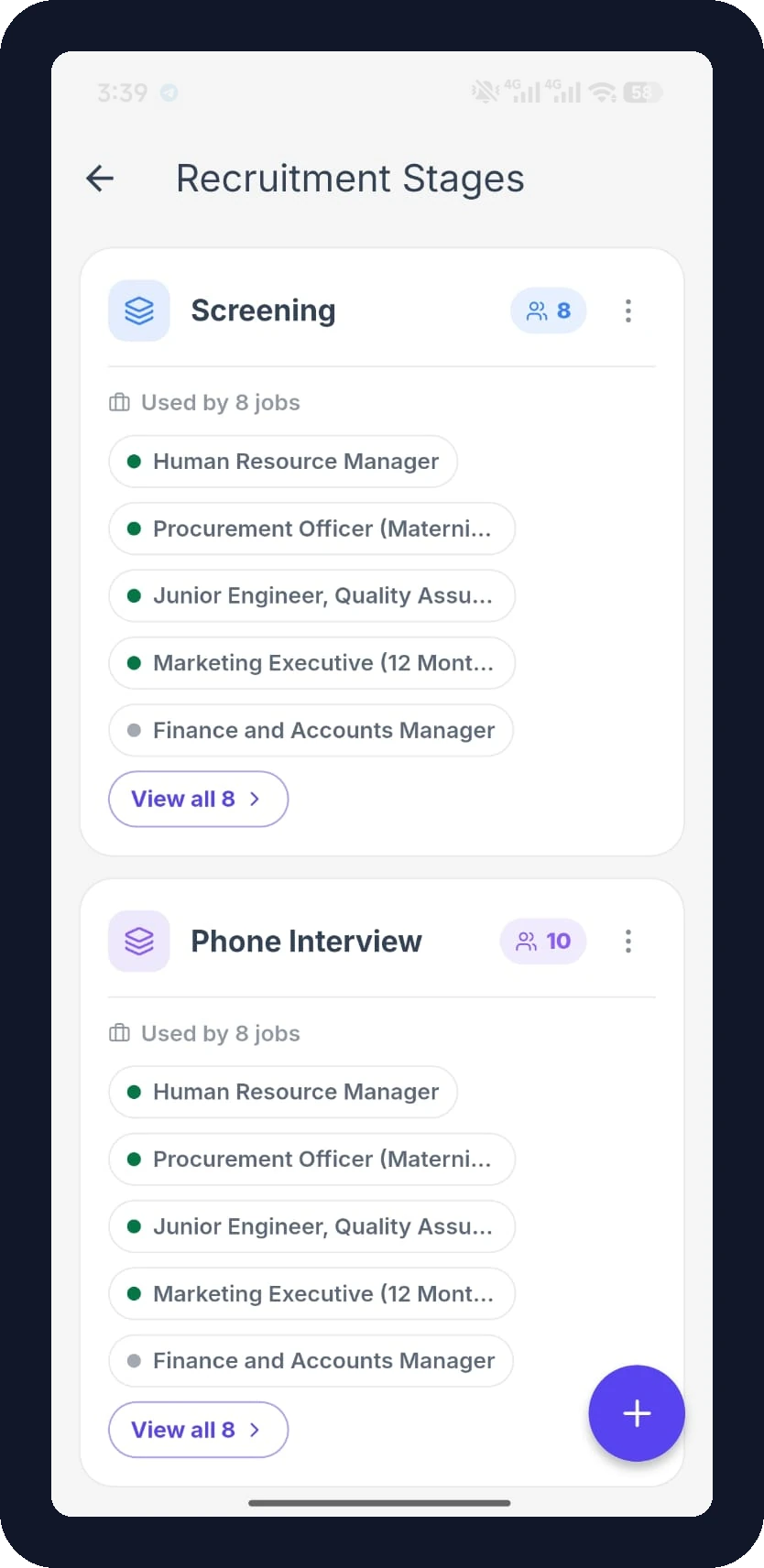
Recruitment Stages lists each stage in your hiring pipeline, such as Screening, Phone Interview, Face to Face Interview, and Make an Offer. Each card shows how many candidates sit in that stage and which jobs use it. Tap the plus button to add a stage, or the three-dot menu for more options.
Ship The App Under Your Own Brand
FlyHR is available two ways.
- Scale plan. The app comes with your ERP Pro Scale subscription at no extra cost. Employees download FlyHR from Google Play or the Apple App Store.
- Custom branded order. Order a custom app, then send your app name, website URL, logo URL, and customization notes through the App Build Request form. The weDevs team builds the app and publishes it under your own Play Store and App Store accounts.
Check What You Need Before You Start
App Bridge connects the app to your site. For an ERP Pro site you need these four pieces in place.
- ERP Free installed and active.
- ERP Pro installed and active.
- App Bridge installed and active, with ERP selected as the connected plugin.
- A valid app license key from your wperp.com account under My Account, then My Licenses.
Watch the license key. Your Scale plan key and your ERP App key are two different keys. Only the ERP App key activates the mobile app, so paste that one into App Bridge.
Frequently Asked Questions
Does FlyHR work on both iOS and Android?
Yes. The app is available on the Apple App Store and Google Play.
Do employees need a WordPress admin account?
No. They sign in with their WordPress credentials and only need the employee role.
Can admins and HR managers use the app?
Yes. They get extra screens for team leave requests and recruitment. Their WordPress account must also have the employee role, or they cannot sign in.
Is the app included with every WP ERP plan?
No. It comes with the Scale plan, or you can order a custom branded build separately.
Where does my HR data live?
On your own WordPress installation. The app connects through App Bridge, so no separate copy sits with a third party.